Checked against Android Developers and Android Developer Console Help documentation. Google is still revising this program, and some official pages currently disagree with each other, so confirm the figures on your own console screens before you rely on them.
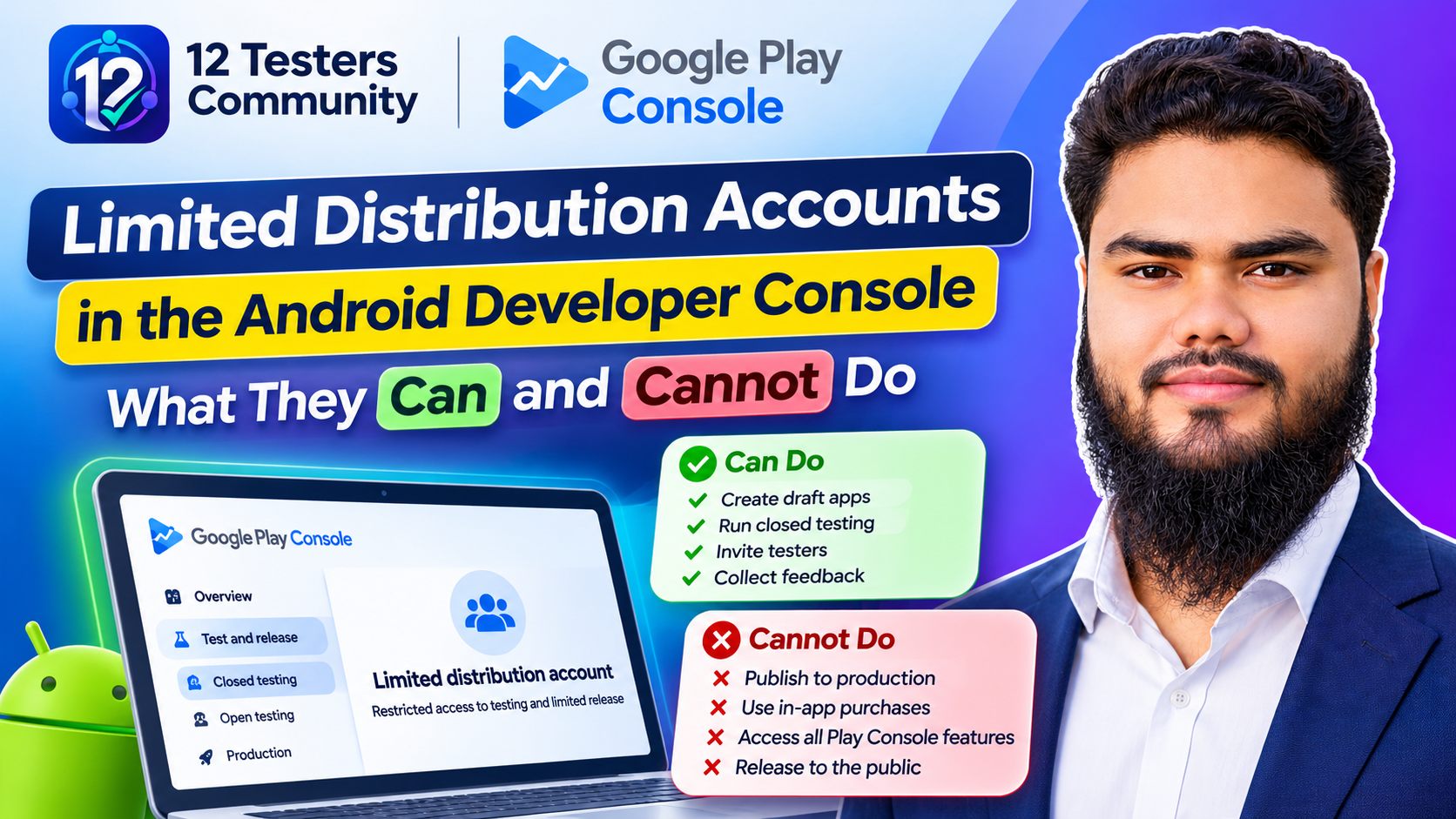
Most writing about Android developer verification assumes you are shipping to the world. That leaves out students, hobbyists, teachers, and anyone building small apps for a handful of people they know. Google created a separate account type for exactly that case — free, no government ID check, and a hard cap on how many devices can install your apps.
This guide walks through that account end to end: what it can and cannot do, what you need before signing up, how to register a package name, and how device authorization works. For identity verification, the Play Console path, and the rollout, the Android developer verification guide covers it in depth.
Quick answer: what a limited distribution account gives you
The short version
- It is free and lives in the Android Developer Console, not Play Console.
- No government ID is required. That is the whole point of the account type.
- Install reach is capped. Google's dedicated help article says up to 50 authorized devices; several other official pages still say 20, so check your own Devices page.
- Only brand-new package names. A name already seen on Android cannot be registered here.
- Personal accounts only. Organizations cannot use this plan.
- You still need a Google Account with 2-Step Verification, a linked payments profile, and a contact email.
- It is not a route to Play. Publishing there still means Play Console and its own requirements.
What a limited distribution account actually is
Android developer verification links a real-world entity to the apps it ships, which means a package name has to belong to a verified developer. The Android Developer Console exists for developers who distribute apps only outside Google Play, so they can verify their identity and register those package names without a Play account. The installation protections currently apply in a small number of countries, with wider expansion planned.
The limited distribution plan is the lighter version. It skips identity document checks and instead limits distribution to devices that a specific person has knowingly authorized. Google describes the sharing mechanism as a secure handshake: a QR code or link, an explicit confirmation on the device, and registration in the console.
Two things follow from that design. Your apps are not public — reach depends on someone accepting an invitation. And identity verification, the barrier that would otherwise stop abuse, is replaced by social trust: the receiving device is shown your developer name and asked to confirm you are someone the owner knows.
What it is not: a review process, malware scan, or safety verdict. Google's own comparison is an ID check at the airport — identity first, content screening is separate.
Who it is for — and who should not use it
Google publishes the intended use cases directly, and they are narrow:
| This describes you | You build apps to… |
|---|---|
| Hobbyist | Share with family and friends, or use personally. No commercial intent. |
| Individual learner | Experiment, often for a portfolio, and share prototypes with peers. |
| Classroom learner | Share school projects with classmates and teachers. |
If any of those apply, the account fits and costs nothing. If you are shipping commercially, collecting payments, or running an organization, it is the wrong plan — Google is explicit that full distribution is required for a wide audience.
Prerequisites before you sign up
Four things are required, and three are easy to overlook:
- A Google Account.
- 2-Step Verification turned on for that account. The console will not let you proceed without it.
- A linked Google payments profile. This is how the account holds your legal name and address instead of asking for a document.
- A contact email address Google can use to reach you. It is not shown publicly.
There is no fee and, in Google's words, no government ID requirement. Note what the payments profile implies, though: you are still supplying a legal name and address, just not proving them with a document. If that profile is stale, fix it first — the same mismatch problems that break identity verification come from old profile data.
Which path fits: three honest options
| Full distribution | Limited distribution | No account, sideload | |
|---|---|---|---|
| Best for | Organizations and professional developers with wide distribution. | Students, hobbyists, and personal use. | Developers who choose not to verify. |
| Identity verification | Required. | Not required. | Not required. |
| Distribution | Any app store or channel you choose. | Authorized devices only. | Channels that do not require verification. |
| Cost | One-time registration fee. | Free. | Free. |
| User experience | Unchanged from today. | Accept an invitation from a developer they know. | Advanced flow with additional safeguards. |
The third column matters. Not having an account is a legitimate choice, and Google states sideloading is not going away. What changes is friction: anyone installing from an unverified developer goes through an advanced flow that puts time between the request and the install.
Sign-up decisions you cannot reverse
Two choices are made at creation, and Google states the plan cannot be changed afterwards — if you later need a different one, you create a new account and transfer your package names.
Distribution plan
Limited is free and capped. Full carries a one-time fee and no install limits. Choose limited only if you are genuinely building for a small, known group; the cap is a product boundary, not a soft guideline.
Account type
Limited distribution is available only as a personal account. Organization accounts need a D-U-N-S number and a website, and are built for entities distributing commercially. For a student or hobbyist, personal is both correct and the only option here.
One more boundary: package names cannot be transferred from a Google Play account into a limited distribution account. If an app already lives on Play, this is not the account for it.
Registering a package name
Once the account exists, registration happens on the Packages page of the Android Developer Console. Google documents three stages:
- Enter the package name you want to register.
- Add your key using the SHA-256 certificate fingerprint from your signing key pair. The status becomes In review.
- Prove ownership for an existing name by signing an APK with your private key and uploading it, with a snippet the console provides for the APK's asset folder. On success the status becomes Registered.
Two points of accuracy. The private key never leaves your machine — the proof is a signature, not a copy. Never upload, email, or share a keystore. And disputed names follow the same install-based rules used elsewhere: majority of known installs, then keys with at least 50 installs, then first come, first served. The verification guide works through those thresholds with examples.
How device authorization actually works
Authorizing a device is the step people get wrong, because it requires the physical device. Both paths start on the Devices page in the Android Developer Console.
- Name the device. A friendly label helps you identify it later; it is not shown publicly.
- Generate an authorization code. Scan the console's QR code with the device, or share the generated link. It carries your developer name so the recipient can confirm they recognize you.
- Enter the code. The device produces a unique code; paste it into the console and select Add device.
- Expect consent. The recipient confirms they personally know and trust you before the code is generated.
Shared links expire in seven days. Removal is real, not cosmetic: a removed device cannot install or receive updates, and re-enabling it means authorizing it again.
The device limit: 50, 20, or whatever your console says
Google's dedicated limited-distribution help article states you can have up to 50 authorized devices at any one time, and that you must remove one before adding another at the maximum. The Android developer guide agrees.
Several other official pages — the plan-comparison page, the account-setup page, and the verification FAQ — still say 20 devices. Those do not agree, so treat the number on your own Devices page as authoritative and plan for it being lower rather than higher.
Package name rules you cannot negotiate
Two restrictions are specific to this account type and cause most of the dead ends:
- Only names never seen before on Android. If you try to register a package name that already exists in the ecosystem, you get an error and cannot register it. Pick a different name.
- No imports from Google Play. Transferring package names from a Play account into a limited distribution account is explicitly unsupported.
The broader eligibility logic still applies underneath: an existing name is allocated by install evidence, not by who asks first. That means a name you have been using privately on a modified build will not automatically be yours here if someone else's key holds the install majority.
Troubleshooting
| What you see | What it usually means | What to do next |
|---|---|---|
| Registration rejected | The package name already exists on Android. | Choose a new name; this account type cannot claim existing ones. |
| Status sits at In review | Ownership proof is outstanding or processing. | Complete the signed-APK step and watch for the confirmation email. |
| Cannot add another device | You are at the cap for your account. | Remove a device on the Devices page, then authorize the new one. |
| Install blocked on a known device | It was removed, or the package is not registered. | Re-authorize the device and confirm status reads Registered. |
| Authorization link fails | The seven-day window elapsed. | Generate a new link and resend it. |
| Need a Play package here | Play names cannot be imported. | Keep Play distribution in Play Console; use this account for new, external-only apps. |
| Signing key lost | Ownership can no longer be proven. | Publish under a new name; back up the keystore from the start. |
Limits that surprise people
The cap is per device, not per app. You can register unlimited apps, but each installs only on devices you authorized. Thirty testers means thirty authorizations.
No ID also means no organization. The absence of documents suits a hobbyist and disqualifies a business. If you later incorporate, this is the wrong plan — and it cannot be switched.
Distribution is not marketing. No store listing, ratings, or discovery. The install story is a link you send to someone who knows you.
Sideloading still exists for everyone else. A friend can install without any account through ADB or the advanced flow. This account changes what installs cleanly, not what is possible.
Setup checklist
- ☐ Confirmed the app will not be published on Google Play.
- ☐ Google Account with 2-Step Verification enabled.
- ☐ Payments profile linked, with a correct legal name and address.
- ☐ Contact email ready and monitored.
- ☐ Chosen the limited plan deliberately, knowing it cannot be changed.
- ☐ Package name confirmed as unused on Android.
- ☐ SHA-256 fingerprint copied from the signing key, keystore backed up twice.
- ☐ Devices named and authorized before the first install.
- ☐ Recipients told to expect an authorization prompt naming you.
- ☐ Every package confirmed as Registered.
Frequently asked questions
Is a limited distribution account really free?
Yes. No registration fee, and no government ID required. You still need a Google Account with 2-Step Verification and a linked payments profile.
How many devices can install my app?
Google's dedicated help article and the developer guide say up to 50 authorized devices at one time; several other official pages say 20. Treat the number on your own Devices page as the enforced limit.
Can I move an app from Google Play to this account?
No. Transferring package names from a Play account into a limited distribution account is not supported, and this account type can only register names that have never appeared on Android.
Do I have to give the recipient my private key?
Never. Ownership is proven by signing an APK; the key stays with you. Anyone asking for a keystore or its password is not following Google's workflow.
Can I change plans later?
Google states the plan cannot be changed after the account is created; you would create a new account and transfer your package names. Decide the final shape first.
Is this the same as verifying my Play developer account?
No. Play Console identity verification checks who the account holder is and uses documents; this account skips documents and caps install reach instead. For Play identity failures, see the identity verification troubleshooting guide.
Is sideloading being removed for everyone else?
No. Google states sideloading is fundamental to Android and that ADB installs remain available. Unverified developers rely on the advanced flow, which adds friction for whoever installs.
Official sources
- Android Developers — Limited distribution account — use cases, no-ID condition, sharing handshake, 50-device figure.
- Android Developer Console Help — Limited distribution accounts — prerequisites, package-name restrictions, device authorization, link expiry, 50-device limit.
- Android Developer Console Help — Choose a distribution plan — full versus limited, plan changes, the 20-device figure.
- Android Developer Console Help — Set up your account — sign-up sequence, account types, fees.
- Android Developer Console Help — Developer verification FAQ — scope, sideloading, enterprise apps, D-U-N-S.
- Android Developers — Register in the Android Developer Console — Packages page steps, fingerprint, ownership proof.
- Android Developers — Developer verification guide — where protections apply, distribution paths.
Small distribution, honest constraints
The limited distribution account is a narrow tool that does one job well: it lets a student or hobbyist ship real apps to people they know without handing over a passport. The price of that convenience is baked in — a device cap, personal accounts only, no existing package names, and an irreversible plan choice.
Check the plan against what you are actually building before you sign up, keep your keystore safe, and authorize devices deliberately. If the app is meant for the public, the right answer is full distribution or Google Play, and no workaround will make this account behave like either.