Last reviewed against the official Google Play Console and Android Developers documentation. Policy text and Play Console labels change, so confirm the current position on the official pages linked throughout this article, which take precedence over any summary here.
You upload a build, everything compiles, the tests pass, and then Play Console refuses to let you publish anything at all — not the release, not the store listing, not the pricing. Somewhere on the left menu sits an alert under App content, and the reason is a permission your app requests but has never explained to Google Play.
It is a frustrating place to end up, because nothing is technically wrong with your app. You have run into the seam between two systems: Android's permission model, which governs what your app can access on a device, and Google Play's permission policy, which governs what you are allowed to ship. Most developers understand the first and meet the second at the worst possible moment.
Quick answer: what a declaration is and what triggers it
The short version
- Not every permission needs a declaration. Android permission requests and Google Play's policy declarations are different things.
- A declaration is triggered by your app bundle, and the form appears during the release process when a restricted permission has no declaration on file.
- It blocks publishing, not building. While the alert stands, you cannot publish changes to the app, including store listing and pricing changes.
- The test tracks count. An alert is raised if any active open, closed or internal track carries a bundle that needs a declaration.
- A video demonstration is a required step of the Permissions Declaration Form.
- Review takes time. Google's documentation says a request may require up to several weeks to process, with the release held in pending publication.
- The cleanest fix is often removal. If no current feature needs the permission, taking it out resolves the block without a declaration.
What is a Google Play permissions declaration?
A permissions declaration is a statement, made inside Play Console, about why your app needs a permission that Google Play treats as sensitive or high-risk. Google's wording is direct: if your app requests the use of high-risk or sensitive permissions — SMS or Call Log being the examples the documentation names — you may be required to complete the Permissions Declaration Form and receive approval from Google Play.
Two phrases carry most of the weight there. The conditional may be required signals that the obligation is not universal, and receive approval signals that submitting the form is an application, not a notification.
The form lives on the App content page, which Play Console describes as the place where you provide the information needed to show an app is safe for its intended users, complies with the Developer Program Policies, and meets legal requirements. That page groups other declarations alongside permissions: the privacy policy, whether the app contains ads, sign-in details for reviewers, target audience and content, and content ratings.
It has two tabs. Needs attention holds declarations that require action, and Google's guidance is to complete these before the relevant deadlines. Actioned holds declarations already completed, and Google advises reviewing them regularly to keep them accurate. So the first practical step for any release is not to guess: open Policy and programs > App content and read what is sitting in Needs attention.
Android permission requests vs. Play Console declarations
This is the distinction that causes the most confusion. Android's permission model decides whether your app can access data on a device. A Play Console declaration decides whether Google will let you distribute the app that accesses it. Neither substitutes for the other.
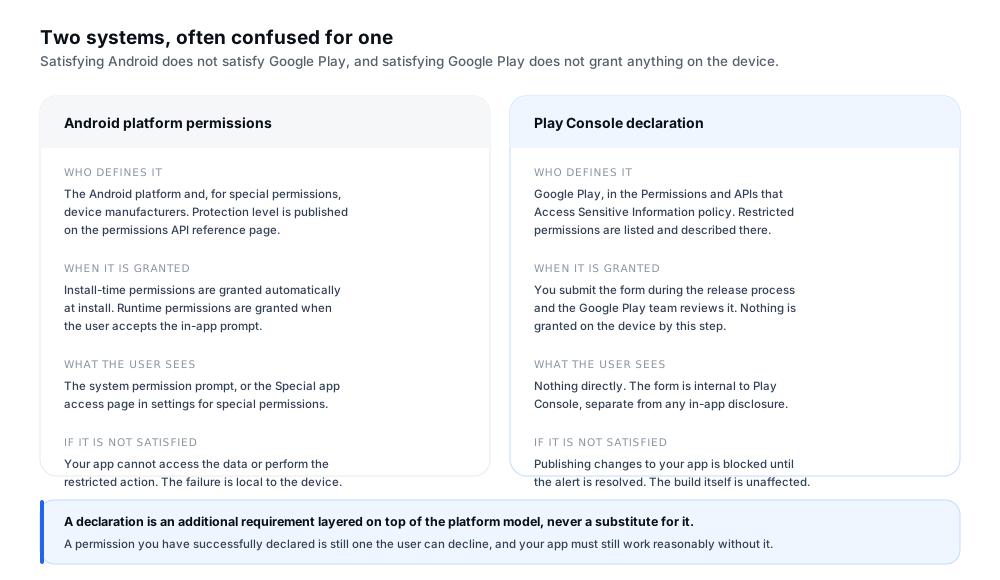
Figure 1 — Satisfying one of these systems tells you nothing about the other.
Android sorts permissions into types, and the type determines what happens when your app asks for access. Android's documentation sets out three: install-time permissions, granted at install, which include normal permissions and signature permissions granted only when an app is signed by the same certificate as the app or OS that defines them; runtime permissions, also called dangerous permissions, which need an in-app request and explicit user acceptance; and special permissions, defined only by the platform and OEMs and typically surfaced as toggles on the Special app access page in system settings.
Google Play's policy sits on top of that model. Its restricted permissions are defined as permissions designated Dangerous, Special or Signature, plus permissions Google documents individually. Anything accessed through them is treated as personal and sensitive user data, which brings the User Data policy into play.
Two consequences catch people out. A permission you declared successfully is still one a user can decline. The policy requires you to respect that decision and make a reasonable effort to accommodate the user — the documentation's own example is allowing someone to type a phone number manually if they have restricted access to Call Logs. Policy approval and runtime consent are separate gates. And a permission being technically available says nothing about whether you may ship it, which is why a passing build is not evidence of compliance.
Which permissions may require additional review?
There is no single list that answers this, and it is the most common reason developers misjudge their position. Google Play's policy documents each restricted permission in its own section, with its own requirements and permitted uses. Some are covered by the Permissions Declaration Form, some have their own declaration, and some have requirements that apply before you reach a form. The table below compares the categories developers most often ask about; read the final column rather than treating the summary as complete.
| Permission category | Typical policy concern | What to verify | Official documentation |
|---|---|---|---|
| SMS and Call Log READ_SMS, RECEIVE_SMS, READ_CALL_LOG |
Highly sensitive communication data. Access is tied to being the device's default handler. | Your app is actively registered as the default SMS, Phone or Assistant handler, and stops using the permission when it no longer is. | Permitted uses and exceptions |
| Photo and video libraries READ_MEDIA_IMAGES, READ_MEDIA_VIDEO |
Broad access to a user's whole media library, where a system picker would often be enough. | Whether the Android Photo Picker or a similar system picker is genuinely insufficient for the feature. | Minimum scope alternatives |
| All files access MANAGE_EXTERNAL_STORAGE |
Broad shared storage on Android 11 and later is treated as sensitive and high risk. | Critical core functionality needs broad access for a user-facing purpose, and the Storage Access Framework or MediaStore is not enough. | All files access requirements |
| Background location ACCESS_BACKGROUND_LOCATION |
Location outside active use, which the policy ties to compelling justification and never to advertising or analytics alone. | Coarse rather than fine, and foreground rather than background, are genuinely insufficient. Continued use maps to a user action. | Background location policy |
| Package visibility QUERY_ALL_PACKAGES |
A user's installed app inventory is sensitive data, and broad visibility is restricted to specific use cases. | The core purpose involves launching, searching or interoperating with other apps, and targeted queries cannot achieve it. | Permitted uses of QUERY_ALL_PACKAGES |
| Accessibility API AccessibilityService |
A powerful API that can read and control the interface, historically misused outside genuine accessibility support. | Whether the app qualifies as a disability support tool and can set the accessibility flag accurately, or needs an accessibility declaration. | AccessibilityService API guidance |
| Install packages REQUEST_INSTALL_PACKAGES |
Initiating installation of other app packages, which must never happen silently or without the user's direct choice. | Core functionality involves sending, receiving or enabling user-initiated installation, and is not being used for self-updates. | Permissions and APIs policy |
| Full-screen intent USE_FULL_SCREEN_INTENT |
High-priority notifications that take over the screen, on Android 14 and later. | Core functionality is setting an alarm or handling calls, or explicit user consent is obtained and explained. | Full-screen intent requirements |
Two categories do not follow the standard form. The Accessibility API has its own declaration: if you use the AccessibilityService API without declaring the app as an accessibility tool, Google's guidance is to complete an accessibility declaration when you submit the declaration form. Apps whose core functionality genuinely supports people with disabilities can set the accessibility flag and are exempt from prominent disclosure and consent requirements; apps not eligible may not use that flag and must meet those requirements instead. The policy also rules certain things out — the API may not be used to change user settings without permission, work around platform security or privacy controls, or alter the interface deceptively, and it cannot be requested for remote call audio recording or for apps that autonomously initiate, plan and execute actions or decisions.
Health data is split further. Health Connect permissions are limited to apps with features designed to benefit users' health and fitness, and body-sensor access is changing shape: the policy describes a migration from the general body sensors permission to granular health permissions for apps targeting Android 16 or higher, across all form factors including Wear OS.
Two points about scope. Google has announced updates to the location and contacts permissions policies, including narrower alternatives for each; the details and effective dates live on the policy pages. And the policy allows limited exceptions in rare cases where an app provides a highly compelling or critical feature and no alternative exists — Google states that proposed exceptions are evaluated against the potential privacy and security impact on users.
How to check whether a declaration applies to you
Three questions are worth answering in order, and stopping as soon as you reach a clean answer saves a lot of work.
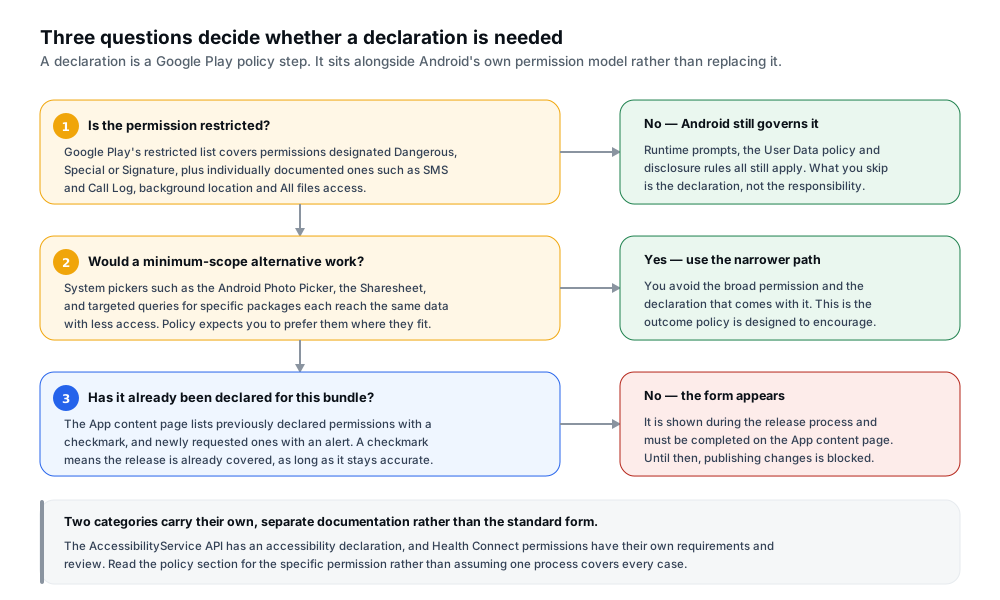
Figure 2 — Answer these three before you start filling in a form.
First, is the permission restricted? Check the policy page rather than reasoning from the name. The definition covers permissions designated Dangerous, Special or Signature, plus others Google documents individually, and those individual sections are where the actual requirements sit.
Second, would a minimum-scope alternative do the job? This deserves more time than it usually gets, because a narrower path removes both the broad permission and the declaration that follows it. Google's policy describes system pickers and the Sharesheet as a deliberately privacy-oriented route, and states that an app should only carry certain sensitive permissions when those alternatives are not sufficient for its core functionality. The concrete case is media: apps targeting Android 13 or higher may only request the broad image and video read permissions if system pickers such as the Android Photo Picker are insufficient, and those that still request them must submit a declaration explaining why. For storage, the policy points at the Storage Access Framework and MediaStore instead, and warns against requesting all files access for media-file access or for a file picker where the user selects files by hand.
Third, has it already been declared for this bundle? Go to App content. The form's documentation explains the visual language: permissions with a checkmark were declared in previous releases, and permissions with an alert are newly added and will be included in your declaration form for review against the published guidelines. A checkmark generally means the release is already covered, provided the declaration is still accurate — and an alert is the thing that will stop you.
Do not treat the form as the first line of defence
By the time the form appears, you have already uploaded a bundle and chosen a track — late to be discovering a policy requirement, when the earlier question of whether the permission belongs in this build at all is answered most cheaply beforehand. Android's permission documentation makes the same point from the other direction, advising you to determine first whether a use case can be met without declaring any permission, and noting that taking a photo or displaying relevant ads can be built that way.
How to prepare and submit a declaration
The Permissions Declaration Form has a documented sequence. Working through it in order matters, because the steps build on each other and step two determines what the reviewer is judging.
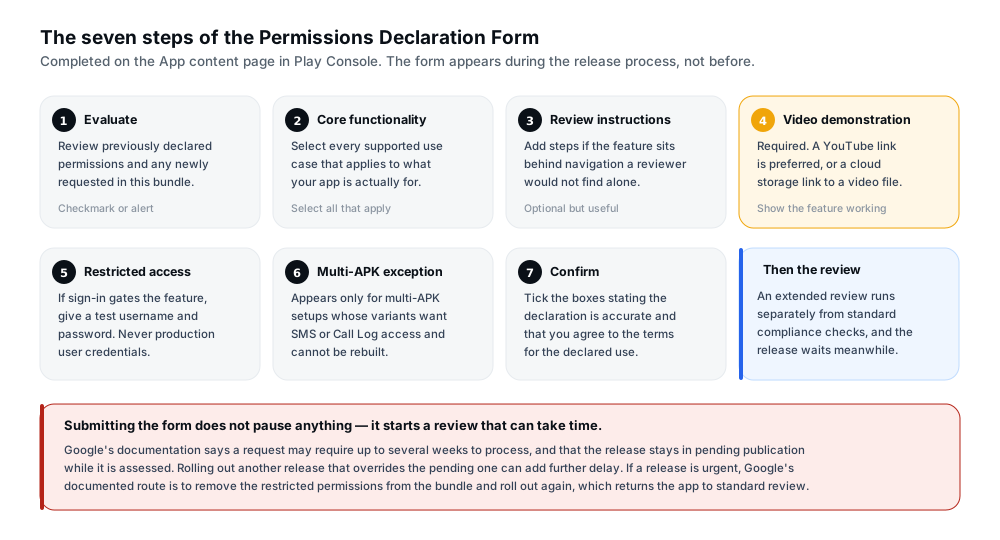
Figure 3 — The form is an application, and the review happens after you submit it.
- Evaluate the requested permissions. Under the declaration form section of the App content page you will find an expandable list of previously declared and newly requested permissions. Google's guidance is specific: if a newly requested permission is one you do not intend to declare, remove that bundle and upload a new one with the correct set before continuing. Correcting the bundle beats explaining a permission you did not mean to ship.
- Specify your app's core functionality. Select every supported use case that applies. This anchors the review, because the reviewer's job is to confirm the requested permissions are required for a use case you selected.
- Provide instructions for app review. If specific steps are needed to demonstrate the core functionality, add them here.
- Provide a video demonstration. Required. Supported formats are a YouTube link, which is preferred, or a cloud storage link to an mp4 or other common video format.
- Provide instructions for accessing restricted content. If the core functionality sits behind a sign-in, select that some functionality is restricted and supply a test username or phone number, a password, and any other necessary instructions. The documentation is emphatic that you supply only credentials used for testing, never a production user's credentials.
- Request a multi-APK exception if it applies. This appears only for a multi-APK configuration where a variant requests Call Log or SMS access and the APKs are too old to change. The requirements sit in the SMS and Call Log and background location policy pages, and any APKs that do not meet them must be deactivated to be compliant.
- Confirm the declaration. Tick the boxes confirming the details are accurate and that you agree to the terms for the declared use. This is a statement of accuracy, not a formality.
What happens during the permissions review
Submitting the form puts the app into an extended review by the Google Play team, separate from the standard compliance review against the Developer Program Policies, which also applies. The new app or update sits in a pending publication state meanwhile. Google's documentation is unusually blunt about timing: a request may require up to several weeks to process, and rolling out another release that overrides the pending publication can add further delay.
That leaves a real decision for anyone with a deadline. The documented route for an urgent update is to remove the high-risk or sensitive permissions from the bundle and roll out a new release, which is reviewed only for standard compliance and published within several hours. If the app is found not to comply, the review results are emailed to the account owner and contact address; if it is approved and otherwise compliant, the release publishes automatically.
What evidence and supporting information may be needed
The form asks for more than a justification. It asks for things a reviewer can check.
The core functionality selection. This is the claim being tested; everything else you supply exists to let a reviewer confirm or reject it, so the choice should describe what the app is primarily for. The policy's SMS and Call Log section defines core functionality as the app's main purpose — which may include a set of core features, all of which must be prominently documented and promoted in the app's description. Without those features, in Google's words, the app is broken or rendered unusable.
The listing description. If the policy requires the core feature to be documented in the description, a listing that never mentions it is a visible mismatch between what you do and what you declare.
The video demonstration. Its purpose is stated plainly: so the review team can easily evaluate the core functionality. A recording that shows the feature working inside the app does the job. A narrated walkthrough that never opens the app does not, because it demonstrates an intention rather than a shipped capability.
Review instructions and access credentials. The instructions carry the reviewer to the feature; if reaching it needs a particular account state or a non-obvious navigation path, say so. Where functionality is gated behind sign-in, Google asks for a test username or phone number and password plus any other instructions needed. Use only test credentials — a review account should reach no customer data, change no billing, and hold no administrative permissions.
A visible in-app disclosure, where the policy requires one. This sits at runtime rather than in the console. The Accessibility API section makes the split clear: apps not designating themselves as accessibility tools must meet prominent disclosure and consent requirements because the functionality is not obvious to the user. An approved declaration does not remove that obligation.
A final expectation. The policy allows limited exceptions in rare cases where an app provides a highly compelling or critical feature and no alternative exists, and Google says proposed exceptions are evaluated against the potential privacy and security impact on users. That is why the narrower-path question deserves a proper answer rather than an assumed exception.
Why permission declarations can block a release
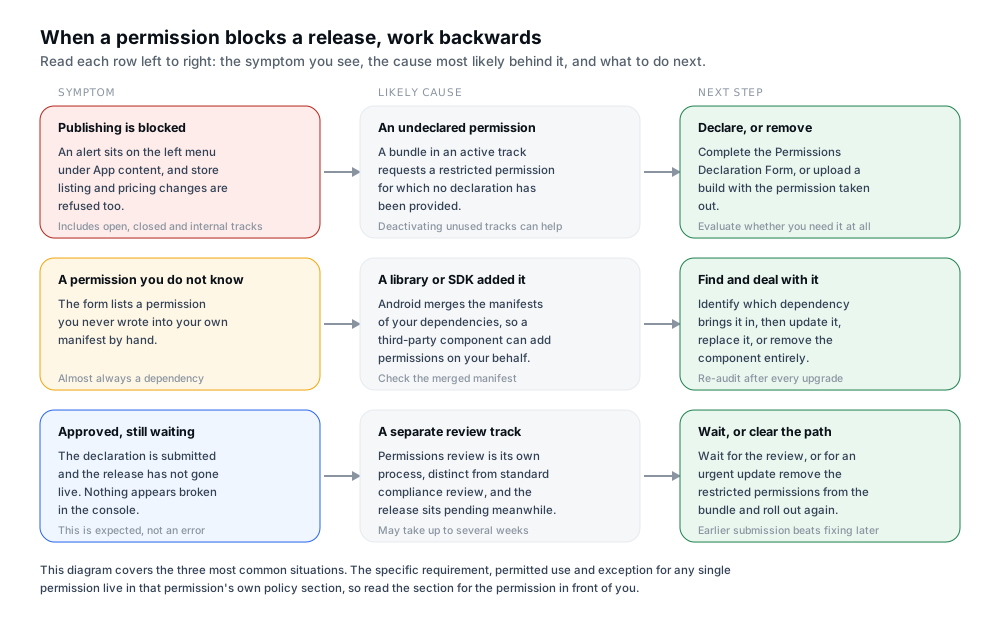
Figure 4 — Symptom, likely cause, next step. Work left to right in each row.
Google's documentation states the position directly. If you have an active app bundle that requires a permissions declaration — including releases on the open, closed or internal test tracks — an alert appears on the left menu under App content, and you cannot publish any changes to your app until you address it. The scope of "any changes" is stated explicitly, with store presence changes such as store listing, pricing and distribution named as examples.
Two details cause most of the surprise. Test tracks count: a stale bundle in an internal or closed track can raise the alert even if the track is not in use, and the documentation suggests considering deactivation of testing tracks that are not currently in use if they are not compliant. And the block is on publishing, not on building — nothing in your pipeline breaks, you can keep developing and uploading, but you cannot push anything live, including changes unrelated to permissions. That is why a store listing edit blocked by a permission added three releases ago looks like an unrelated failure: the same alert gates all of it.
Common blocks and what to do about each
| Problem or warning | Possible reason | Recommended next step |
|---|---|---|
| Publishing is blocked and an alert sits under App content. | A bundle in an active track requests a restricted permission with no declaration on file. | Complete the Permissions Declaration Form, or upload a build with the permission removed. |
| The form lists a permission you do not recognise. | A library or SDK contributed it through the merged manifest. | Identify the dependency, then update, replace or remove it rather than explaining the permission. |
| The permission reappears after you removed it from your code. | An older bundle still sits in an open, closed or internal track. | Deactivate tracks you are not using, then upload a compliant build. |
| The declaration is submitted but the release still waits. | The extended permissions review runs separately from standard compliance review. | Wait, and avoid overriding pending publication. For an urgent update, remove the permissions and roll out again. |
| The review says the app does not comply. | The declared use case does not match what the app actually does, or the feature is not visible in the listing. | Re-check the use case against the real core functionality, document the feature in the listing, or remove the permission. |
| The video demonstration is rejected or requested again. | The requirement was missed, the link is not playable, or the recording does not show the feature in the app. | Re-record showing the core functionality working in the app, and use a YouTube or cloud storage link. |
| The review team cannot reach the feature. | Functionality is behind a sign-in and no test credentials, or incorrect ones, were supplied. | Supply a dedicated test account with clear steps to reach the feature, and never production credentials. |
| You are unsure whether a permission is restricted at all. | The restricted list covers permissions designated Dangerous, Special or Signature, plus individually documented ones. | Read the policy section for that specific permission rather than judging by the permission's name. |
The requirement, permitted use and exception for any single permission live in that permission's own policy section, so read the section for the permission in front of you.
Google's documentation describes the resolution as creating a release that includes a permissions declaration, or removes the permissions. Those are genuinely different decisions. Declaring is right when the permission serves a current core feature you can document, demonstrate and explain; the work is then evidence. Removing is right when the permission serves nothing you still do, which is more common than developers expect, because permissions accumulate: a feature is dropped, a library is swapped, a variant is retired, and the permission stays in the merged manifest.
What you should not do is remove a permission a current core feature genuinely depends on without first evaluating whether a compliant alternative exists — a narrower permission, a system picker, a targeted query, or a different API. Removing it does not create a compliant app; it creates a broken one.
Common permission declaration mistakes
Requesting permissions the core features do not need. Android's guidance is to request the minimal number of permissions and associate runtime requests with the specific action that needs them. A launch-time sweep of permission requests is a common pattern and a poor one: harder to justify, harder to explain to a reviewer, more likely to be declined by users.
Using broad access when a narrower option exists. The policy for media, storage, contacts and package visibility all name specific narrower alternatives. Broad access a picker could replace is the least defensible kind, because the alternative is documented and named.
Vague or inaccurate declaration answers. The final step asks you to confirm accuracy, and several permission sections list misrepresenting core functionality as a specific prohibition. An answer that overstates what the app does is not a shortcut; it is the failure mode being screened for.
Leaving the listing out of step with the declaration. Several parts of the policy require the core functionality to be documented and promoted in the app's description. A declaration claiming a feature the listing never mentions gives a reviewer a reason to doubt it.
Forgetting permissions inherited from libraries and SDKs. Android merges the manifests of your dependencies, so a third-party component can add a permission on your behalf, and Android's guidance tells developers to be aware of what each dependency requires. When the form lists something you do not recognise, a dependency is the likely source — and the fix belongs in the dependency, not the form.
Assuming a successful build means compliance, the mistake underneath several of the others. Your build system knows what your app requests; it knows nothing about whether the request is justified, documented or permitted.
Changing functionality without updating the declaration. A declaration describes what the app does. If you stop using a permission, start using it for a broader purpose, or restructure the feature it supports, the declaration needs to change with it. A stale declaration that no longer matches the app is a compliance problem even though it was accurate when submitted.
What to do when your app does not actually need the permission
For a permission that no current feature requires, removal is usually the cleanest route — it clears the alert, avoids a review that may take weeks, and reduces your policy surface for the future. The problem is doing it safely, because permissions arrive from more than one place. A workable sequence:
- Read the merged manifest, not just your source. Including a library means inheriting its permission requirements.
- Attribute each permission to its source, since your own code and a dependency have different fixes.
- Trace each permission to a feature that exists today. Not one you plan to build, and not one you removed last quarter. If the trace fails, the permission is a candidate for removal.
- Check for a compliant narrower alternative before removing anything load-bearing, using the alternatives documented in that permission's policy section.
- Deal with the dependency case in the dependency. Update the library to a version that does not request the permission, replace it with a narrower one, or remove the component. Getting the permission out of the merged manifest is the point; suppressing it elsewhere is not.
- Re-audit after dependency changes, because this recurs rather than completes.
- Consider the wider declaration surface while you are there. If the app collects or shares user data, the Data safety section is where that is declared, and it needs to stay consistent with what the app does.
One caution about ordering. Removing a permission and rolling out a new build is the documented route for clearing a block quickly, and it works. But if a review of the same app is already pending, Google's documentation warns that overriding pending publication with a new release can add further delay. Sequence the two deliberately rather than treating removal as a free reset.
A practical pre-release permissions checklist
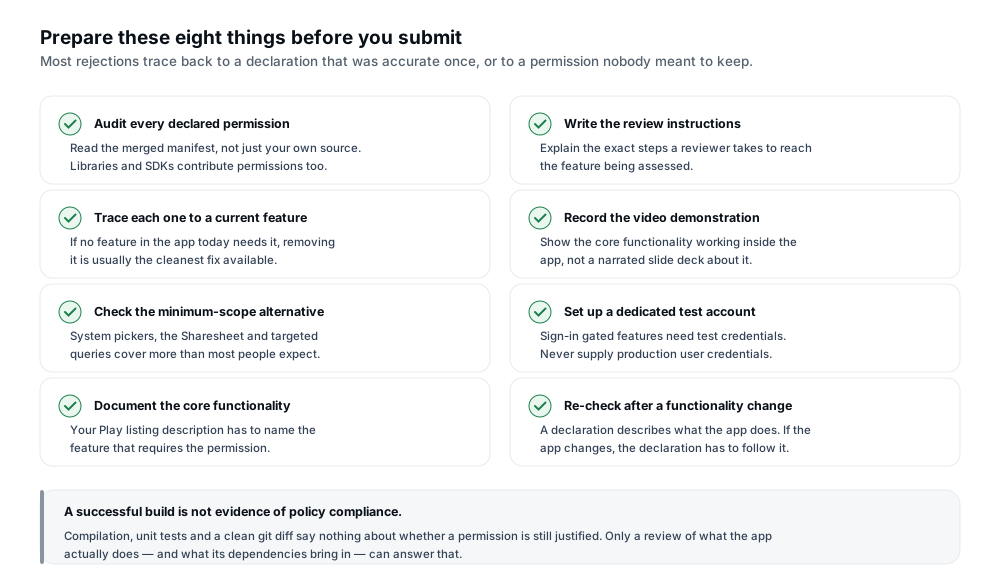
Figure 5 — Most of the work happens before the form appears.
- Audited the merged manifest rather than only your own source, and attributed every permission to a source.
- Traced each permission to a feature the app has today, and flagged any that no longer serves one.
- Checked whether a minimum-scope alternative covers the use case, starting with the alternatives named in that permission's policy section.
- Confirmed the core functional feature is documented in the store listing description.
- Written review instructions that a reviewer can follow to reach the feature being assessed.
- Recorded a video demonstration showing the feature working in the app.
- Prepared a dedicated test account if the feature is behind a sign-in, and never production credentials.
- Checked the App content page for alerts on every active track, including internal and closed tracks you are not currently using.
- Reviewed the requirements for that specific permission in the policy, rather than relying on a general rule.
- Allowed for review time in the release schedule, since a request may take up to several weeks.
- Planned to re-check declarations after any functionality or dependency change.
- Confirmed what happens if the user declines, and that the app still works reasonably without it.
Frequently asked questions
What is a Google Play permissions declaration?
A statement made in Play Console explaining why your app needs a permission that Google Play treats as sensitive or high-risk. If your app requests permissions for which no declaration has been provided, the form appears during the release process and the request is reviewed by the Google Play team.
Does every Android permission require a Play Console declaration?
No. Android permission requests and Google Play declarations are separate systems. A declaration is tied to permissions Google Play treats as restricted or sensitive, and even then the obligation depends on the permission and on what your app does. Ordinary permissions do not trigger a declaration, though the User Data policy and disclosure rules still apply to them.
Why is Google Play blocking my release because of a permission?
Most often because an active bundle requests a restricted permission with no declaration on file. A bundle in an open, closed or internal test track is enough to raise it. While the alert stands under App content, you cannot publish any changes, including store listing and pricing changes.
What should I do if my app requests a permission it no longer uses?
Remove it. Clearing the alert requires either a declaration or a release without the permission, so if no current feature needs it, removal is faster and cleaner. Find where it comes from first — your own manifest or a dependency — and read the merged manifest rather than only your source. If it still serves a current feature, evaluate a narrower compliant alternative before taking it out.
Can an app be rejected for requesting unnecessary permissions?
Google Play's policy requires that permissions and sensitive APIs be necessary for the app's core functionality as promoted in your listing, and limits their use to user-consented purposes. Requests beyond what current features need fall outside that, and the policy prohibits misrepresenting core functionality — which is what an unjustified request amounts to.
What alternatives should I consider before requesting broad access?
Google's policy names several. For photos and videos, the Android Photo Picker. For storage, the Storage Access Framework and MediaStore. For package visibility, targeted queries instead of broad visibility. For contacts and location, Google has introduced narrower alternatives and announced policy changes around them. Each permission's policy section names the alternative that applies to it.
How can I find out whether a permission needs additional approval?
Open Policy and programs > App content and read what sits in Needs attention. For whether a permission is restricted at all, check Google Play's Permissions and APIs that Access Sensitive Information policy rather than judging by the name — the definition covers permissions designated Dangerous, Special or Signature plus those Google documents individually, and each has its own section.
How long does the permissions review take, and does a declaration need a video?
Google's documentation states that a request may require up to several weeks to process, that the release stays in pending publication while it is assessed, and that overriding pending publication with another release can add further delay. For an urgent update, the documented alternative is removing the restricted permissions from the bundle and rolling out a new release, which returns the app to standard review. On video: the Permissions Declaration Form lists a video demonstration as a required step. Do not generalise that to every declaration in Play Console — the Accessibility API, for example, is documented separately as requiring a clear declaration and demo video if you use the AccessibilityService API.
Official resources and further reading
- Google Play — Permissions and APIs that Access Sensitive Information — the policy itself, with a section per restricted permission covering requirements, permitted uses and the narrower alternatives Google recommends.
- Google Play — Declare permissions for your app — the Permissions Declaration Form, its seven steps, the alert behaviour and the permissions review process.
- Google Play — Prepare your app for review — the App content page, its two tabs, and the declarations that sit alongside permissions.
- Android Developers — Permissions on Android — install-time, runtime and special permissions, and the best practices for requesting the minimum a feature needs.
- Android Developers — Evaluate whether your app needs permissions — documented ways to achieve common use cases without declaring a permission at all.
- Google Play — User Data policy — the requirements that apply to personal and sensitive user data, including data reached through restricted permissions.
Two related guides are worth reading alongside this one. If your app is preparing for a review, providing sign-in details for review covers the reviewer-access requirement that the declaration form's fifth step also depends on. And the closed testing checklist covers clearing App content declarations before a testing window starts, which is when an unresolved one costs the most.
Conclusion
A permissions declaration is not really about permissions. It is about whether you can explain, to a reviewer and to a user, why your app needs access to something sensitive — and whether that explanation matches what the app does.
Three things are worth remembering. It applies to a bundle, not to your intent, so an old build sitting in a test track can block an unrelated store listing change. It is resolved either by declaring or removing, and the right answer depends on whether a current core feature genuinely needs the permission. And it takes time — Google's documentation says up to several weeks, with the release held in pending publication — so a declaration discovered during a release window costs far more than one discovered during development.
The cheapest habit is the one that prevents all of this: audit the merged manifest, trace every permission to a feature that exists today, and check the minimum-scope alternative before assuming broad access is required. That takes minutes before an upload and can save a release afterwards. Where a permission survives that scrutiny, the form is straightforward — select the use case honestly, document the feature, show it working, and give the reviewer a way in.
Preparing an app for review?
12 Testers Community helps Android developers run a managed closed test with real testers who stay opted in for the full required testing period, alongside guides for the rest of the Play submission process. Permission declarations are yours to prepare and submit: no testing service can complete them for you or take over the review, and nothing here guarantees approval, production access or ranking.