Last reviewed against Google Play Console Help: October 2026. Google updates these pages and the Play Console interface regularly — confirm the current wording in your own console and on the pages linked below.
You submitted an update. Nothing is wrong with the build, the listing or the policy declarations, and yet the app comes back rejected. The reason, when you read it properly, is usually not about your app at all: it is that the reviewer could not get past your login screen.
Google Play requires you to provide the information a reviewer needs to sign in and reach every part of your app. If your app sits behind an account, a one-time password, an invite, a QR code or a subscription, that information is part of your submission — and when it is missing, expired or unusable in the reviewer's country, the review stops there. Google states the consequence plainly: if the details are not usable, Google may not be able to review your app, and the app may be rejected.
This guide covers Google Play app access instructions end to end: when you need them, exactly where they live in Play Console, how to build a demo account that survives a review, and what to do when previously correct credentials stop working. Every requirement is sourced to Google's own documentation, and practical advice is labelled as such.
Google's requirement: your sign-in details must be accessible at all times, reusable, and valid regardless of user location. Where your app normally uses a 2-step verification code or one-time password, Google asks for reusable credentials that bypass those requirements.
One caveat worth stating before anything else: correct access details do not guarantee approval. App access is one input into a review that also covers policy compliance, functionality and your listing. What good access details do is remove one avoidable reason for rejection.
Quick answer: what developers need to provide
Provide whatever a stranger needs to reach the deepest restricted screen in your app, in English, using credentials that will still work next week from anywhere in the world. In practice that comes down to four things:
- Working credentials for an active demo account — a username and password for a pre-configured account, not a sign-up link.
- A way past your authentication extras. If your app normally sends a one-time password or asks for a second factor, supply reusable credentials that bypass it.
- The non-credential access materials. QR codes and barcodes become a static URL; PINs and user-set passwords need written instructions.
- Entitlements that open the paid areas. If the meaningful part of your app is behind a subscription, the account you hand over needs full subscription access.
All of it is entered in one place: the Sign-in details row on the App content page in Play Console. You can add up to five sets of instructions, which is useful when your app has more than one access route — a customer login and an admin login, for example.
What are Google Play app access instructions?
App access instructions are the details you give Google's review team so they can enter your app and exercise its functionality. Google frames this as part of the Play Console Requirements: you must provide the information needed for the team to log in and access all app functionality. That "may include standard sign-in details for testing purposes, an active demo account details such as a username and password for a pre-configured account, or any other access resources such as QR codes or specific instructions for accessing restricted areas of your app."
The important word in that sentence is any. Access instructions are not just a password field. They are everything standing between a reviewer and the screen that proves your app does what your listing claims — which is why Google also lists them as a policy declaration alongside your privacy policy and ads declaration on the App content page.
An older name for the same thing
If you have followed older guides or Google's own developer community threads, you may have seen this area called "App access". The current Play Console surface for it is "Sign-in details", reached through App content. If a tutorial sends you looking for an App access menu item, that is the setting it means.
Figure 1 maps the access mechanisms to what each one requires. It is a summary — the sections below take them one at a time.
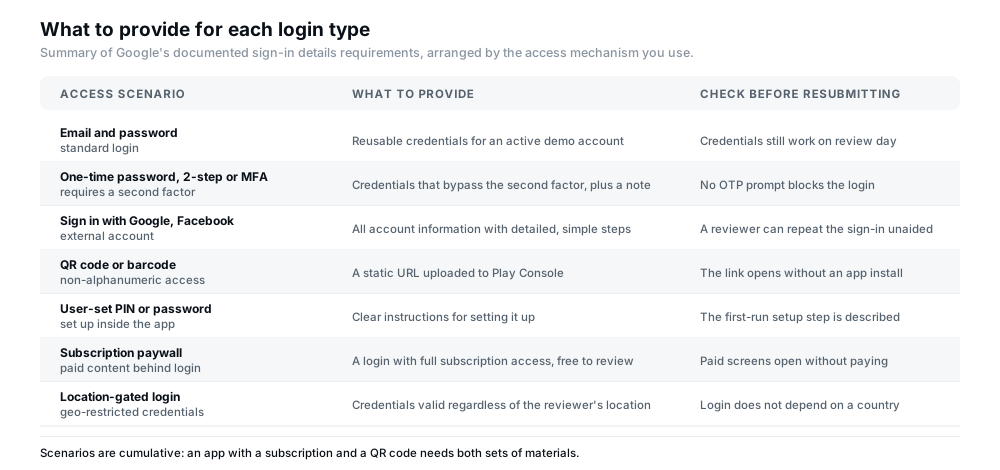
Figure 1 — Access materials by login type. Scenarios are cumulative: an app with a subscription and a QR code needs both sets of materials.
When must you provide login credentials or access instructions?
Google's wording is broader than most developers assume. The trigger is not "my whole app requires a login". It is any situation where your app, or parts of your app, are restricted based on login credentials, sign-in details, memberships, location, or other forms of authentication.
So details are required when any of these is true:
- The app opens on a sign-in screen and nothing is reachable without an account.
- Most of the app is public, but a specific area — an orders page, a chat, a settings panel, an admin console — is gated behind a login.
- A feature depends on a membership tier or an invite code.
- Functionality or content sits behind a subscription paywall, even if the app itself needs no login. Google addresses this case directly: provide additional instructions or access details that let the team access and review the app behind the paywall.
- Access depends on where the user is, for example a region-locked password.
The paywall case catches people out most often, because it contradicts an intuitive reading of the rule. If the paid area is the product — a premium dashboard, an unlocked feature set, a full library — then a reviewer who cannot see inside it cannot evaluate your app, and the absence of a login in the rest of the app does not remove the obligation.
Access requirements by login type
The table below is the reference version of Figure 1, with the checks that catch problems before a reviewer finds them.
| App access scenario | What the developer should provide | Important checks |
|---|---|---|
| Standard email and password | Reusable credentials for an active demo account. | Credentials valid on review day and unchanged since you submitted them. |
| OTP, 2-step verification or MFA | Credentials that bypass the second factor. Note the behaviour in the instructions field. | No one-time password prompt appears, and no code is sent to a device Google does not hold. |
| Sign in with Google, Facebook, or similar | All account information, with detailed step-by-step instructions. | A reviewer can complete the external sign-in by following your text alone. |
| QR code or barcode | A static URL, generated and uploaded to Play Console. | The URL opens for someone without your app installed or your devices to hand. |
| PIN or user-set password | Clear instructions for setting the PIN up, with any value they must choose. | The first-run setup step is described, not assumed. |
| Subscription or premium feature | A login with full subscription access, and free access for review. | Paid screens open without a purchase and without an expiring trial. |
| Location-dependent access | Sign-in details valid regardless of user location, such as master credentials. | The login does not depend on the reviewer being in your country. |
Where to add or update sign-in details in Play Console
All of this lives on the App content page: open your app, then Policy and programs → App content, and look for the Sign-in details row. That page has two tabs — Needs attention for declarations still outstanding, and Actioned for ones you have completed — so if the row is not under Needs attention, it is already set up and you want to edit it rather than add it.
Figure 2 is an original navigation guide to that path. It is deliberately illustrative rather than a screenshot: Google does not publish a reusable image of this screen, and a fabricated screenshot presented as the real interface would be worse than no image at all. Your own console is the authority on the current layout.
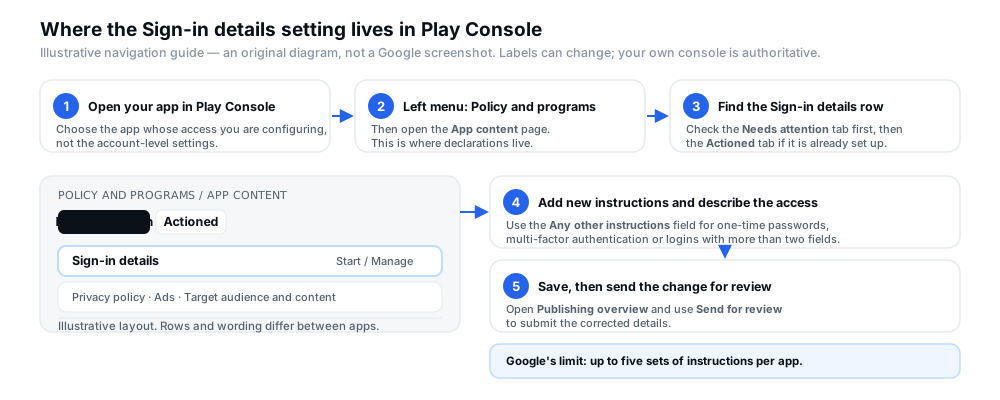
Figure 2 — Illustrative navigation guide for the Sign-in details setting, not a screenshot of Google Play Console. Labels and layout change between apps and over time.
Step-by-step instructions for configuring app access
This is the sequence Google documents, with the practical detail that keeps it usable.
- Open your app in Play Console and go to Policy and programs → App content. Use the app-level menu, not account-level settings.
- Find the Sign-in details row. If it shows Start, nothing is configured yet. If it shows Manage, you are editing what already exists.
- Select Start (or Manage), then choose + Add new instructions.
- Enter the access details. Give the credentials, the account type, and anything a reviewer must know — which screens the account reaches, whether it holds a subscription, and any extra field beyond a username and password.
- Use the "Any other instructions" field for the awkward parts. Google names this field specifically for login mechanisms that are not a plain username-and-password: one-time passwords, multi-factor authentication, or logins with more than two fields. If your login is unusual, this is where you explain it.
- Write in English. Google requires the sign-in details to be provided in English. If your credentials are normally in another language, supply an English-language version.
- Save your changes. Then open Publishing overview and use Send for review in the "Changes ready to send for review" section, so the corrected details actually reach the review team.
You can add up to five sets of instructions. Google's own policy operations guidance is to keep each set as simple as possible — the framing they use is to imagine you are teaching a parent how to access your app — and to use the extra sets when your app genuinely has separate access routes rather than to paste in a wall of documentation.
How to prepare a reliable demo account
A demo account is a pre-configured account you create specifically so a reviewer can sign in without registering, and it is the recommended way to satisfy the requirement for a login-protected app. The details Google asks for are a username and password for that pre-configured account.
The work is not in creating the account. It is in making sure the account still works, from anywhere, on the day a reviewer opens it.
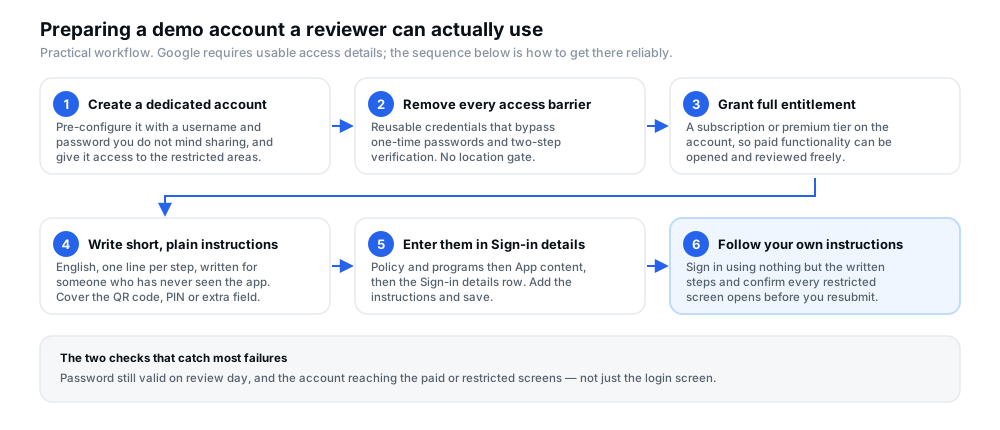
Figure 3 — A practical demo-account workflow. Google requires usable access; this sequence is how to make it survive a review.
Practical guidance for the account itself
- Create a dedicated account, not a personal one. Use credentials you are comfortable storing in Play Console, and keep them separate from anything holding real user data. Never upload a live customer's login.
- Give it a password that does not expire. This is the single biggest cause of access rejections. If your authentication system rotates passwords or enforces expiry, create an exception for the review account.
- Seed it with realistic content. An account that opens onto empty states shows a reviewer nothing. Populate it so the screens you described in your listing are demonstrably present.
- Grant every entitlement. If the app has paid tiers, the review account holds the top one. Google notes that when a section is reachable only through an active subscription, you need to provide a login with full subscription access.
- Re-verify before each submission. Sign in yourself, using only the instructions you wrote, and walk to the deepest restricted screen. Do this every time you resubmit, not once at launch.
How to handle OTP, two-step verification and MFA
This is where a technically correct submission still fails, so it is worth being precise about what Google asks for. Where your app typically requires a 2-step verification code or a one-time password, the requirement is to provide reusable login credentials that can bypass these requirements. Google's wording on the consequence is direct: if the provided password expires, Google may not be able to review your app, and the app may be rejected.
What "reusable" means in practice is that the reviewer must be able to sign in repeatedly without receiving anything. A one-time password delivered by SMS, email or an authenticator app cannot be reused, and the reviewer does not have access to your phone. Three workable options:
- A dedicated review account with the second factor disabled. The cleanest approach, because nothing about the flow changes for real users.
- A bypass code stored in your own system. If your app supports a fixed test code or a test account flag, use it and document it in the "Any other instructions" field.
- A long-lived session for the demo account. Valid only if the session genuinely does not expire within a review window; a session that lapses mid-review puts you back at the start.
Whatever you choose, describe it. Google names one-time passwords, multi-factor authentication and logins with more than two fields as exactly the cases the "Any other instructions" field exists for.
How to handle Google, Facebook and other external sign-in options
If your app signs users in through another provider, you cannot hand over a password alone — the reviewer also needs the account behind that provider. Google's requirement is to provide all account information with detailed instructions, and it notes that clear, simple instructions help ensure a smooth review.
In practice, that means supplying:
- The external account's identifier and password — for example the Google or Facebook account the app recognises.
- Which button to choose on your sign-in screen, and in what order the steps follow.
- Anything that could interrupt the flow: a consent screen, a "continue as" chooser, a profile that has more than one account attached, or a provider check that behaves differently outside your region.
Two pitfalls are common. First, an account reachable only through a multi-account chooser, where the reviewer picks the wrong identity and lands in an empty state. Second, provider-side security prompts — the same second-factor problem as above, except the prompt is controlled by Google or Facebook rather than by you. Test the full flow from a clean device session before you submit, and if a provider check cannot be disabled, say so and give the reviewer the exact steps to satisfy it.
How to provide QR codes, barcodes, PINs and special access
Some access mechanisms are not alphanumeric, and Play Console has no field that accepts a code image. Google's instruction for these cases is specific: if your sign-in details are not numeric or alphanumeric — for example a QR code or barcode — generate a static URL and upload it to Play Console.
A static URL is one whose contents do not change between requests and which does not expire. Host the QR or barcode image at a stable address that needs no authentication, is not behind a short-lived signed link, and does not sit on a domain that might rotate. Then treat that URL as part of your instructions, so the reviewer knows what to do with it.
For PINs and passwords the user sets themselves, the agreement position is different again. Google asks that if your app requires users to set up their own password — a PIN, for example — to access in-app content, you provide clear instructions. Write the setup step out as a numbered action: where the prompt appears, what length or format the app accepts, and any value the reviewer should choose. If the app rejects common test values, say which one to use.
The same logic covers invite codes, developer flags, partner identifiers and anything else that unlocks a screen. If it is not a username and password, it needs to be described — and if it cannot be typed, it needs a static URL.
How to handle subscriptions and restricted premium features
Google deals with paid content in two places, and both matter.
The first is when your app requires no login but content sits behind a paywall. The instruction is to provide additional instructions or access details that allow the team to fully and freely access and review the app behind the paywall. "Freely" is the operative word: a reviewer should not have to pay, and should not be limited to a teaser.
The second is when a subscription is the gate on a login-protected app. Google's policy operations guidance records the same point from the reviewer's side — that developers often ask why credentials are needed when the app has no login, and the answer is that a specific area is restricted by a login or subscription. If full functionality is reachable only with an active subscription, the login you provide must have full subscription access.
Practical steps that make this robust: put the demo account on the highest tier; confirm locally that no purchase prompt or trial countdown interrupts the paid screens; make sure a trial on the review account cannot expire mid-review; and check the paid flow on a device that has never installed the app, so no cached entitlement is doing the work. Where review access conflicts with your billing provider's trial mechanics, a manually granted entitlement for the review account is the usual answer — and, if the screens still show a purchase button, explain why in the instructions.
How to deal with location-dependent access restrictions
Reviewers do not work from your city. A login that depends on geography is a login Google's review team may not be able to use.
Google's requirement covers this directly: if your app normally uses a location-dependent password — a geo-gate, in Google's example — provide sign-in details that are valid regardless of user location, describing "master" login credentials as the example. More generally, everything you supply must be valid regardless of user location, which rules out region-locked demo accounts and country-specific phone verification.
Useful checks, in order of how often they cause trouble:
- Country checks at sign-in. Any IP, SIM or region comparison that can reject a foreign session.
- Verification sent to a local number. A demo account whose confirmation step expects a phone in your country is unusable abroad.
- Feature gates tied to locale. Content, pricing or whole sections that are hidden outside your market, which can leave a reviewer staring at a smaller app than your listing describes.
- Time zone and clock logic. Session or trial windows measured in ways that fail across time zones.
If a restriction is genuinely regulatory and cannot be lifted, a master credential that bypasses it is the documented path. Where even that is impossible, say so explicitly in the instructions so the reviewer understands what they cannot reach and why.
Common mistakes that can prevent reviewers from accessing an app
These are the failures that recur. They cluster into a handful of causes, and almost all of them are detectable from your own device before you submit.
| Problem | Why it can block review | Recommended action |
|---|---|---|
| Expired or rotated credentials | The stored password is no longer accepted, so sign-in fails immediately. | Set a non-expiring password for the review account and re-verify it before every submission. |
| A one-time password that nobody can receive | Google asks for reusable credentials that bypass the second factor; an OTP is not reusable. | Disable the second factor for the review account, or supply a bypass, and record it in "Any other instructions". |
| Instructions that assume knowledge | The reviewer cannot reproduce a non-standard flow from a vague description. | Rewrite in English as numbered steps, and test them on someone who has never seen the app. |
| Premium access missing or trial-limited | Paid screens stay closed, and Google requires the app behind the paywall to be freely accessible. | Grant the review account full subscription access with no expiry inside the review window. |
| A broken or empty demo account | Sign-in succeeds but the app shows empty states that prove nothing. | Seed the account with realistic content covering the features your listing describes. |
| QR or barcode with no static URL | There is nothing the reviewer can open; a code image is not a usable credential. | Host the code at a stable, unauthenticated URL and upload that URL to Play Console. |
| Location or geo restrictions | Credentials that were valid in your country are rejected where the reviewer signs in. | Provide master credentials valid regardless of location, and verify from outside your region. |
| Details saved but not sent | The corrected details sit in Changes not yet sent, so the review team never sees them. | Open Publishing overview and use Send for review to submit the change. |
Diagnosing a failure systematically
When access has already failed once, guessing wastes a review cycle. Figure 4 works through the checks in the order that resolves the most common causes fastest.
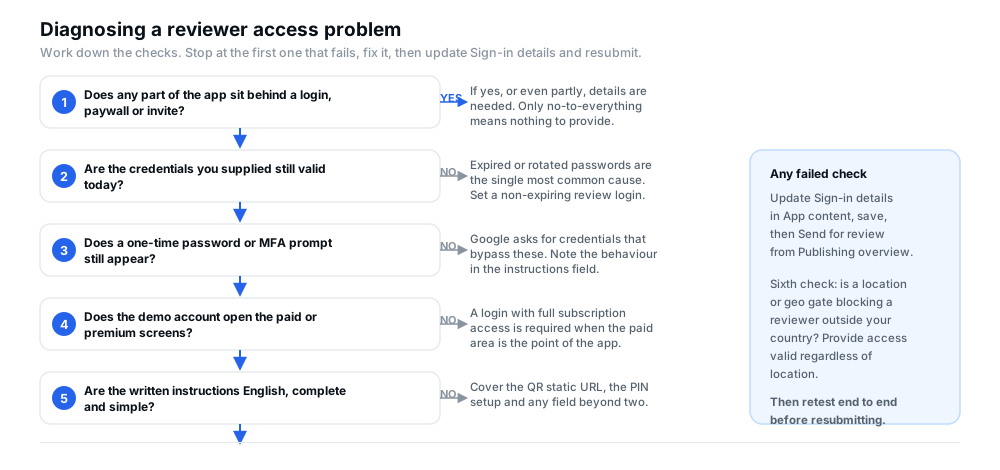
Figure 4 — The checks in the order that resolves most access problems fastest. Update Sign-in details and send the change for review once the failing check is fixed.
A pre-submission app access checklist
Run this before every submission, not just the first. Details that were correct six months ago are the ones most likely to have rotted.
- Identify every restricted surface. List each screen a reviewer cannot reach without credentials — including the paid ones, and including areas of an otherwise public app.
- Sign in with the supplied credentials yourself and confirm the password has not expired or been changed.
- Confirm no OTP or second factor appears for the review account, or that a documented bypass works.
- Reach the deepest restricted screen using only the written instructions, on a device with no cached session.
- Verify subscription access. The review account holds full entitlement, and no trial on it can expire before the review finishes.
- Check the QR or barcode URL opens in a fresh browser, with no login and no expiry.
- Confirm the PIN instructions state exactly what the reviewer must enter and where the prompt appears.
- Read the instructions as a stranger. English, numbered, no internal shorthand, no assumption that the reader knows your product.
- Confirm location independence. Nothing in the sign-in path depends on the reviewer being in your country.
- Save in Play Console, then send for review from the Publishing overview page so the change is actually submitted.
What to do if an app is rejected because of access problems
Google documents a resubmission path for sign-in details, and the useful part is that you can complete it yourself without contacting policy support or waiting for a reply:
- Read the rejection reason properly. Confirm it is an access problem — an unusable credential, an unreachable area, missing instructions — rather than a policy or functionality issue, which needs a different fix.
- Fix the access problem first. Usually that means a non-expiring password, a removed second factor, a subscription-enabled account, or rewritten instructions.
- Open the Sign-in details page, update the information, and click Save.
- Go to Publishing overview. Your change appears in the "Changes ready to send for review" section.
- Click Send for review. Until you do, the corrected details are stored but not submitted.
- Complete comprehensive testing before resubmitting. Google recommends verifying that the issue is genuinely resolved, and notes that multiple rejections can lead to suspension.
One caution about volume: repeated rejections are not a neutral event. Google's publishing guidance is explicit that multiple rejections may lead to an app being suspended, so treat each failed review as a signal that the underlying app or submission needs attention, not just the password field. If the reason is not access-related, our guide to why Google Play reviews fail covers the other common causes, and what "more testing required" means covers the review outcome that asks for more evidence rather than a fix.
Frequently asked questions
Do I need to provide login credentials if my app has no login?
If nothing in your app is restricted — no login, no membership, no paywall, no invite code, no location gate — there is nothing for the Sign-in details declaration to contain. But check for partial restrictions first: Google's guidance exists precisely because a specific area or functionality can be gated even when the rest of the app is open, and content behind a subscription paywall counts even without a login.
What exactly is a demo account?
It is a pre-configured account you create so the review team can sign in without registering, and Google describes the access details as including a username and password for that account. Practically, it should be a dedicated account you are willing to store in Play Console, seeded with realistic content and entitled to everything the app offers.
My app uses login with Google or Facebook. What do I put in Play Console?
All of the account information for the external account, plus detailed instructions for completing the sign-in. Google's wording is to provide all account information with detailed instructions, and it notes that clear, simple instructions help ensure a smooth review. Test the flow yourself from a clean session, including any consent screen or account chooser.
How do I handle one-time passwords or two-step verification?
Google asks for reusable login credentials that can bypass these requirements, and states that if the provided password expires, the app may not be reviewable and may be rejected. A review account with the second factor disabled is the most reliable answer; a documented bypass code works too. Record the behaviour in the "Any other instructions" field, which Google names for exactly this case.
How do I supply a QR code or a barcode?
Generate a static URL for it and upload that URL to Play Console. Google's instruction applies specifically when the sign-in details are not numeric or alphanumeric — a QR code or barcode — and Play Console has no field that accepts the code image itself.
My app is subscription-only. Can reviewers access it?
You must give them a way in. Google asks for additional instructions or access details that allow the team to fully and freely access the app behind the paywall, and its policy guidance is that if full functionality is reachable only through an active subscription, the login you provide needs full subscription access. Put the demo account on the highest tier and confirm no trial can expire mid-review.
Where is the App access setting now? I can't find it.
The current surface is Sign-in details, on the App content page under Policy and programs. "App access" is the older name used in earlier documentation and community posts. If a guide points you at an App access menu, look for Sign-in details instead.
How many sets of credentials can I provide?
Up to five sets of instructions per app. Use them for genuinely separate access routes — for example a standard user login and an admin login — rather than to bundle several pages of documentation into one field.
I corrected the details. Why did the review still fail?
The most likely reason is that the change was saved but never submitted. After saving on the Sign-in details page, open Publishing overview and check the "Changes ready to send for review" section — the details only reach the review team once you click Send for review.
Do correct app access details guarantee my app will be approved?
No. App access is one part of the review. Google evaluates policy compliance, functionality and your listing as well, and its guidance notes that review is not a troubleshooting step — submitting a non-compliant app expecting reviewers to identify the problem leads to rejections and delays. What usable access details remove is one specific, avoidable reason for rejection.
Official Google resources
These are Google's own pages. Where anything in this article and those pages disagree, the official pages and your own Play Console win.
- Requirements for providing sign-in details for review — the core requirements, including 2-step verification, English-language credentials, static URLs for QR codes and location-independent logins.
- Prepare your app for review — the App content page, the Sign-in details walkthrough and the resubmission steps.
- Helpful tips to get your app published on Google Play — why apps get rejected and how to avoid it.
- Play Console Requirements — the policy that makes accurate developer and app information, including sign-in details, mandatory.
- Tips and best practices for complying with login credentials requirements — Google's own community announcement, including the five-sets guidance and the reasoning behind it.
- Control when app changes are reviewed and published — how Publishing overview and Send for review work.
Where to go next
App access is a small part of a Play submission that is easy to get right and surprisingly expensive to get wrong, because a rejected review costs you a cycle you cannot get back. The habit that prevents almost all of it is simple: treat the credentials you store in Play Console as a feature you maintain, and re-test them the way you test anything else before you ship. Sign in yourself, from a clean device, following your own written instructions, and walk to the last restricted screen — every time you resubmit.
If your app is still working through Google's testing requirements before you can publish, answering the production access questionnaire covers the application itself, the closed testing checklist covers what to track during the 14 days, and common closed testing problems covers the failures that stall a test.
Preparing an app for release?
12 Testers Community helps Android developers run a managed closed test with real testers who stay opted in for the full 14 days, alongside guides for the rest of the Play submission process. It is a practical option if recruiting and keeping testers is the part slowing you down — and it makes no promise of production approval, which always remains Google's decision.