Last verified against Google Play Console Help: September 2026.
You created a closed testing track. You added testers, or you set up a Google Group. You sent out a link. The answer that came back was "App not available", "Item not found", or a tester saying they simply cannot find your app anywhere on Google Play.
This is a very common wall for Android developers, and it is usually not one single mistake. Closed testing access depends on a chain: a release has to be available on the track, the tester has to be eligible for that track, the tester has to opt in, the account and country have to line up, and the change has to have had time to propagate. Break any link in that chain and the tester sees the same unhelpful message.
If you searched for "Google Play closed testing not working", that phrase describes the symptom accurately and the cause not at all — nothing is broken in the abstract, one link in the chain is missing. The ten problems below are the ones that produce it. Throughout, every claim that comes from Google is labelled as official; everything else is practical guidance, and the two are never mixed.
Quick answer
If your testers cannot access your closed test, the fault is usually in one of these six areas — and the ten problems below drill into each of them:
- The release. A closed testing track with no rolled-out release has nothing to give testers, and an app in Draft or Pending publication status does not display an opt-in link at all.
- The tester list. The person has to be on the email list or in the Google Group that is attached to the track you rolled out — not a different list on a different track.
- The opt-in. Being invited is not being opted in. In a Google Group test, the tester has to join the group and complete the opt-in step.
- The account. In practice, the account in your list, the account on the opt-in link and the account signed in to Google Play should be the same one — a mismatch makes a tester look unregistered.
- The country. Country targeting follows the tester's Play country, which is where their account is registered — not where they are standing.
- The timing. After publishing a test for the first time, the test link can take several hours to become available, and so can later changes.
How to read this article. Statements marked official come from Google Play Console Help and are linked. Everything else — ordering the checks, what usually turns out to be wrong, how to talk to your testers — is practical guidance from real troubleshooting, not a Google requirement.
Quick diagnosis: if your tester cannot access the app
Work down this list in order. Most reports resolve at one of the first four checks; the last two only matter once everything above them is confirmed.
- ☐ Check the closed testing release. Is a release rolled out on the closed testing track, and is it past processing and review? A configured track with no available release gives testers nothing.
- ☐ Check the tester list. Is the tester's email address on the list or in the Google Group attached to that exact track?
- ☐ Check Google Group membership. For group-based tests, has the tester actually joined the group?
- ☐ Check the account. Group, opt-in link and Google Play — same Google account in all three places?
- ☐ Check the opt-in. Has the tester completed the opt-in step, or only opened the link?
- ☐ Check the link you sent. Is it the link Play Console shows for that track?
- ☐ Check the country. Is the release available in the tester's Play country, and is the track's country list what you expect?
- ☐ Check whether the app is Published. Apps in Draft or Pending publication status do not display an opt-in link.
- ☐ Check the track. If you have more than one closed testing track, is the tester on the track that has the release?
- ☐ Allow for propagation. If everything above is correct and the change was recent, give it the time Google documents before concluding something is broken.
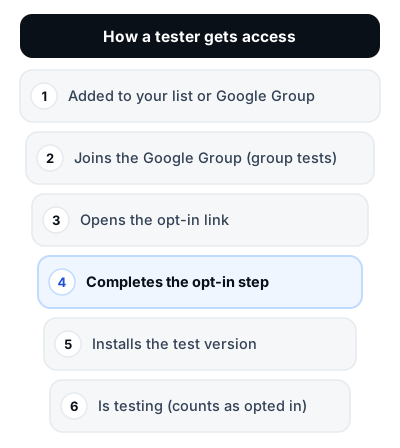 Figure 1 — Access is granted at step four, not step one. An invited tester is not an opted-in tester.
What Google actually documents about closed-test access
Before the fixes, here is the ground truth. Every statement below comes from Google Play Console Help, and these five facts settle a large share of "closed testing not working" reports.
- The link only exists when the app is Published. Official: "The opt-in link displays only when an app status is 'Published'. Apps in 'Draft' or 'Pending publication' status do not display an opt-in link." Testers are then given "an explanation of tester responsibilities and a link to opt in", and each tester needs to opt in using the link. See Set up an open, closed or internal test.
- Group testers must join the group first. Official: "For closed tests using a Google Group, users must join the group before opting into your test."
- Closed test apps are not searchable. Official: "If you run an internal or closed test prior to open testing or production rollout, testers cannot find your app by searching Google Play. You must share the app's Play Store URL with testers so that they can download it."
- First publication takes time. Official: "After publishing an open, closed or internal test for the first time, the test link can take several hours to become available to testers. Additional changes can also take several hours to become available."
- A Google Account is required. Official: "Users need a Google Account or a Google Workspace account to join a test." A Workspace account is therefore valid — which is also why account mismatches happen so easily.
⚠ Warning — an invitation is not an opt-in. Adding an email address to a tester list feels like the job is done. It is not. Google's documentation is explicit that each tester has to complete the opt-in step themselves. Everything you do in Play Console happens before access exists; the tester's own opt-in is what creates it.
If you are still setting the test up, the mechanics of adding people are covered step by step in how to add testers to Google Play closed testing, and the difference between the tracks themselves is explained in internal vs closed vs open testing.
10 common Google Play closed testing problems and how to fix them
Each problem below follows the same shape: what the tester sees, why it can happen, what to check, how to fix it, and how to verify the fix actually worked. Verification is the step most developers skip, and it is the reason the same testers report the same problem twice.
Problem 1 — The closed testing release was not published or made available
What the tester sees: "App not available", "Item not found", or an opt-in page with nothing on it to click. If the app has never been published on any track, the tester may not find a store listing at all.
Why it can happen: The most frequent case is a configured track with no release rolled out on it — testers are added, the link is shared, but there is no build for them to receive. Google's documentation also distinguishes the app status from the release itself: an app in Draft or Pending publication status does not display an opt-in link, and a release that is still being processed or reviewed is not yet available to testers.
What to check: In Play Console, open the closed testing track you intend testers to use and look for the release and its state. Then check the app status shown next to your app's name. Official: "You can see your app's latest publishing status under your app's name and package name when you select your app in Play Console" (Publish your app).
How to fix it: Roll out a release on the closed testing track. If Play Console is blocking the release, work through the errors shown on the release summary page — the publish page notes that you cannot publish until errors are resolved — and then roll out again. If the release is processing or in review, there is nothing to fix; it has to finish.
Verification step: Reopen the track and confirm the release shows as available, not as a draft you are still editing. Then confirm Play Console is offering an opt-in link for the track — if there is no link, the app status is still the problem.
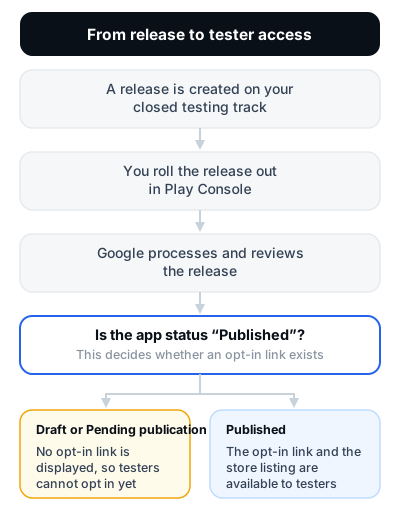 Figure 2 — A release is not the same thing as an available release, and an app is not Published just because you rolled something out.
Problem 2 — The tester is not on the correct tester list or Google Group
What the tester sees: They never received anything from you, the opt-in link rejects them, or the app simply is not there when they open Google Play.
Why it can happen: Google gives you two ways to manage closed testers — email lists and Google Groups. The trap is not choosing the wrong method. It is attaching the right method to the wrong track, or adding a person to a different list from the one the track actually uses. A tester added to some other list on some other track is not a tester for this release.
What to check: Open the closed testing track, go to its testers section, and read which email lists and which Google Groups that track is using. Then search those specific lists for the person's address. Google's own documentation keeps the two methods conceptually separate: "Closed test: Manage testers by email address or Google Groups".
| Method | How testers are managed | What you must verify | Common mistake |
|---|---|---|---|
| Email list | You add individual email addresses to a named list, and that list is attached to the track. | That the exact address — including aliases and plus-addressed variants — is on the list the track uses, and that the tester still has access to that mailbox. | Adding the tester to a different list from the one attached to the track, or typo-ing the address so the invitation goes nowhere. |
| Google Group | You enter the group's address rather than individual people, and membership of the group decides who is eligible. | That the group address is the one attached to the track, that the tester is a member, and that they can receive group mail. | Assuming that being told the group's address makes someone eligible. Google requires group members to join the group and then opt in. |
How to fix it: Add the tester's address to the list the track actually uses, or edit the track to point at the list or group your testers are really in. Do not fix it by creating a second track — that splits your testers, and splitting testers across tracks is exactly the confusion described in Problem 9.
Verification step: Ask the tester to read you the exact address they used. Compare it character by character with the entry on the list. Then confirm the list appears on the same track as the release.
Problem 3 — The tester joined the Google Group but did not opt in
What the tester sees: "I joined the group, I clicked your link, and it still does not work." Sometimes they see the tester-responsibilities page but never go further.
Why it can happen: Joining a Google Group and opting in to a Google Play test are two separate actions, and Google requires both in that order. Official: "For closed tests using a Google Group, users must join the group before opting into your test." Group membership makes the tester eligible; opting in is what actually enrols them. Many testers stop after the first step because reaching the group feels like finishing.
The group test sequence
1. Join the Google Group
2. Open the opt-in link Play Console shows for the track
3. Read the tester responsibilities and confirm the opt-in
4. Install the test version from Google Play
5. The app updates to the test version automatically
The tester is enrolled at step 3. Steps 4 and 5 only become possible after that.
What to check: Ask the tester two questions, not one: "Did you join the group?" and "Did you see a page asking you to become a tester, and did you confirm it?" If the answer to the second is vague, they have not opted in.
How to fix it: Send the opt-in link again with a one-line instruction: open this link while signed in to the Google account you joined the group with, and confirm the opt-in. Keeping testers opted in for the full 14 days is its own discipline — see how to keep 12 testers opted in for 14 days.
Verification step: Ask the tester to open the opt-in link and then check Google Play while still signed in to that account: your app should now be installable for them. Their confirmation of the opt-in page is the evidence — your tester list is not.
Problem 4 — The tester is using the wrong Google account
What the tester sees: Everything looks correct on your side, but the app behaves as though they were never invited. Or they opt in successfully on one device and see nothing on another.
Why it can happen: Google accepts both Google Accounts and Google Workspace accounts for testers. That flexibility is useful and it is also the source of most mismatches: someone joins your group with a work address, opens the opt-in link while signed in to a personal Gmail on the same browser, and then installs from a different account again on the device. Android devices with several accounts make this easy to do by accident.
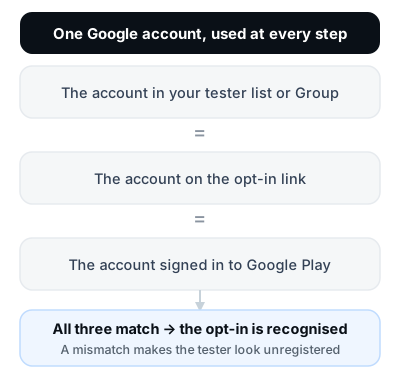 Figure 3 — One account, three places. The list, the link and Play must agree.
What to check: Ask for the address, not the name. Then compare it with three things: the entry on your tester list, the account the tester says they used on the opt-in page, and the account shown in Google Play on the device. Also ask whether the tester has more than one account on the device, and which one Play is set to.
How to fix it: Either the tester switches to the account that is on your list in every place, or you add the account they are actually using to the tester list. Pick one and be explicit about it — do not add a second address "just in case", because it inflates your list without adding an opted-in tester.
Verification step: Have the tester open the opt-in link, opt in, and then check Google Play while remaining signed in to that same account, without switching profiles.
Tip — make this impossible to get wrong. When you send the link, state the exact email address in the message: "Opt in with this address. If you are signed into anything else on your phone, switch accounts first." One sentence here prevents an entire support thread later.
Problem 5 — The tester is using the wrong testing link
What the tester sees: "Item not found" after clicking, a page that loads but offers no way to become a tester, or a Play Store listing with no test option.
Why it can happen: Developers confuse two different links. The first is your app's normal Play Store URL, which is what Google tells you to share so testers can download the app. The second is the opt-in link, which Google describes for the case where testers cannot find your app on Google Play. On top of that, links get retyped, forwarded through chat apps that mangle them, or copied from an old message when the track has since changed.
What to check: Get the link straight from Play Console for the track you are actually using, and compare it with what you sent. Google's own navigation for that track is Test and release → Testing → Closed testing, and the tester link for the track is shown there. Confirm the tester received the whole link — not a truncated version or a screenshot of it.
How to fix it: Resend the link copied from Play Console rather than retyped, and send it with the account instruction from Problem 4 attached. If you are unsure whether to share the store URL or the opt-in link, share both and explain the order: opt in first, then install.
Verification step: Ask the tester to describe what they saw after clicking — the tester-responsibilities explanation, a "become a tester" style action, or an error. Their description tells you which link they used without any guessing.
Problem 6 — The app is not available in the tester's country or region
What the tester sees: "App not available", or the listing exists but cannot be installed from their account.
Why it can happen: Country availability applies to closed testing too, and the mechanism is counter-intuitive. Official from Distribute app releases to specific countries: "Country targeting is based on the user's Play country (that is, where their account is registered), not their current location." A tester sitting in your city with an account registered elsewhere is subject to that other country's availability. Two more official details matter: by default "your testing releases match the country availability that you've set up for production", and "Country targeting won't apply to apps on the Internal testing track".
What to check: Open the closed testing track, choose Manage track, and open the Countries/regions tab. If availability is synced with production, you are inheriting production's country list — which may not include the tester at all.
How to fix it: Either add the missing country/region, or click Unsync countries/regions and edit the track's list independently. Google notes that the control can be disabled if your account lacks permission to change country availability, so this is a change to make deliberately rather than in a hurry.
Verification step: Confirm the tester's Play country against the track's list. If you have to ask, "which country is your Play account registered in?" is the right question — not "where are you right now?".
Problem 7 — The tester is searching for the app instead of using the testing link
What the tester sees: They search your app name on Google Play, find nothing, and conclude the app does not exist.
Why it can happen: This is expected behaviour, not a bug, and it is documented. Official: "If you run an internal or closed test prior to open testing or production rollout, testers cannot find your app by searching Google Play. You must share the app's Play Store URL with testers so that they can download it." Internal and closed tests are private by design; the store listing exists for the people you invite, not for the public search index.
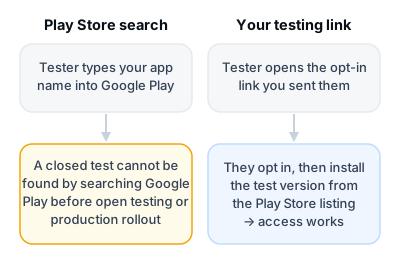 Figure 4 — Searching is the wrong tool while a test is private. The link is the route in.
What to check: Ask whether the tester ever received a link from you. If the answer is "I searched for it", the problem is the instructions, not the configuration.
How to fix it: Include the link in every recruiter message rather than telling people to look for the app. Keep the instruction short: open the link, opt in, then install.
Verification step: Send yourself the same message a tester receives and follow it on a device that is not signed in to your developer account. If you cannot complete it from that message alone, your testers cannot either.
Problem 8 — The tester opted in but still sees "App not available" or "Item not found"
What the tester sees: They completed the opt-in step, they tell you so, and the app is still not installable. Some developers report that it starts working later with nothing changed — that is a reported pattern, not a documented rule.
Why it can happen: This is the case with the most possible causes, and it is a mistake to assume a single one. Google does document a timing factor — after a test is published for the first time the test link can take several hours to become available, and later changes can too. On top of that, any of the earlier problems can still be true at the same time: a release that is not yet rolled out, a list attached to the wrong track, or an account mismatch.
What to check: Use the table below rather than guessing. Work from top to bottom.
One related official detail is worth knowing: once testers install your app, Google states that "their app automatically updates to the test version within a few minutes". If a tester appears to be stuck on an older build for much longer than that, treat it as a prompt to re-check the account and the track rather than assuming the release itself is broken.
| Symptom the tester reports | Possible area to check | What to verify |
|---|---|---|
| "App not available" | Release availability, app status, country | That a release is available on this track, that the app status is Published so an opt-in link exists, and that the track's Countries/regions include the tester's Play country. |
| "Item not found" | The link that was used | That the tester used the link from Play Console for this track, and that the whole link arrived intact rather than truncated or screenshotted. |
| "Cannot become a tester" | Tester eligibility, Google Group membership, account | That the address is on the list attached to this track, that group members have joined the group, and that the same account is signed in everywhere. |
| "Joined the Group but no access" | The opt-in step | That they completed the opt-in after joining. Membership alone is not enrolment. |
| "No opt-in page at all" | App status | That the app is Published. Draft and Pending publication apps do not display an opt-in link. |
| "Opted in but cannot install" | Country, device compatibility, account | Country availability, whether the device is excluded from this release, and whether Google Play on the device is using the opted-in account. |
| "Cannot find the app in Play Store" | Expected behaviour | Nothing — closed tests are not searchable before open testing or production. Send the link instead. |
| "Only some testers can access" | Per-tester eligibility | Compare a working tester with a failing one: which list, which account, which country. The difference is the cause. |
| "The test release is not visible" | Track and release state | That the release was rolled out on the track the tester's list is attached to, and that it has finished processing. |
Community note. Developers report that some testers keep seeing these errors for a while after everything has been configured correctly, and that access appears later without any change. Treat that as a reported pattern, not a rule: Google does not publish a guaranteed wait time beyond noting that the test link and later changes can take several hours to become available. Do not tell a tester to "just wait 24 hours" instead of checking the list above.
How to fix it: Fix whichever row of the table matches the report, one change at a time. Change three things at once and you will not know which one worked.
Verification step: Re-test with an account you know could access the app before your change. If that account still works and the problem tester now works too, you have fixed something real.
Problem 9 — The tester is on the wrong track, or multiple tracks are causing confusion
What the tester sees: Nothing useful — the same "not available" message, often for some of your testers and not others.
Why it can happen: Google's documentation confirms that you are not limited to one closed testing track: "On your closed testing page, a closed testing track is available as your initial closed test. If needed, you can create and name additional closed tracks." Each track carries its own testers and its own release. Roll a build out on one track and add testers to a different one, and every check on your side can look perfectly healthy while nobody can install anything.
What to check: Note the name of the track with the rolled-out release, then note which track each tester list and Google Group is attached to. If those names differ, you have found the problem. Also relevant for established apps: "For previously published apps, only users in your test group will receive updates for closed versions."
How to fix it: Consolidate. Roll the release out on the track your testers are on, or move the tester list onto the track with the release. Practical guidance, not a Google rule: while you are running the 14-day requirement, keep the number of tracks you use as low as you can. The requirement refers to testers opted in to your closed test, so spreading those testers thinly across tracks makes the picture harder to read, not easier. What counts as an eligible tester is covered in Google Play 12 testers: what counts as an eligible tester.
Verification step: Write down the track name, the release state, and the list attached to it, then read the same three things to a colleague. If the three do not obviously connect, your testers will hit exactly the same confusion.
Problem 10 — You are confusing installation with opt-in and tester eligibility
What the tester sees: "It is installed, it works, so I am a tester." From your side, the app shows as used and you assume the tester counts.
Why it can happen: These are six different states, and only one of them is the state Google's requirement measures:
Added to the tester list
≠ Membership of the Google Group (group tests only)
≠ Opt-in to the test
≠ Eligibility for this release on this track
≠ The app installed on the device
≠ Active testing
What to check: Official: for the accounts the requirement covers, "At least 12 testers must be opted in to your closed test when you apply for production access". Play Console shows the opted-in tester figure for a closed testing track, and that is the figure the requirement is written about. Install counts and tester-list sizes are not that figure.
How to fix it: Stop inferring. Ask each tester to confirm the moment they complete the opt-in, keep your own dated log, and read the opted-in figure from Play Console instead of counting names on a list. This is the habit that keeps a 14-day run honest.
Verification step: Today — not on day thirteen — open the closed testing track and read the opted-in tester figure. If it is lower than the number of people you think are testing, you have time to act on the gap.
Google Play closed testing troubleshooting flow
Here is the same diagnostic chain condensed into seven decisions. Answer each one in order; the moment you hit a "no", fix that item before moving on, because every later check depends on it.
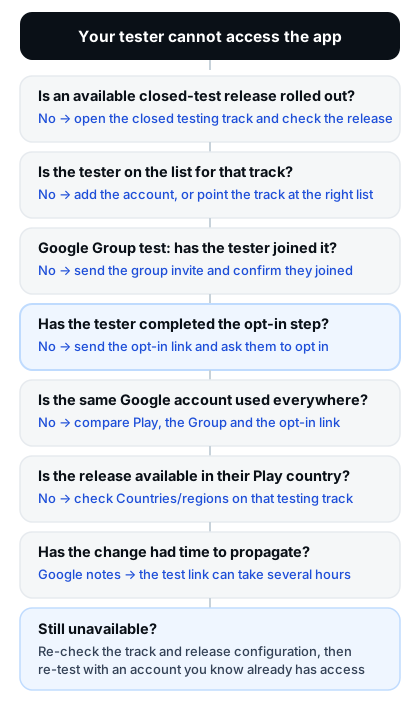 Figure 5 — Seven checks, in order. Skipping a step is how a five-minute fix becomes a two-week investigation.
Symptom, check and fix at a glance
Use this when a tester's message is your only information. It is deliberately non-committal about cause, because the same message can come from more than one place.
| Symptom | What to check first | Likely area | Fix |
|---|---|---|---|
| "App not available" | Release state on the track, then app status | Release availability | Roll out an available release; resolve errors blocking publication |
| "Item not found" | The exact link the tester opened | Testing link | Resend the link copied from Play Console for the correct track |
| "Cannot become a tester" | The address on the list attached to that track | Tester eligibility | Add the right address, or point the track at the right list or group |
| Joined the Group, no access | Whether the opt-in step was completed after joining | Opt-in | Send the opt-in link and confirm the tester confirmed |
| No opt-in page visible | The app status in Play Console | App status | Publish the app rather than leaving it in Draft or Pending publication |
| Opted in, cannot install | Country, device, signed-in account | Availability or account | Fix the track's Countries/regions, or switch Play to the opted-in account |
| Cannot find the app at all | Whether they were given a link | Instructions | Send the testing link and store URL; stop pointing people at search |
| Only some testers affected | What differs between a working and a failing tester | Per-tester configuration | Align the failing tester's account, list and country with the working one |
| Test release not visible | Track name against the tester list | Track configuration | Consolidate onto the track that actually has the release |
Google Group not working for closed testing?
Google Groups usually fail for simple reasons, and almost all of them are on the membership side rather than the Play side. Work through this list in order.
- ☐ The group address is correct — the full
[email protected]style address, entered exactly, with no typo in the group name. - ☐ The group actually contains the tester — not just people who know the address. Being told about a group does not make someone a member.
- ☐ The group is attached to the right closed testing track — the same track that has the rolled-out release.
- ☐ The tester has joined the group — Google requires group membership before opt-in, so an unjoined invitation blocks everything downstream.
- ☐ The tester can receive group mail — pending membership requests, filtered addresses and full mailboxes are all invisible from Play Console.
- ☐ The joined account is the Play account — group membership on one address does not transfer to another.
- ☐ The tester still completed the opt-in step — group membership makes them eligible, it does not enrol them in the test.
One structural caveat worth knowing: if some of your testers sit inside an organisation that uses managed Google Play, Google notes that turning that support on "makes the app private, which means that it is no longer searchable on the public Play Store", and that you must also add the organisation associated with your test to your targeted list. That is a different configuration path from ordinary consumer Google accounts, and it is covered in Google's test setup documentation.
Google Play closed testing opt-in link not working?
The opt-in link is not a URL you construct — it is something Play Console surfaces for the test. Three things have to be true before it can do anything at all.
It has to exist. Official: the opt-in link "displays only when an app status is 'Published'", and apps in Draft or Pending publication status do not display one. If your app has never been published, there is no link to send, and no amount of re-sending will help.
It has to have had time. Official: after publishing a test for the first time, the test link can take several hours to become available to testers, and later changes can take several hours too. A link shared thirty seconds after a rollout is not broken; it is early.
The tester has to complete it. Official: after clicking, testers "receive an explanation of tester responsibilities and a link to opt in", and each tester needs to opt in using that link. Opening it and stopping half-way is one of the most frequent reasons a "broken link" turns out to be a half-finished opt-in.
Opt-in link checklist
- ☐ A release is available on the closed testing track
- ☐ The app status is Published, so an opt-in link exists
- ☐ The link came from Play Console for the track you are actually using
- ☐ The tester's address is on that track's list or in its group
- ☐ Group testers have joined the group
- ☐ The tester opened the link signed in to the matching Google account
- ☐ The tester completed the opt-in confirmation, not just the first page
- ☐ The track's Countries/regions include the tester's Play country
Why does Google Play say "App not available"?
This message is a dead end on purpose — it tells you the app is not available to this account, without saying why. It is not evidence of one specific fault, and treating it as though it were is how developers spend an evening changing settings that were already correct.
In practice it comes from one of seven areas:
- The tester is not eligible — their address is not on the list attached to the track you rolled out.
- The wrong account — the account in Play, on the link and on your list are not the same one.
- The opt-in was never completed — invited, but never enrolled.
- The release is not available — the track has no rolled-out release, or it is still processing.
- Country availability — the track's Countries/regions exclude the tester's Play country.
- Track configuration — the release and the tester list are on different closed testing tracks.
- Propagation — a recent change that has not had the several hours Google describes.
Do this first
Before you change anything, answer three questions in this order: (1) Is a release available on the closed testing track I am using? (2) Is this tester's address on the list attached to that exact track? (3) Has this tester completed the opt-in while signed in to that same address? If all three answers are yes, you are down to country, track or propagation — and you have ruled out the most frequent causes first.
What testers should send you when something breaks
Vague reports cost days. Ask for these ten things in one message and you will usually diagnose the problem without a second round of questions.
- ☐ A screenshot of the error
- ☐ The exact message shown, copied word for word
- ☐ Confirmation of which Google account they are signed into — the address only, never a password
- ☐ Whether they joined the Google Group, if you are using one
- ☐ Whether they clicked the opt-in link, and what happened after they clicked
- ☐ Whether the opt-in page confirmed they were a tester
- ☐ Device model
- ☐ Android version, if the problem is about installing rather than opting in
- ☐ Country/region, or better, the country their Play account is registered in
- ☐ The exact link they used
⚠ Warning — never ask for credentials. You never need a tester's Google password, a screenshot of their account security page, or one-time codes. Asking for them is a security problem for your testers and a trust problem for your project. If someone offers, decline and tell them why.
Developer-side verification checklist
Two lists: one to run before you send anything, and one to run when a tester reports a problem.
Before sending the testing link
- ☐ A closed testing track exists and you know its name
- ☐ A release is rolled out on that track, with no blocking errors
- ☐ The release is past processing and is available to testers
- ☐ The app status is Published, so an opt-in link is displayed
- ☐ The email list or Google Group is attached to that same track
- ☐ Every tester address has been checked for typos
- ☐ Countries/regions on the track cover where your testers' Play accounts are registered
- ☐ A feedback channel exists and testers know how to use it
- ☐ The link was copied from Play Console, not retyped from memory
- ☐ Your instruction message names the exact account testers must use
After a tester reports a problem
- ☐ Check that the address is on the list attached to the track with the release
- ☐ Check group membership, if you are using a Google Group
- ☐ Ask whether the opt-in confirmation was completed, not just the link opened
- ☐ Confirm the Google account in all three places
- ☐ Check the track's Countries/regions against the tester's Play country
- ☐ Check the release state on that track
- ☐ Check you are both looking at the same track
- ☐ Check the link you sent is the one Play Console shows
- ☐ Re-test with an account you know already had access, so you can tell whether your change fixed anything
Can access problems affect your 12 testers / 14 days requirement?
Partly, and the honest answer is more useful than a reassuring one.
Official: for personal developer accounts created after 13 November 2023, Google requires that you "run a closed test for their app with a minimum of 12 testers who have been opted in continuously for at least 14 days" before you can apply for production access, and that "At least 12 testers must be opted in to your closed test when you apply for production access". See App testing requirements for new personal developer accounts.
The part that matters for troubleshooting: the requirement counts testers who are opted in. A tester who never completed the opt-in was never counted, and a tester who cannot access the app is a tester you cannot count on to remain opted in for the whole run. So an unresolved access problem erodes the number you will be able to claim — but you should not assume it resets your testing period. Google does not publish a rule that a technical access fault restarts the clock, and no one outside Google can tell you that it does.
The practical consequence: do not treat "12 addresses on a list" as the finish line. Before you apply, read the opted-in figure from the closed testing track and reconcile it against your own log of opt-in confirmations. If access problems have been going on, that reconciliation is the only way to know whether you are actually at 12.
Two related articles go deeper on the edges of this: what resets or breaks a 14-day testing period, and why production access is still rejected after 14 days. Also remember the boundary: meeting the requirement makes you eligible to apply. Google reviews the application separately and can require further testing, for example if fewer than 12 testers are opted in or tester engagement was insufficient.
10 troubleshooting mistakes to avoid
- Adding testers but never rolling out a release. A configured track with no available release gives testers nothing to access.
- Sending the wrong link. The store URL and the opt-in link are not the same thing, and a link copied from an old message may belong to a different track.
- Assuming group membership equals Play opt-in. Google requires both, in that order.
- Not checking the Google account. One character of difference between the invited address and the Play account is enough to break access.
- Testing with a different account than your testers. If you verify with your developer account, you are verifying nothing.
- Ignoring country/region availability. It follows the tester's Play country, not their location.
- Telling testers to search Google Play. Closed tests are not searchable before open testing or production rollout.
- Treating an install as proof of opt-in. They are reported separately, and only one of them is the figure the requirement uses.
- Treating community advice as a Google requirement. Most of it is sensible practical guidance; none of it is policy.
- Assuming 14 days guarantees production access. It earns you eligibility to apply, nothing more.
Several of these overlap with the deeper process problems that cause rejections rather than access failures — the ones covered in why Google Play closed testing fails.
The 5-minute Google Play closed testing check
Run this whenever a tester says the app is not available. It is deliberately short so that you actually do it.
5-minute check
- Release. Open the closed testing track. Is a release rolled out, past processing, and available?
- List or Group. Is the tester's address on the list — or in the group — attached to that track?
- Opt-in. Did the tester complete the opt-in confirmation, or only open the link?
- Account and country. Same Google account everywhere, and is the tester's Play country covered by the track?
- Re-open the link. Have the tester open the testing link again, signed in to that account, and confirm what they see.
Five steps. In most reports, the answer is in step one, two or three.
Frequently asked questions
Why does Google Play say "App not available" for my tester?
Because the app is not available to that specific account. The usual reasons, in rough order of likelihood, are: the tester is not on the list attached to the track with the release, the release is not actually rolled out or is still processing, the opt-in was never completed, the wrong Google account is being used, or the track's country availability excludes the tester's Play country. There is no single cause — work through the seven checks in order.
Why can my tester join the Google Group but not access the app?
Because joining a group and opting in to a Google Play test are two separate actions. Google requires group members to join the group before opting in, and it requires each tester to opt in using the link. Membership makes the tester eligible; the opt-in is what enrols them.
Does joining a Google Group automatically make someone a Play tester?
No. It makes them eligible to become one. Google's setup documentation states that for closed tests using a Google Group, users must join the group before opting into the test — and that each tester needs to opt in using the link.
Why is my closed testing opt-in link not showing?
The official reason to check first is app status: the opt-in link displays only when the app status is Published, while apps in Draft or Pending publication status do not display one. If your app is Published and there is still no link, check that you are looking at a track with a rolled-out release, since a track without a release is not a test that can be joined.
Can testers find a closed-test app by searching Google Play?
Not while the test is private. Google states that if you run an internal or closed test prior to open testing or production rollout, testers cannot find your app by searching Google Play, and that you must share the app's Play Store URL with them. Once your app is in open testing — which becomes available after you gain production access — its test version becomes visible on Google Play and anyone can join.
Why does the tester see "Item not found" after opting in?
Usually the link. "Item not found" tends to mean the URL that was opened does not resolve to your app for the signed-in account — often a truncated link, a link for a different track, or a link copied from an earlier message. Ask the tester to describe exactly what they saw after clicking, then resend the link copied from Play Console for the track you are using.
Does the tester need to use the same Google account everywhere?
Yes — for access to behave predictably, the account in your tester list or group, the account on the opt-in link and the account signed in to Google Play should be one and the same. Google accepts both Google Accounts and Google Workspace accounts for testers, which is precisely why mixing a work address with a personal Play account causes so much confusion.
Can country/region settings prevent tester access?
Yes. Country targeting applies to testing releases, and Google notes that testing releases match your production country availability by default unless you unsync them. The important nuance is that targeting is based on the tester's Play country — where their account is registered — not where they physically are.
Does installing the app mean the tester is opted in?
No. Opt-in is the step that makes someone a tester; installation is a separate signal. Play Console reports the opted-in tester figure for a closed testing track, and that is the figure Google's requirement refers to — not install counts and not the size of your tester list.
Can a technical access problem affect the 14-day requirement?
It can erode it, because the requirement counts testers opted in continuously. A tester who never completed the opt-in was never counted, and testers who cannot access the app are unlikely to stay opted in for the full run. What you should not assume is that an access fault resets your testing period — Google publishes no such rule, so treat any claim about automatic resets as unverified.
What should I check before adding more testers?
Make sure the extra testers can actually succeed. Confirm the release is available, the list is the one attached to your track, your instruction message names the exact account to use, and the track's Countries/regions cover where they are registered. Adding people to a broken configuration just produces more identical support messages.
What should I send Google if my configuration looks correct?
Test with an account you know has access to confirm the release itself works, then gather the specifics: the track name, the release state, the tester's Play country, whether the opt-in was completed, and a screenshot of the exact message. Google's help pages link to the Help community and to Play Console support for cases the documentation does not cover — and a report with the specifics above is far more useful than "my testers cannot download my app".
The short version
Closed testing access is a chain, and the message testers see is the same whether the break is at the first link or the last. Roll out an available release on the track you are telling people about, put the right addresses on the right list, make sure group testers actually joined, make sure they completed the opt-in, use one Google account everywhere, cover their Play country, and give fresh changes the several hours Google documents before deciding anything is broken.
If you are preparing for the 12 testers / 14 days requirement, the troubleshooting mindset transfers directly: read the opted-in figure rather than trusting your list, fix access problems the day they appear instead of on day thirteen, and treat eligibility to apply as the goal — not approval. If you want the whole sequence in one place, our complete 14-day guide for 12 testers walks through it end to end.
Need help once the setup is working?
If your closed testing configuration is correct but the hard part is keeping real people opted in for the full testing period, 12 Testers Community helps Android developers organise managed Google Play closed testing — real testers, a coordinated testing period, and a feedback trail you can summarise. Take a look at the closed testing services or see the plans and pricing.