
Last reviewed against the official Android Developers and Google Play Console documentation. Signing workflows and technical guidance evolve, so confirm the current position in your own Play Console and on the pages linked below.
Google Play App Signing separates the key you use to upload an app from the key that signs the version users install. If you publish through Play Console today, that separation is already happening on your behalf: Google holds the app signing key, and you hold an upload key. Understanding which is which is what tells you whether a lost key is an inconvenience or the end of your ability to ship updates.
It is also the area where sincere advice goes wrong most often, because the answer genuinely depends on your setup. A developer whose app uses Play App Signing can reset a lost upload key in a few minutes. A developer who manages their own signing key outside Play App Signing and loses it cannot update that app again under the same identity. Those are different situations, and most generic guidance does not distinguish them.
This guide covers what Play App Signing is, the difference between the upload key and the app signing key, what a keystore actually contains, how signatures relate to certificate fingerprints and API integrations, how to protect the credentials, and exactly what to do when a key is lost, compromised or due for an upgrade. Everything technical is sourced to Google's documentation, and recommendations are labelled as recommendations.
The one distinction that matters most
Google's own guidance is that for maximum security your upload key and your app signing key should be different. The upload key signs what you send to Google Play. The app signing key signs what users install. Keeping them separate is precisely what makes an upload key reset possible without breaking updates for anyone.
What is Google Play App Signing?
Play App Signing is Google's managed signing service. Google describes it as an arrangement where Google manages and protects your app's signing key on the same secure infrastructure it uses to store its own keys, protected by Google's Key Management Service.
The practical effect is that your app bundle is signed by you for transport, then re-signed by Google for distribution. Google documents two keys in the classic model — the app signing key and the upload key — and adds that you keep the upload key and use it to sign your app for upload, while Google uses the upload certificate to verify your identity and signs the APKs distributed to users with the app signing key.
Google gives three reasons to enrol, and they are worth reading together because they are different kinds of benefit:
- Key safety. Play App Signing safeguards your keys against permanent loss or compromise. Because Google holds the app signing key, a lost upload key is recoverable.
- App bundle support. It lets you use the Android App Bundle and Google Play's advanced delivery modes, and lets Google sign the optimised distribution APKs generated from your bundle.
- Key upgrade. It makes it possible to change the app signing key if the existing one is compromised or you need to migrate to a cryptographically stronger key — something that is difficult to do for an already-published app without it.
Enrolling also unlocks specific services Google lists, such as automatic protection and automatic strings translation for app bundles, with additional automatic services for games. Configuring Play App Signing, Google notes, requires admin permission on the account.
One boundary worth knowing because it changes what you must do: Play App Signing is optional for apps created before August 2021, according to Google's signing documentation. Older apps may therefore still be signed the way they always were, which is why a general statement that “Google signs every app” is not safe to rely on without checking your own configuration.
Why Android apps need digital signing
Signing is not an optional trust signal on Android; it is the mechanism that makes updates possible. Google's documentation states that Android requires that all APKs be digitally signed with a certificate before they can be installed on a device or updated.
Three consequences follow, and each explains a rule further down this page:
- Identity is the signature. A device accepts an update only when it is signed consistently with the version already installed. This is why Google describes the signing key as never changing during the lifetime of your app as part of Android's secure update model — and why changing it requires a documented migration rather than simply generating a new one.
- The signature is about the app, not the developer. What the device verifies is continuity for that package. It is not a statement about who you are or what your app does.
- A debug signature is not a publishing signature. Android Studio signs debug builds with a debug certificate, which Google describes as insecure by design and notes that most app stores, including Google Play, do not accept for publishing.
The debug keystore is also where a surprising number of developers first meet signing problems. Google documents that the self-signed debug certificate expires 30 years after creation, and that when it expires you get a build error — fixed by deleting the debug.keystore file, stored in ~/.android/ on macOS and Linux or C:\Users\<user>\.android\ on Windows, after which Android Studio regenerates it on the next debug run.
Upload key vs app signing key: the key differences
Table A is the reference comparison. Figure 1 is the same distinction in visual form, with the quantum-ready case included.
| Feature | Upload key | App signing key | Who controls it |
|---|---|---|---|
| Purpose | Signs the bundle or APK you send to Play Console, so Google can verify you as the uploader. | Signs the APKs installed on users' devices. | Two different parties, and that is the point. |
| Custody | You. Google's wording is emphatic: keep this secure. | Google Play, protected by Google's Key Management Service — unless you supplied your own key. | You hold one; Google holds the other. |
| Format and strength | Java keystore, .jks or .keystore. Must be RSA 2048-bit or more. |
Public certificate, .der or .pem. Google-generated keys are RSA 4096-bit; custom keys must be RSA 2048-bit or higher. |
The app signing key is generally the stronger of the two. |
| Secrecy | The private key must stay secret. The certificate it generates can be shared. | Private and must be kept secret. The certificate can be shared, and usually must be. | Share certificates freely; share private keys never. |
| If lost or compromised | Google can reset it for you. You are not locked out of the app. | Recoverable through the documented upgrade process when Google holds it. Not resettable if you manage it yourself without Play App Signing and lose it. | This row is where the two keys stop being interchangeable. |
| How to protect it | Keep the keystore and its passwords out of source control, and keep an offline backup you have tested. | Let Google hold it unless you have a reason not to, and register its fingerprint where APIs require it. | Treat both as credentials, and the private halves as secrets. |
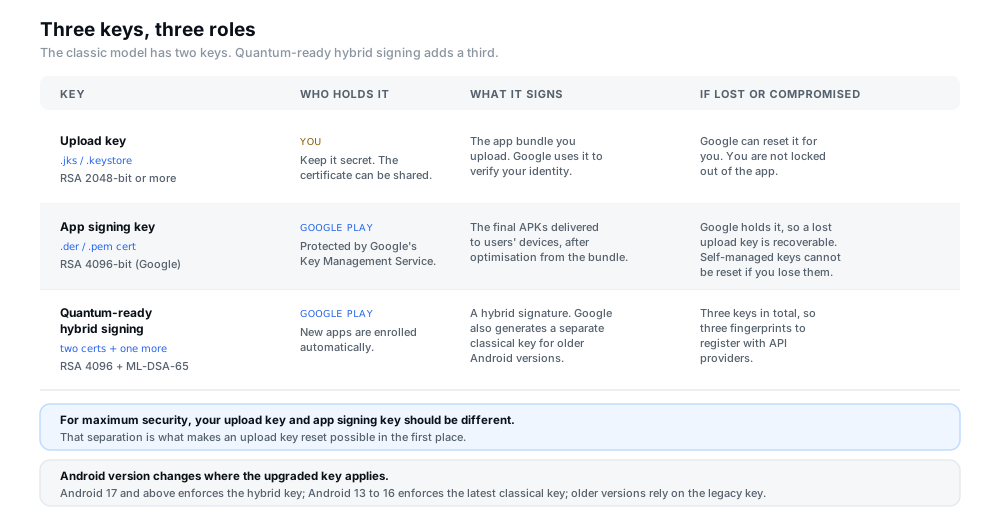
Figure 1 — Three keys, three roles. Note how the “if lost or compromised” column changes depending on who holds the key.
What is a keystore file?
A keystore is a container, not a key. Google's documentation describes Java keystores with the .jks or .keystore extension as binary files that serve as repositories of certificates and private keys. One keystore can therefore hold more than one key, each identified by an alias.
That distinction explains a common confusion. When people say “I lost my keystore”, they usually mean one of three separable things, and only some are fatal:
- The keystore file itself. If it is gone and there is no backup, the private keys inside it are gone with it.
- The keystore password. Without it you cannot open the file, even though the file is still there. For a self-managed app signing key this has the same practical result as losing it.
- The alias or the key password. The key may still be recoverable if you can recall or reset these, because the file and the keystore password are what protect it.
The third element in the picture is the certificate. Google describes a public key certificate — a .der or .pem file, also called a digital certificate or identity certificate — as containing the public key of a public/private key pair plus metadata identifying the owner who holds the corresponding private key. This is the artefact that is safe to hand over, which is why the fingerprint discussion later in this page is about certificates and never about keys.
Google's setup guidance for Android Studio asks you to set a keystore password, a key alias and a key password, and to choose a validity period in years — recommending your key be valid for at least 25 years so you can sign app updates with the same key through the lifespan of your app. That 25-year figure is the practical reason a short validity is a mistake: an expiring key is a problem you will still be solving a decade from now.
How signing works when you upload an Android App Bundle
Figure 2 traces the path, and the important thing to notice is where the switch happens.
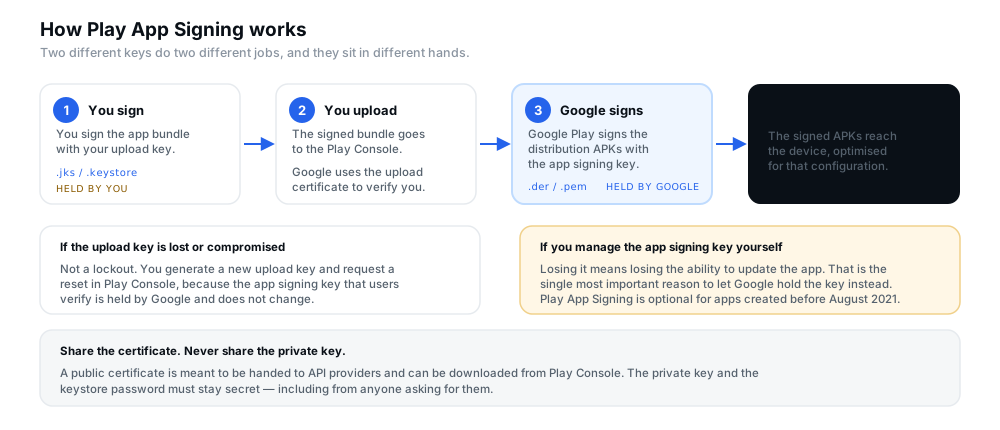
Figure 2 — The signing flow. You sign for transport; Google re-signs for distribution.
For a new app the sequence Google documents is:
- Create the app. Google notes that a new app is automatically enrolled in quantum-ready hybrid signing with Google-generated keys, and that a separate classical key is also generated for signature blocks recognised on earlier devices.
- Create an upload key. Generate a keystore to sign your release app bundle, either in Android Studio or with the Java
keytoolutility. - Upload the signed app bundle in Play Console by preparing a new release. Google states that by default the app is enrolled in quantum-ready hybrid signing with Google-generated keys at this point.
- Optionally change the app signing key — an advanced path Google offers before any release has been rolled out on the open testing or production track.
For an existing app that already manages its own keys, enrolling means transferring a copy of the original key: Google documents downloading the PEPK tool and following the step-by-step instructions to encrypt and upload your existing app signing key, after which it recommends generating a new key to use as your upload key going forward.
Two finer points worth knowing because they affect how you test and distribute. Google notes that when it signs your APKs it uses apksigner to add two stamps to the app manifest — com.android.stamp.source and com.android.stamp.type — so APKs are traceable to the original signer. And for distributing outside Google Play, you have two documented options: let Google generate the app signing key and download a signed universal APK for the other stores, or generate the key you want to use everywhere and transfer a copy to Google when configuring Play App Signing.
How to find signing information in Play Console
Google's documentation gives the location, and it has moved between Play Console versions, which is why older tutorials point elsewhere. The current path for managing signing is Protected with Play → Play Store distribution → Go to Play app signing. The page holds the app signing key section, the upload key certificate section, the actions to upgrade the app signing key and to request an upload key reset, and the fingerprints for both certificates.
What you can do from there:
- See both certificates and download the original
.dercertificate for the app signing key. - Copy fingerprints for the upload and app signing certificates in MD5, SHA-1 or SHA-256.
- Request an upload key reset from the Upload key certificate section.
- Upgrade the app signing key from the App signing key section, where you also choose the upgrade path.
Two adjacent areas are worth knowing about even though they are not signing pages. App bundle explorer, under Test and release, lets you inspect versions and download device-specific APKs. And Google recommends Internal App Sharing if you want to test exactly what Google Play will deliver to users, or downloading device-specific APKs from the app bundle explorer and installing them with adb install-multiple.
Upload certificate vs app signing certificate fingerprints
This is the point where a correct signing setup still produces a broken app, so it is worth being precise. A certificate fingerprint is, in Google's words, a short and unique representation of a certificate that is often requested by API providers alongside the package name to register an app to use their service.
The trap is the same separation as everywhere else on this page. An API provider authenticates the app the user actually runs — and that app is signed by Google with the app signing key. So registering only your local upload certificate is not sufficient. Google's instruction is explicit: because Google signs the final APK, you must register the Google-held app signing key fingerprint with your API providers, not just your local upload key.
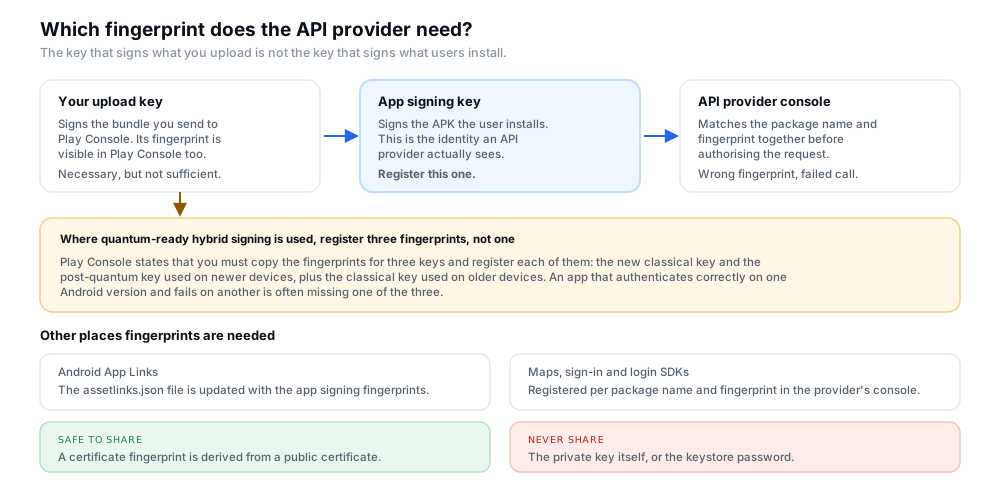
Figure 3 — Register the app signing fingerprint, because that is the signature the installed app carries.
Where you need fingerprints, per Google's documentation:
- API providers generally — Maps, OAuth, social login and similar services that authenticate your app by package name and fingerprint. Register the app signing fingerprints, copied from the App signing key section of the Play app signing page.
- Android App Links — Google's tip is to update your
assetlinks.jsonfile with these fingerprints so the link verification matches the signature the installed app actually carries. - Quantum-ready hybrid signing — Google states that you must copy the fingerprints for three keys and register each: the new classical and post-quantum keys used on newer devices, and the classical key used on older devices.
Practical advice rather than policy: when an app authenticates on one Android version but fails on another, or works in a locally installed build but fails from Play, an incomplete fingerprint set is one of the first things worth checking.
How to protect your keystore and private keys
Fingerprint confusion is recoverable. A leaked signing key is not, which is why the security habits around keystores deserve more attention than the cryptographic detail.
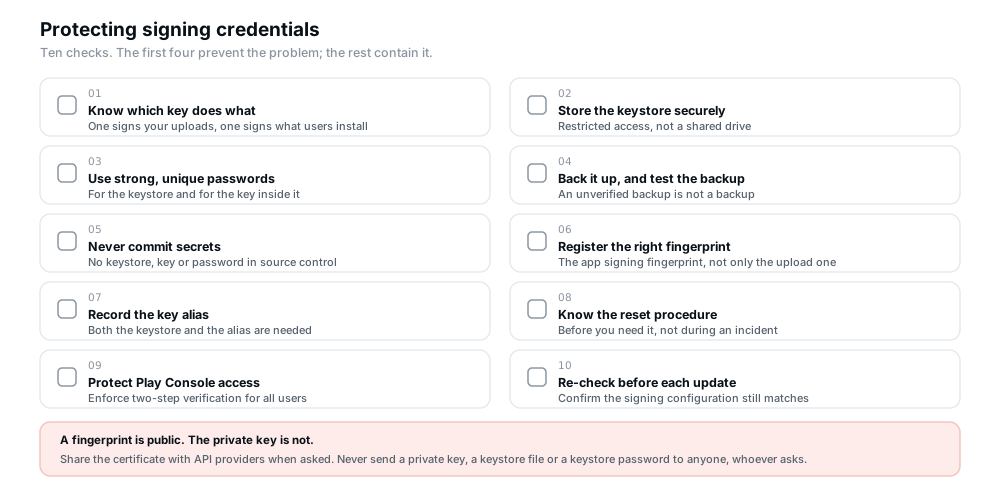
Figure 4 — The first four prevent the problem; the rest contain it. None of them involves sharing a secret with anyone.
The four habits that matter most, in order of how much trouble they prevent:
- Keep the private key out of anything shared. A keystore, a private key file, a keystore password or a key password must not appear in source control, a public repository, a build log, a chat message or public documentation. CI systems need the key to sign a release, so the credential has to be provided at build time — but through your pipeline's secret mechanism, not by committing a file.
- Back the keystore up somewhere you control, and test that the backup restores. A backup you have never opened is a hypothesis, not a backup.
- Use strong, distinct passwords for the keystore as a whole and for the key inside it. Android Studio's guidance is to create a secure password for each.
- Protect the surrounding accounts. Google's own best practice is to protect your Play Console access by enforcing 2-Step Verification for all users. A signing key is only as safe as the console that can request a reset of it.
There is also a deliberate-risk decision worth naming: if you distribute through other stores and want one signing key everywhere, Google documents two options — let Google generate the key and download a signed universal APK for elsewhere, or generate the key yourself and transfer a copy. The second gives you the same identity across stores, and it also puts the irreplaceable key back in your hands.
Backing up a keystore safely
Backup is a small topic with an outsized consequence, so it is worth separating from the general security advice.
- Store at least two copies in different places — for example an encrypted archive in a controlled cloud location and an offline copy on removable media kept somewhere physically secure.
- Record the alias and the passwords separately from the keystore, or the backup is a locked box with the key inside it. Store them in a password manager rather than beside the file.
- Restore the backup once, deliberately. Sign a test build from the restored keystore to confirm the archive opens, the password is correct and the alias is what you think it is.
- Restrict who can reach it. Anyone with the keystore and its passwords can produce signed releases; that is the whole risk in one sentence.
If you use Play App Signing for everything, note what the backup does and does not protect. It protects your ability to upload, because that is what your upload key does. The app signing key, held by Google, is protected by Google's infrastructure rather than by your backup.
What to do if you lose or compromise your upload key
Google's position on this is reassuring and specific: if you lose your upload key or suspect it was compromised, you are not locked out of your app. That is the direct consequence of the app signing key being held separately.
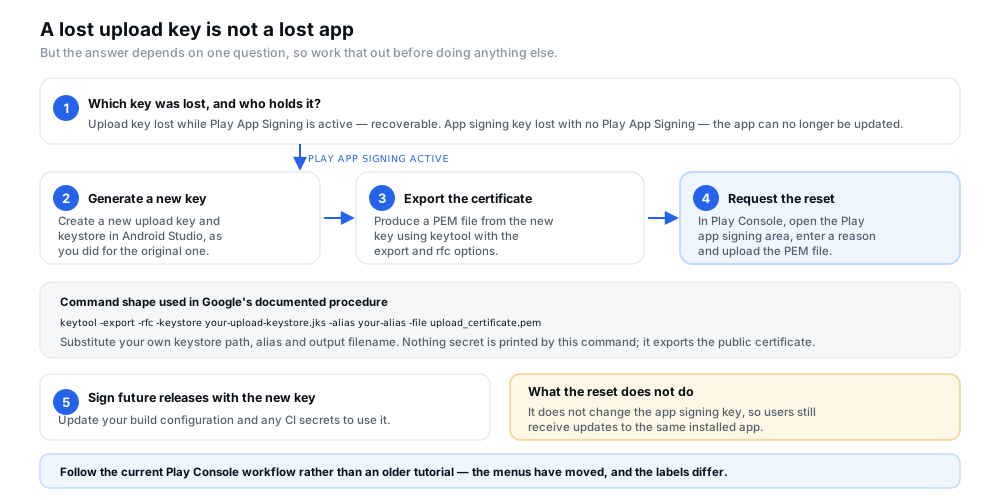
Figure 5 — A lost upload key is not a lost app, but the first question decides everything that follows.
The documented procedure, in order:
- Create a new upload key in Android Studio.
- Export the certificate to PEM format. Google gives this command shape, using
keytoolwith the-exportand-rfcoptions:keytool -export -rfc -keystore upload-keystore.jks -alias upload -file upload_certificate.pem. Substitute your own keystore path, alias and output name. Nothing secret is printed by this command; it writes out the public certificate. - Submit the reset request in Play Console. Google's current path is Protected with Play → Play Store protection → Manage Play app signing; in the Upload key certificate section, click Request upload key reset.
- Enter the reason for the reset, upload the
.pemfile, and click Request. - Sign subsequent releases with the new upload key, and update your build configuration and any CI secrets accordingly.
Two cautions. First, do not expect a fixed turnaround — Google does not publish a guaranteed processing time for a reset, and treating one as promised will only cause confusion. Second, if your key may have been compromised rather than merely lost, treat it as a security incident: rotate the upload key, review who had access to the keystore, and check the console's audit surface for anything you did not authorise. A key that is merely lost is an inconvenience; a key that is in someone else's hands is a release-signed-by-someone-else problem.
What happens if you lose your app signing key
This is the case where the answer splits, and it is the reason the earlier distinction matters.
If Google holds your app signing key — the normal situation with Play App Signing — you cannot lose it in the first place, and if it is compromised Google documents a key upgrade path you can request through Play Console. Google's description is that an app signing key cannot be reset if you manage it yourself without Play App Signing and lose it, implying precisely that the Google-held case is handled differently.
If you manage your own app signing key without Play App Signing, Google's documentation is blunt: for apps that have not opted in to Play App Signing, if you lose your app's signing key, you lose the ability to update your app. The already-published app continues to exist for the users who have it. It simply cannot be updated under the same identity, because no future build can be signed consistently with the installed version.
A third configuration exists and is worth knowing about because it carries hidden costs. Google documents self-hosted Google Cloud projects, where you enrol in Play App Signing using your own Cloud KMS project, as a non-standard setup that is not encouraged. Google states that it prevents Google Play from performing essential features such as disaster recovery, that Google cannot regenerate or fix an existing release, and that advanced optimisations and enhancement features — including quantum-ready hybrid signing — may not be available. If you understand that trade and still want it, the documented path exists; if you have simply followed a tutorial that used it, the default Play App Signing arrangement is the better choice.
When and why an app signing key might be upgraded
Google documents two reasons to upgrade an app signing key: the key is compromised, or you need a cryptographically stronger key. Google's wording is that you can request an annual key upgrade for all installs on Android 17 (API level 37) and above.
The enforcement is version-dependent, and this is the detail most summaries miss. From Google's documentation:
- Android 17 (API level 37) and above — the platform strictly enforces the upgraded quantum-ready hybrid key, verified using APK signature scheme v3.2.
- Android 13 (API level 33) to Android 16 (API level 36) — the platform strictly enforces the latest classical key, using APK signature scheme v3.1.
- Android 7 (API level 24) to Android 12 (API level 32) — the platform itself does not enforce the upgraded key and still recognises the latest classical key, but Google Play Protect adds validation by checking that app updates are signed with your latest classical key.
There is also a documented caveat that matters only to a specific case: because the platform does not enforce the upgraded key on Android 12 (API level 32) and below, if you use the same key across multiple apps to share data, those older versions will recognise only the legacy key for features such as custom permission sharing.
To upgrade, Google's steps are: open Protected with Play → Play Store distribution → Go to Play app signing; under the App signing key section click Upgrade key; choose the upgrade path — let Google Play generate a new key (which Google marks as recommended), use the same app signing key as another app in the developer account, or provide a copy of your own; then click Save. Afterwards you must register the new key fingerprints with your API providers, and under quantum-ready hybrid signing that means registering the fingerprints for two new keys.
The practical consequence deserves stating plainly: an upgrade is not a silent change. Because the signature on a future build differs from the signature that installed app versions expect, the version-dependent enforcement ladder above is exactly what keeps existing users on a working update path. That is also why the upgrade path is offered as a managed process rather than as “re-sign with a new key”.
Common app signing errors and how to troubleshoot them
Table B collects the problems that recur, with the safe next step for each.
| Problem | Possible cause | Safe next step |
|---|---|---|
| A build is signed with the wrong key | The release build used a different signing configuration than the one registered as your upload key — often a local build versus CI. | Check the signing configuration in the release build, then either re-sign with the registered upload key or request an upload key reset. Do not try to force the upload. |
| The upload keystore cannot be found | The keystore lived on a machine, a drive or a shared folder that is gone, or it was never backed up outside the build machine. | If Play App Signing is active, generate a new upload key and request a reset. If it is not, stop and establish exactly which key you have before changing anything. |
| An API integration rejects the app | The provider has your upload certificate fingerprint, but the installed app is signed with the Google-held app signing key. | Copy the app signing key fingerprints from the Play app signing page and register those as well. Under hybrid signing, register all three. |
| The app works locally but fails from Play | A locally installed build carries a debug or local signature rather than the distributed one, so fingerprint-based checks behave differently. | Test what Google delivers using Internal App Sharing, or install a device-specific APK from the app bundle explorer. |
| The keystore will not open | The keystore password has been forgotten or was recorded incorrectly. The file is intact; the credential to read it is not. | Check any password manager or team records before assuming loss. The keystore password cannot be recovered by Google; it protects a key Google may never have seen. |
| A certificate and a private key are treated as the same thing | Confusion between the shareable public certificate and the secret private key, often because both are “the signing key” in casual speech. | Share only the certificate or its fingerprint. Never send the private key or keystore password to anyone, including someone presenting themselves as support. |
| A debug build is submitted for release | The release was signed with the debug certificate, which Google describes as insecure by design and which Play does not accept for publishing. | Build a release variant signed with your upload key. Confirm the release signing configuration is assigned to the release build type. |
| A signing key is changed without understanding the migration | Attempting to re-sign with a new app signing key outside the documented upgrade process, which breaks the update path for installed apps. | Use the documented key upgrade in Play Console, or enrol in Play App Signing. Do not generate a replacement key by hand and sign a release with it. |
A fifth configuration detail is worth a mention because it surprises people: APK Signature Scheme v4 is applied automatically by Play App Signing for eligible apps to support optimised distribution on Android 11+ devices, with no action required — but Google notes this excludes apps using quantum-ready hybrid signing, which is not yet compatible with v4 signing. If you are troubleshooting a delivery or optimisation behaviour difference between apps, that is one reason two apps can behave differently.
App signing safety checklist
Run this when you set up signing, and again before you ship a release from a new machine or pipeline.
- You know which key signs your uploads and which key signs the distributed APKs. If you cannot answer this for your app, start here.
- The keystore and private keys live in a secure location with restricted access, not on a shared drive or an unencrypted laptop.
- Passwords are strong and unique, and stored in a password manager rather than beside the keystore file.
- A backup exists and has been restored once to confirm the archive opens, the password works and the alias is correct.
- The key alias is recorded somewhere your future self can find it.
- No private key, keystore file or password appears in source control, a public repository, a build log, a chat message or public documentation.
- CI provides the signing credential through its secret mechanism, not from a committed file.
- The correct fingerprint is registered with every API provider — the app signing fingerprint, and all three under hybrid signing.
assetlinks.jsonis updated with the app signing fingerprints if you use Android App Links.- You know the official reset procedure and where the Play app signing page is, before you need either in a hurry.
- Two-step verification is enforced on Play Console access for every user on the account.
- The signed release has been verified on a real device, ideally using Internal App Sharing so you are testing what Google actually delivers.
Frequently asked questions
What is Google Play App Signing?
It is Google's managed signing service. Google manages and protects your app's signing key on the same infrastructure it uses for its own keys, protected by Google's Key Management Service. You keep an upload key and use it to sign the bundle you upload; Google verifies your identity with the upload certificate and signs the APKs distributed to users with the app signing key.
What is the difference between an upload key and an app signing key?
Purpose and custody. The upload key is held by you and signs the app bundle you send to Play Console, where Google uses it to verify your identity. The app signing key is held by Google Play and signs the final APKs delivered to users' devices. Google recommends keeping them different for maximum security, and that separation is what allows a lost upload key to be reset without breaking updates.
Does Google Play sign the APK delivered to users?
Yes, when Play App Signing is configured. Google states that it uses the app signing key to sign the final APKs delivered to users' devices, and that it uses apksigner to add two stamps to the app manifest so the APKs are traceable to the original signer.
What is an Android keystore file?
A binary file, with the .jks or .keystore extension, that acts as a repository of certificates and private keys. It can hold more than one key, each identified by an alias, and it is protected by a keystore password. The private keys inside it must remain secret; the certificates generated from them are safe to share.
What happens if I lose my upload key?
If Play App Signing is active, you are not locked out. You create a new upload key, export its public certificate to PEM format, and request an upload key reset in Play Console by uploading that file and entering a reason. Then you sign future releases with the new key. Google does not publish a guaranteed processing time for the request.
Can I reset my app signing key?
It depends who holds it. If Google holds it, Google documents an annual key upgrade you can request in Play Console when the key is compromised or you need stronger cryptography. If you manage the app signing key yourself without Play App Signing and lose it, Google states you lose the ability to update the app — it cannot be reset.
Which signing certificate fingerprint should I use for an API integration?
The app signing key fingerprint. Because Google signs the final APK, an API provider authenticates the app users actually install, so Google's instruction is to register the Google-held app signing key fingerprint and not only your local upload key. Under quantum-ready hybrid signing you must register three fingerprints.
Can I use the same key for multiple apps?
Play App Signing does let you choose to use the same app signing key as another app in the same developer account, both when configuring a new app and when upgrading a key. Be deliberate: sharing a key links the apps' signing identity, and Google notes one concrete consequence — on Android 12 and below, apps sharing a key recognise only the legacy key for features such as custom permission sharing.
How should I back up my keystore safely?
Keep more than one copy in different places, at least one of them offline and physically secure; store the alias and passwords separately from the file, in a password manager; restrict who can reach the copies; and restore the backup once to prove it works and that you know the passwords and alias. An untested backup is not a backup.
Do existing apps always follow the same signing workflow as new apps?
No, and this is the assumption most likely to cause trouble. Google documents that Play App Signing is optional for apps created before August 2021, so an older app may still be self-signed, while new apps are automatically enrolled in quantum-ready hybrid signing with Google-generated keys by default. Older self-managed apps can opt in by transferring a copy of their existing key.
Official resources
These are Google's own pages. Where anything in this article and those pages disagree, the official pages and your own Play Console win.
- Use Play App Signing — the core concepts table, key formats and requirements, quantum-ready hybrid signing, registering with API providers, key upgrade, and the upload key reset procedure.
- Sign your app — why Android requires signing, keystores, keys and certificates, generating an upload key, the debug keystore, and the keytool command for exporting an upload certificate.
- Upload your app to the Play Console — the upload workflow that follows signing.
- How app updates work — the update model that makes the signing key's continuity matter.
- Internal App Sharing — testing exactly what Google Play will deliver to users.
- Prepare your app for review — the other declarations that accompany a release.
Conclusion
App signing is one of the few parts of Android publishing where a mistake can be genuinely irreversible, and the entire design of Play App Signing exists to make it reversible in the common case. Google holds the key that signs what users install; you hold a key that signs what you upload; and the fact that those are different is what lets Google issue you a new upload key without disturbing a single installed app.
That structure also tells you what to protect. Your upload keystore is the credential you must back up, keep out of source control and store with its passwords securely. The app signing key is the one you mostly do not have to think about — as long as you let Google hold it, and register the right fingerprints wherever an API authenticates your app by signature.
If you take one practical step after reading this, make it the fingerprint check: copy the app signing key fingerprints from the Play app signing page and confirm every API integration uses those, not only your local upload certificate. It is the most common cause of an app that signs correctly, uploads correctly, and still fails to authenticate for reasons nobody can see.
If you are still working through Google's publishing requirements, creating a compliant store listing covers the page users and reviewers read, what happens to testers when you update an app covers the early-release case where a key change matters most, and the production access application covers the step after a completed test.
Preparing an app for release?
12 Testers Community helps Android developers run a managed closed test with real testers who stay opted in for the full required testing period, alongside guides for the rest of the Play submission process. Signing keys are yours to manage: no testing service can repair a signing key, reset one on your behalf or take over that responsibility, and nothing here guarantees approval, production access or ranking.