Last reviewed against Google Play Console Help. Google updates its documentation and the Play Console interface periodically — confirm the current requirements in your own console and on the official pages linked below.
A Google Play store listing is the page users see before they install your app. Google describes it as containing the details that help users learn more about your app, and it is shared across every track — including your testing tracks, not only production.
It is also the only part of your submission that is written for two audiences at once. Users read it to decide whether to install. Reviewers read it to decide whether your app is what it claims to be, and Google's Metadata policy explicitly rejects listings that are misleading, non-descriptive, irrelevant, excessive or inappropriate — including the description, title, icon and screenshots.
That combination is why the useful version of Google Play store listing work is not keyword research. It is accuracy: describing what the app genuinely does, using the fields within their documented limits, and keeping the listing true after the app changes. This guide covers the elements and their exact requirements, how to write each text field, how to prepare the icon and screenshots, which practices Google prohibits, and how to review a listing over time. Every limit and requirement is sourced to Google's documentation, and recommendations are labelled as recommendations.
The three text limits, exactly as documented: app name 30 characters, short description 80 characters, full description 4000 characters. Google notes that these limits apply to both full-width and half-width characters, so the number is the maximum regardless of the characters you use.
What is a Google Play store listing?
Your store listing is the set of information displayed on Google Play about your app: its name, its descriptions, and the visual assets that accompany them. Google describes the assets used to showcase an app as including the feature graphic, screenshots, the short description and videos, and it notes that these are used to promote your app on Google Play and across other Google promotional channels.
You manage it in Play Console on the Main store listing page, under Grow users → Store presence → Main store listing. Contact details — where a support email address is required and a website is recommended — live separately on the Store settings page.
Two structural facts are worth knowing before you write anything:
- The listing is not track-specific. Google states that your store listing is shared across tracks, including testing tracks, and that preview assets are shown on your store listing across all test tracks once added. A listing written for a small closed test is visible to that test's participants as their reference point.
- Google Play may use your assets beyond the listing. By making your app available on Google Play you grant Google licence to use your app's assets — including the icon, screenshots and videos — for promotional purposes, as set out in the Developer Distribution Agreement. You can restrict promotion across Google-owned properties by unchecking the External marketing box on the Store settings page.
Why your app listing matters
The listing does three jobs, and only one of them is about persuading users.
It explains the app to users. Google's policy rationale is direct: users depend on descriptions of your app to help them understand its functionality and purpose. Its publishing guidance adds that a clear and comprehensive description makes an app easier for users to find while also helping Google quickly understand the app during the review process — and that even when the app's function seems obvious, it is worth writing more than a single word or sentence.
It is reviewed. The Metadata policy requires a clear, well-written description and prohibits misleading or exaggerated content. Google's publishing tips are explicit that a discrepancy between what the listing promises and what the app delivers can get the app rejected — for example a feature described in the listing that is not present in the app.
It is a compliance surface, not just copy. The same policy covers the app title, icon and developer name, and it prohibits specific things in each: ranking claims, price and promotional information, and text or images suggesting a relationship to Google Play programs. Listing quality is therefore part of the submission, not decoration on top of it.
What the listing is not is a ranking lever you can pull by force. Google's own guidance on the short description says unnecessary keywords added to improve search results will not impact ranking and provide a bad user experience — and Google Play's setup documentation warns that repetitive or irrelevant keyword use in the app name or description can result in an app being suspended. Optimisation that works is the kind a user would not notice.
The elements of a store listing and their requirements
Figure 1 maps the elements and the documented limits. Table A is the same information with the purpose and a practical recommendation for each, and it separates mandatory requirements from recommendations.
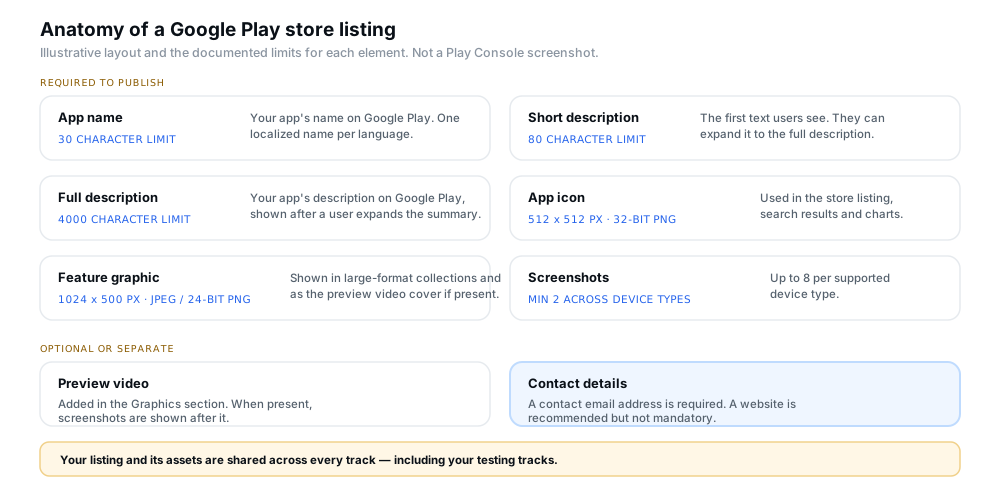
Figure 1 — The elements of a store listing and the limits Google documents. Illustrative layout, not a Play Console screenshot.
| Listing element | Purpose | Official requirement or limit | Practical recommendation |
|---|---|---|---|
| App name | Your app's name on Google Play. | 30 character limit. One localized name per language. Must be 30 characters or less, and must not contain text or images indicating store performance or ranking, price or promotional information, or relations to existing Google Play programs. | Name the app, not the value proposition. No emojis, no repeated special characters, no ALL CAPS unless it is part of the brand name. |
| Short description | The first text users see on the detail page; a quick synopsis of the app's key value. | You must provide it to publish. 80 character limit. | Write it to be understood on its own, because it appears outside the listing too. Avoid language about ranking, accolades, price or promotion, and avoid calls to action. |
| Full description | Your app's description on Google Play; what a user reads after expanding the short description. | 4000 character limit. Must be clear and well written; misleading, non-descriptive, irrelevant, excessive or inappropriate metadata is not allowed. Unattributed or anonymous user testimonials are not allowed. | Google notes shorter descriptions tend to give a better experience, particularly on small screens. Structure for scanning; do not fill 4000 characters because you can. |
| App icon | Used in the store listing, search results and top charts. | Required to publish. 32-bit PNG with alpha, 512 × 512 px, maximum 1024 KB, meeting Google Play's icon design specifications. No badges or text suggesting ranking, price, Play categories, or anything else that misleads. | It is not your launcher icon; it should be a higher-fidelity version of it. Check it at small sizes, where detail disappears. |
| Feature graphic | Shown in large-format collections of apps, and as the cover image for your preview video when one is present. | Required to publish. JPEG or 24-bit PNG, no alpha, 1024 × 500 px. | Keep the focal point centred and the key elements out of the cutoff zones, which vary by format. Avoid pure white, black or dark grey, which blend into the Play background. |
| Screenshots | Convey capabilities, look and feel, and the experience of the app to potential users. | A minimum of two screenshots across different device types is required to publish. JPEG or 24-bit PNG, no alpha. Minimum dimension 320 px, maximum 3840 px, and the maximum dimension cannot be more than twice the minimum. Up to 8 per supported device type. | Use captured footage of the app itself. Prioritise real UI in the first three images. |
| Preview video | An optional asset added in the Graphics section; when present, screenshots are displayed after it. | Optional. Google's preview assets documentation covers the feature graphic's role as the video's cover image; specific video requirements depend on the surface it is shown on. | Check the current requirements in Play Console before uploading, rather than assuming they match the image specs. |
| Contact details | How users reach you; displayed on the store listing. | A contact email address is required. A phone number and website are optional. | Google recommends a website as well, to give users the best support experience. Use an address someone monitors. |
How to choose an accurate app name
The app name has the tightest limit of the three text fields and the strictest content rules, so it is worth treating as a naming decision rather than a marketing one.
The documented constraints are specific. Google's setup documentation gives the 30 character limit and notes you can add one localized name per language. The Metadata policy adds that the title must be 30 characters or less, that emojis, emoticons and repeated special characters should not be used in the title, icon or developer name, and that ALL CAPS should be avoided unless it is part of your brand name. It also prohibits text or images in the title, icon or developer name that indicate store performance or ranking, price or promotional information, or that suggest relations to existing Google Play programs.
Practical guidance rather than policy: if the name needs a sentence to justify it, that sentence belongs in the short description. Ranking words are the most common mistake here — they read as claims the app cannot support, and the policy names them directly.
How to write a clear short description
The short description is the highest-leverage 80 characters in your listing: it is the first text users see on the detail page, and it can appear in places beyond the listing, so Google advises that any user should be able to use it to understand the core purpose of the app quickly.
Google's content guidelines for this field are unusually detailed, and they cover both what to do and what to avoid. The requirements are simply the 80 character limit. The rest are labelled as highly recommended, and several are worth treating as rules of thumb:
- Summarise the core function or purpose in simple, concise language, highlighting what makes the app distinct — for apps, differentiating features, functionality, content and benefits.
- Avoid duplication across assets. Google advises against repeating the same message across the short description, screenshots, feature graphics and developer video, because these may be shown side by side.
- Reflect the latest state of the app, and avoid time-sensitive copy that becomes outdated quickly.
- Do not use language unrelated to the app's function, including words suggesting Play performance, ranking, accolades, testimonials or promotional information — Google's examples are "Best", "#1", "Top", "New", "Discount", "Sale" and "Million Downloads".
- Do not use calls to action such as "download now", "install now", "play now" or "try now".
- Do not add keywords to improve search results. Google states this will not impact ranking and gives a bad user experience.
- Keep formatting clean: no emojis or emoticons, no line breaks, no repeated punctuation or symbols, and no capitalisation for emphasis beyond what is standard for the language — acronyms excepted, and capitals only if your listing name is also capitalised.
Figure 2 sets the three text fields side by side with their limits and the specific things to watch for in each.
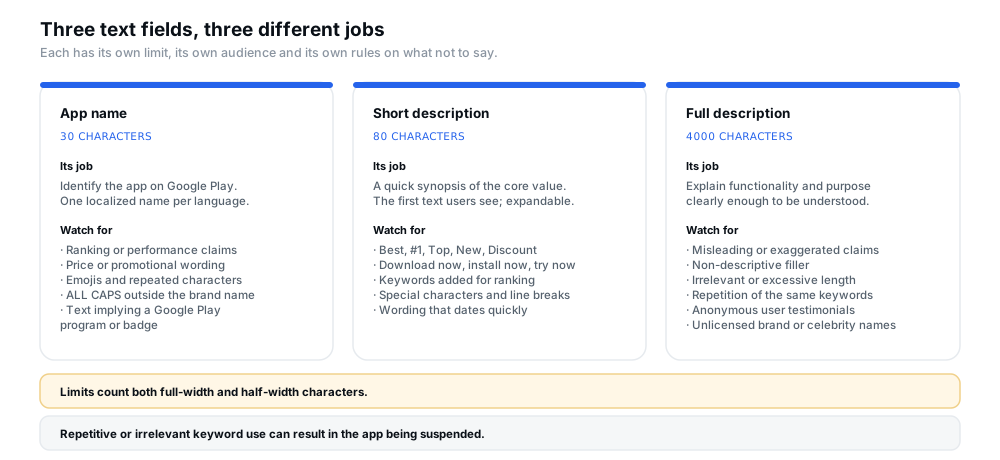
Figure 2 — The three text fields, their limits, and the specific wording each one should avoid.
How to write a useful full description
The full description is where most listings go wrong in the opposite direction from the short one: not too little information, but too much of the wrong kind.
The limit is 4000 characters. The quality bar comes from the Metadata policy, which requires a clear and well-written description and prohibits misleading, improperly formatted, non-descriptive, irrelevant, excessive or inappropriate metadata. Google's own advice reinforces the restraint: keep the description succinct and straightforward, and note that shorter descriptions tend to result in a better user experience, especially on devices with smaller displays. It adds that excessive length, detail, improper formatting or repetition can itself be a violation.
A structure that satisfies both the reader and the policy:
- Open with what the app does in one or two plain sentences. This is the part that will be read most.
- List the main features as real functions — what a user can accomplish, not adjectives about it.
- Explain anything that is genuinely unusual — a permission the app needs and why, an account requirement, an offline mode.
- State the audience or context if it helps a reader self-select, consistent with your target audience declaration.
- Close with support information rather than a sales push.
Two prohibitions to keep in mind while writing. Anonymous or unattributed user testimonials are not allowed in the description, and Google's examples of common violations include word blocks and vertical or horizontal word lists — the shape keyword stuffing takes when it is pasted rather than written. Google also advises against using a celebrity's name or a brand's logo without permission.
How to choose and prepare your app icon
The icon is required, and it is the asset users will see most often — in the store listing, in search results, and in top charts. Google states that it does not replace your app's launcher icon but should be a higher-fidelity, higher-resolution version of it, following Google Play's icon design specifications.
The technical requirements are exact: 32-bit PNG with alpha, 512 × 512 px, and a maximum file size of 1024 KB. The content requirement is that it must not include badges or text suggesting ranking, price, Google Play categories, or anything else that would mislead users.
The Metadata policy adds the reason this matters beyond the icon itself. Misleading symbols in app icons are not allowed, and it gives concrete examples: a new-message dot indicator when there are no new messages, and download or install symbols when the app is not related to downloading content. The same section prohibits emojis, emoticons and repeated special characters in the title, icon and developer name.
Practical advice: design for the smallest place it appears, not the store listing. Detail that is legible at 512 px is often invisible at thumbnail size, and a symbol that reads as a notification badge in a screenshot will read the same way in the store.
How to prepare screenshots and preview assets
Screenshots carry more of the persuasion than any text field, and they are also the asset most likely to drift out of date. Google requires a minimum of two screenshots across different device types to publish your store listing.
The base requirements:
- Format: JPEG or 24-bit PNG, no alpha.
- Dimensions: minimum 320 px, maximum 3840 px, and the maximum dimension cannot be more than twice the minimum dimension.
- Quantity: up to 8 screenshots per supported device type. Supported types include phones, tablets in 7-inch and 10-inch sizes, Chromebooks, Android TVs, Wear OS watches, Android Automotive OS cars and Android XR headsets.
Google also documents a set of guidelines that matter if you want to be eligible for the recommendation formats that use screenshots in a large layout. For apps, that means providing at least four screenshots at a minimum of 1080 px resolution, in 16:9 landscape — minimum 1920 × 1080 — or 9:16 portrait, minimum 1080 × 1920. For games, at least three in one of those two orientations. Eligibility is not placement: meeting the guideline does not guarantee you will appear in those formats, and failing it does not stop you publishing.
Figure 3 is the review pass, combining the documented requirements with the points worth checking on your own assets.
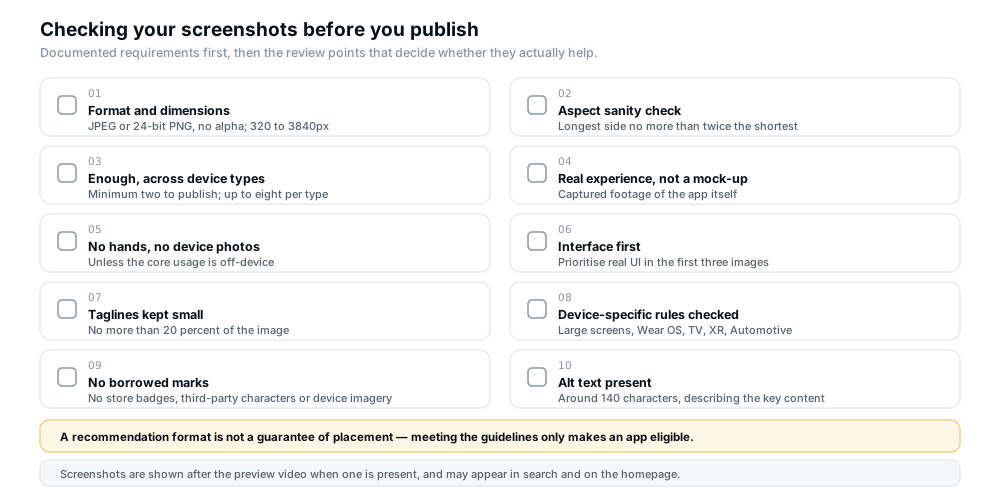
Figure 3 — The screenshot review pass. The first two items are requirements; the rest are the checks that decide whether the assets help.
Device-specific requirements to check
Screenshot rules are not uniform across form factors, which is why an oversimplified answer is unhelpful here. The documented differences include:
- Large screens (Chromebook and tablet): you can add a minimum of 4 screenshots, between 1080 and 7680 px, at 16:9 landscape or 9:16 portrait.
- Wear OS: at least one screenshot showing the app interface only, at a 1:1 aspect ratio and minimum 384 × 384 px, not positioned in device frames and without transparent backgrounds or masking.
- Wear OS watch faces: at least one screenshot of the current watch face, and more than one permutation if it is customisable.
- Android TV: at least one Android TV screenshot is required before you can publish, and an Android TV banner image is required as well.
- Android XR: between 4 and 8 screenshots, PNG or JPEG up to 8 MB each, at an 8:5 aspect ratio.
- Android Automotive OS: requirements vary by app category — required for apps outside the parked app categories and optional for parked apps.
Two further content points apply broadly. Screenshots must demonstrate the actual in-app or in-game experience, focusing on core features and content, and Google advises against including people interacting with the device — fingers tapping on the screen — unless the core usage is off-device. Stylised screenshots that break the UI across several images are allowed, but Google asks you to prioritise real UI in the first three as far as possible.
One requirement that is easy to overlook: alt text. Google asks developers to include alt text with each graphic asset because it enhances visibility among users of assistive technology, recommends using context to identify the important part of the image in 140 characters or less, and notes that phrases like "photo of" or "image of" are unnecessary because screen readers already convey that.
How to use keywords naturally
The honest summary of Google Play keyword practice is that the search benefit is smaller than most advice suggests, and the policy risk is larger.
Google's own wording, in the short description guidelines, is that unnecessary keywords added in an attempt to improve search results "will not impact ranking and provides a bad user experience". Its setup documentation goes further, warning that repetitive or irrelevant use of keywords in the app name, description or promotional description can create an unpleasant user experience and can result in an app being suspended. The Metadata policy names repetitive or unrelated keywords and references explicitly among the practices to avoid, and lists word blocks and vertical or horizontal word lists as a common violation.
What is left after removing the ineffective and the prohibited is fairly simple: use the words a real user would search with, once each, in the place where they genuinely describe something. A screen called "offline expenses" earns the word "offline". A screenshot showing synchronisation earns the word "sync". Nothing outside that describes the app in a way a reviewer would recognise is worth the risk.
Common Google Play metadata policy violations
Google publishes both the prohibitions and illustrative examples of violations. Table B pairs the recurring mistakes with why each one is a problem and how to avoid it.
| Common mistake | Why it is a problem | How to avoid it |
|---|---|---|
| Superlatives instead of features | "The most amazing app ever" tells a user and a reviewer nothing, and unsupported claims sit inside the policy's prohibition on misleading metadata. | Replace each adjective with the function it was standing in for. Name the feature, not an opinion about it. |
| Ranking and promotional wording | Google names terms like "Best", "#1", "Top", "New", "Discount", "Sale" and "Million Downloads" as language that is unrelated to the app's function and purpose. | Keep performance and price claims out of the name and short description entirely. If the app is free, the listing already says so. |
| Keyword lists pasted into the description | Google lists word blocks and vertical or horizontal word lists among common violations, and warns repeated keywords can lead to suspension. | Write sentences. Delete any term that does not appear in the app or describe something in it. |
| Screenshots of a design, not the app | Google requires screenshots to demonstrate the actual in-app or in-game experience, and it advises using captured footage of the app itself. | Capture from the shipped build. If a screen is not ready, leave it out rather than illustrating it. |
| Icons with misleading symbols | Google prohibits misleading symbols such as a new-message dot when there are no messages, or a download symbol on an unrelated app. | Avoid badges, dots and arrows that imply a state or action the app does not have. |
| Anonymous testimonials | Google states it does not allow unattributed or anonymous user testimonials in the app's description. | Do not quote praise at all unless you can and do attribute it properly — and consider leaving it out regardless. |
| Store or program badges | Google prohibits text or images suggesting relations to existing Google Play programs, and advises against Google Play or other stores' badges or icons in graphics. | Remove any badge, award icon or phrase implying editorial selection, unless Google has granted it to you. |
| Borrowed characters and device imagery | Google asks you not to use third-party trademarked characters or logos without permission, and notes device imagery becomes obsolete quickly. | Use your own artwork. Avoid celebrity names and brand logos you have no licence for. |
Figure 4 contrasts the same decisions made well and badly, using examples written for this article rather than quotations from Google's policy.
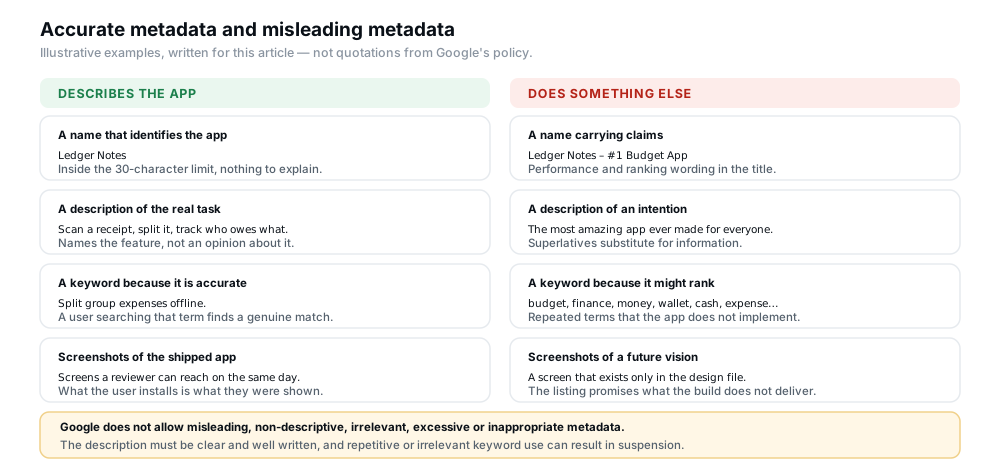
Figure 4 — The same decisions, made two ways. The examples are illustrative, not quotations from Google's policy.
How to make sure your listing matches your actual app
Consistency between the listing and the app is the thread running through the whole policy, so it is worth stating as a test rather than a principle.
The test is simple: for every claim in the listing, can a reviewer reach that feature in the build on the day they look? Google's publishing guidance says the store listing information, including screenshots and images, should accurately reflect the functionality of the app, and that a discrepancy — a feature described in the listing but not present in the app — can lead to rejection.
Places where listings typically drift out of alignment, and what to check:
- Features described but not shipped, or shipped but not described. Both directions are a mismatch. The second is more common after a release that added something quietly.
- Screenshots of screens that have changed. A redesigned or renamed screen makes the screenshot inaccurate even though nothing about the listing text changed.
- The app's declared audience versus the listing's tone. These are separate declarations, but a listing that implies a different audience than your target audience declaration is a question you should be able to answer rather than an inconsistency to discover during review.
- Restricted or paywalled functionality. If part of the app needs a login or a subscription, the listing should describe the app honestly and the reviewer should be able to reach it — which is a separate obligation covered in our guide to providing app access instructions.
- Data practices described vaguely. The listing is not the Data safety declaration, and the two need to be consistent with each other as well as with the app. Our guide to completing the Data safety form covers that declaration.
- Maturity described inaccurately. If the app contains mature content, the listing's screenshots and text should not imply otherwise — the content rating is a separate declaration, covered in completing the content rating questionnaire.
How to review and update your store listing
A listing is not finished at launch. Figure 5 sets out the lifecycle and the triggers that send it back for revision.
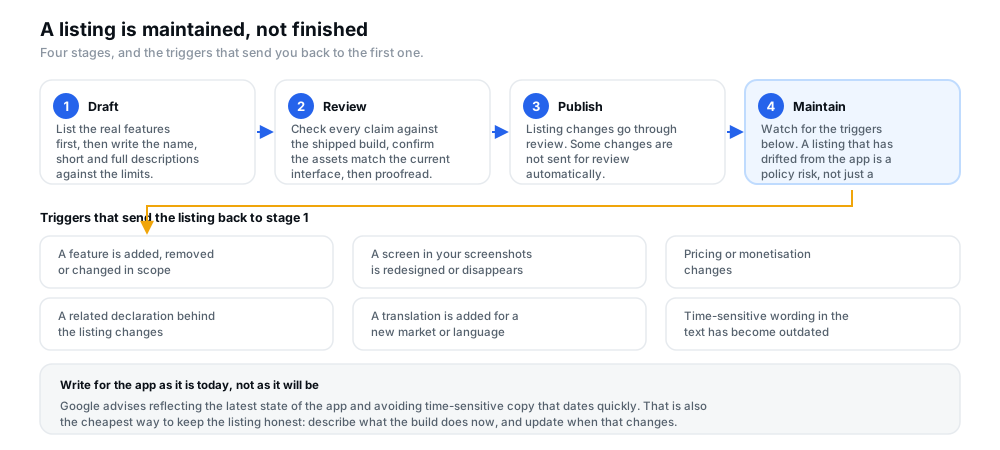
Figure 5 — A listing is maintained, not finished. The interesting part is the triggers at the bottom.
Two operational points are worth knowing before you edit anything:
- Listing changes go through review. Google's publishing workflow documentation notes that store listing and app content changes are among the items that can require review, and that you can send changes for review from the Publishing overview page when you are ready.
- Some changes are not sent automatically. Google documents that if an update was previously rejected and you have since made changes intended to resolve it, those changes are not sent for review automatically — you must open Publishing overview and click Send for review.
Google's own maintenance advice is to reflect the latest state of the app and to avoid time-sensitive copy that becomes outdated quickly, precisely so that the listing does not need constant attention. Writing for the app as it is today is both the compliance position and the lower-effort one.
A practical store listing checklist
Run this before you submit, and again before any release that changes what the app does.
- The app name identifies the app and is within the 30 character limit, with no ranking, price or promotional wording and no emojis or repeated special characters.
- The short description is clear and useful within its 80 character limit, readable on its own, and free of superlatives, calls to action and keywords added for ranking.
- The full description explains the app's real functionality within the 4000 character limit, without misleading claims, filler, repetition or anonymous testimonials.
- Keywords are relevant and used naturally — each one describes something the app genuinely does, and no term is repeated for effect.
- The icon meets the current technical requirements — 32-bit PNG with alpha, 512 × 512 px, under 1024 KB — and contains no badge, dot or symbol that misleads.
- Screenshots represent the actual app experience, are captured from the build, and still match the current interface after the last release.
- All required preview assets meet the current specifications, including the feature graphic, and device-specific rules are checked for every form factor you distribute to.
- No prohibited claims appear anywhere — no ranking or award language, no price or promotional wording, no testimonial, no store badge, no unlicensed brand or celebrity name.
- The listing matches the app's current features and intended audience, and every claim can be verified in the build on review day.
- Related declarations have been reviewed separately where relevant: app access, Data safety and content rating each have their own requirements.
- Alt text is present on every graphic asset, describing the key content in about 140 characters or less.
- All final text has been proofread by someone other than the person who wrote it, and read again on a phone-sized screen.
Frequently asked questions
What is a Google Play store listing?
It is the page on Google Play that displays information about your app so users can decide whether to install it. It includes the app name, short and full descriptions, the icon, and preview assets such as screenshots, a feature graphic and an optional preview video. You manage it on the Main store listing page in Play Console, and it is shared across all tracks, including testing tracks.
What is the character limit for a Google Play app name?
30 characters. The Metadata policy states the app title must be 30 characters or less, and Google's setup documentation lists a 30 character limit with one localized name per language. The limit applies to both full-width and half-width characters.
How long can a short description be?
80 characters. It is the first text users see on your app's detail page, and they can expand it to read the full description.
How long can a full app description be?
4000 characters. The limit is a maximum, not a target — Google advises keeping the description succinct and straightforward, and notes that excessive length, detail, improper formatting or repetition can be a policy violation of its own.
What makes a good app description?
Accuracy first: it should describe what the app actually does, clearly enough that a user understands its purpose. Google requires the description to be clear and well written and prohibits misleading, non-descriptive, irrelevant, excessive or inappropriate content. In practice that means naming real features rather than praising them, and writing for a reader who has never heard of your app.
How many screenshots should I use, and what requirements apply?
A minimum of two screenshots across different device types is required to publish, and you can add up to 8 per supported device type. They must be JPEG or 24-bit PNG without alpha, with a minimum dimension of 320 px and a maximum of 3840 px, where the longest side is no more than twice the shortest. If you want to be eligible for recommendation formats that use screenshots in a large layout, apps need at least four screenshots at 1080 px or higher in 16:9 landscape or 9:16 portrait — being eligible is not the same as being placed.
Can I repeat keywords to improve my app's ranking?
It is both ineffective and risky. Google's short description guidelines state that unnecessary keywords added to improve search results will not impact ranking and provide a bad user experience, and its setup documentation warns that repetitive or irrelevant keyword use in the app name or description can result in an app being suspended. Repetitive or unrelated keywords are also named in the Metadata policy as something to avoid.
Can screenshots contain text or promotional claims?
Some text is fine, promotion is not. Google's guidance is to add taglines only if necessary, and to keep them to no more than 20 percent of the image. Content that suggests Play performance, ranking, accolades, awards, testimonials, price or promotional information is not allowed — either in the screenshots or in the feature graphic.
What metadata practices can violate Google Play policy?
Google does not allow misleading, improperly formatted, non-descriptive, irrelevant, excessive or inappropriate metadata — including the description, developer name, title, icon, screenshots and promotional images. Its listed examples include unattributed or anonymous testimonials, data comparisons of apps or brands, word blocks and word lists, all caps outside a brand name, irrelevant special character sequences, emojis, misleading symbols and misleading text, plus imagery or text indicating store performance, price, promotions or Google Play programs.
When should I update my store listing?
Whenever the listing stops matching the app. The recurring triggers are a feature being added, removed or changed; a screenshot showing a screen that has since been redesigned or removed; a pricing or monetisation change; a change to a related declaration; a translation for a new market; and time-sensitive wording that has become outdated. Google's own advice is to reflect the latest state of the app and to avoid copy that dates quickly.
Official Google Play resources
These are Google's own pages. Where anything in this article and those pages disagree, the official pages and your own Play Console win.
- Create and set up your app — the store listing fields with their character limits, contact details, localisation and automated translations.
- Add preview assets to showcase your app — the requirements for the app icon, short description, feature graphic and screenshots, including device-specific rules and alt text guidance.
- Metadata policy — the prohibitions on misleading and inappropriate metadata, with examples of common violations.
- Prepare your app for review — the App content page and the other declarations that sit alongside your listing.
- Helpful tips to get your app published on Google Play — including why a clear, comprehensive description helps during review.
- Control when app changes are reviewed and published — how the Publishing overview and Send for review workflow behave for listing changes.
- Store listing best practices — Google's developer guidance for creating a compelling listing.
Conclusion
The store listing is the part of your submission that users read and reviewers check, and the requirements that govern it are more concrete than the topic usually sounds. Three character limits — 30, 80 and 4000 — an icon at 512 × 512 px in 32-bit PNG, a feature graphic at 1024 × 500 px, and at least two screenshots across device types. Those are the fences. Everything else is judgement about what to say inside them.
The judgement is easier than it looks if you keep one test in mind: every claim in the listing should be reachable in the build. Descriptions that name the app's real functions satisfy users and reviewers at the same time; superlatives, keyword blocks and aspirational screenshots satisfy neither. And because your listing is shared across testing tracks, the version you write at the very start is the version your earliest testers see.
Write it for the app as it is today, revisit it when the app changes, and the listing stops being a source of review risk and becomes what it should have been all along: an accurate description of something worth installing.
If you are still working through Google's publishing requirements, the production access application covers the step after a completed test, the closed testing requirement explains the gate that comes first, and the closed testing timeline sets out what to expect along the way.
Preparing an app for release?
12 Testers Community helps Android developers run a managed closed test with real testers who stay opted in for the full required testing period, alongside guides for the rest of the Play submission process. It is a practical option if recruiting and keeping testers is the part slowing you down — and it makes no promise of approval, production access or ranking, all of which remain Google's decision.