Last reviewed against Google Play Console Help and IARC documentation. Google and its rating authorities update these pages and the Play Console interface periodically — confirm the current wording in your own console and on the official pages linked below.
The Google Play content rating questionnaire is the form inside Play Console that asks what your app contains — violence, language, sexual content, gambling, substances, user-generated content and more — and turns your answers into age ratings from a set of independent regional rating authorities.
It is short, and most developers finish it in one sitting. The reason it deserves more care than it usually gets is that your answers are not a preference. Google's policy is blunt on three points: every app on Google Play must have a content rating from the International Age Rating Coalition (IARC), the questionnaire must be completed accurately, and it must be kept up to date when the content in the app changes. Google also states that misrepresentation of an app's content may result in removal or suspension.
This guide covers the questionnaire end to end: what it is for, how IARC produces ratings, the exact workflow in Play Console, why the same app can be rated differently in different countries, how a content rating differs from your target audience and Data safety declarations, how to fix a rating that looks wrong, and when to revisit the whole thing. Everything about a Google or IARC requirement is sourced to their documentation; practical advice is labelled as advice.
Google's requirement: content ratings on Google Play are provided by IARC and are designed to help you communicate locally relevant content ratings to users. Regional rating authorities maintain their own guidelines, and Google does not allow apps without a content rating on Google Play.
Why content ratings matter for Google Play apps
A content rating is a compliance requirement before it is anything else. Google's policy says all apps must have a content rating from IARC to be on Google Play, and that apps without a content rating will be removed from the Play Store.
But the rating does more than satisfy a checkbox. Google describes three uses:
- Informing users, especially parents, about potentially objectionable content in an app.
- Filtering or blocking content in certain territories or for specific users where the law requires it.
- Determining eligibility for special developer programs.
The filtering point is worth understanding in detail, because it is where a rating becomes visible to real users. Google documents that, in the European Economic Area, Australia, Brazil, Singapore, Switzerland and the United Kingdom, and for users determined to be minors, ratings are used to block the acquisition and purchase of mature content such as 18+ rated apps and games, and to block or filter mature content from Play search and browse pages except through deep linking.
Two further points follow from Google's policy. First, any ads that appear in your app must not be significantly more mature in content than the primary content of the app itself. Second, the rating is specific to the content within the app; Google states that it does not cover other features and practices such as consumer agreements or ads, and that you remain responsible for informing users of additional age-based considerations such as age-specific privacy practices.
What is IARC and how does it assign ratings?
IARC — the International Age Rating Coalition — is the body that produces the ratings. Google describes content ratings on Google Play as being provided by IARC, with regional rating authorities maintaining the guidelines used to determine the maturity level of an app's content.
The mechanism is a single questionnaire mapped to multiple regional standards. IARC's own FAQ explains that developers obtain ratings for multiple territories at once through one streamlined system, and that the questionnaire is programmed with algorithms that assign a rating for each participating authority, reflecting that authority's distinct local standards about age appropriateness. Ratings are issued immediately once the questionnaire is complete, and the time it takes depends on how much ratings-relevant content the app has: an app with very little pertinent content can be finished in a few minutes, while violence, profanity, sexual content, nudity or gambling material makes it longer.
Three structural details are easy to miss and worth knowing before you start:
- IARC does not operate a central public ratings page. Its FAQ states that regionally appropriate ratings are displayed to individual users browsing a participating storefront, and that where a rating authority is obliged to publish its local IARC-generated rating, that information is public only after the product is published.
- Ratings can change after the fact. IARC's FAQ notes that because the system assigns ratings automatically without prior review by rating authorities, some assignments may require post-release modification.
- Rating icons are trademarks. Google notes that all rating icons are protected trademarks of the respective authority and that misuse may result in legal action.
Google names several participating authorities and the regions they cover: ESRB in the Americas, PEGI in Europe and the Middle East, USK in Germany, and the Australian Classification Board in Australia. The complete list, with each authority's rating descriptions, is maintained on Google's page — worth reading if your app targets a specific market, because the descriptions differ meaningfully between systems.
Who needs to complete the questionnaire?
More apps than developers usually expect. Google's documentation lists three situations:
- New apps submitted to Google Play Console.
- Existing apps active on Google Play that lack a rating.
- All app updates where there has been a change to your content or features that would affect the responses to the questionnaire.
Google's policy is explicit that you must complete the questionnaire for each new app submitted and for all existing apps that are active on Google Play, and that if you change app content or features in a way that affects your answers, you must submit a new questionnaire.
The practical reading is that a rating is a living declaration rather than a launch task. An app that adds user-generated content, introduces a gambling-style mechanic, or unlocks a maturity toggle inside its own settings has changed what it contains, even if no new screens were built.
Before you start: information to review about your app
The questionnaire asks what the app contains, so the work is to establish that first. Figure 1 is the review pass as a checklist.
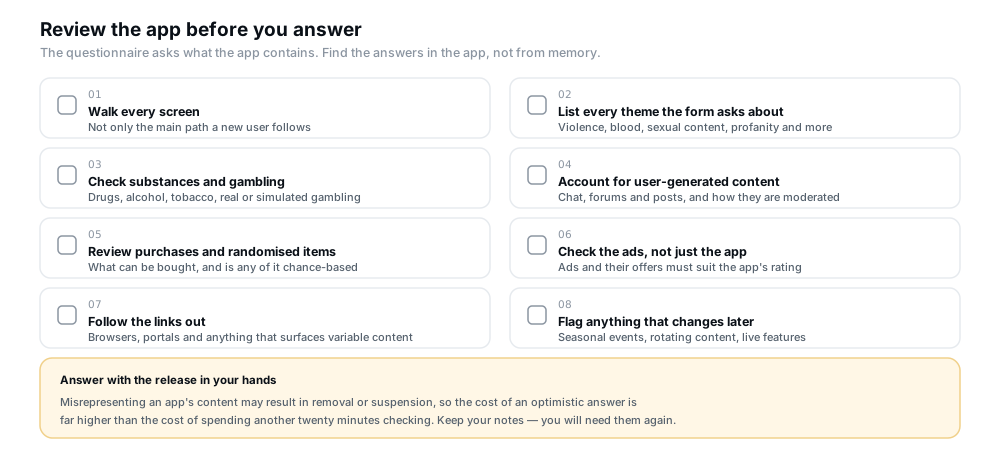
Figure 1 — The review pass before you answer. Keep the notes; you will need them at the next update.
Two categories deserve particular attention because they are frequently underestimated.
User-generated content. If users can post text, images or media, the app's effective content is not only what you designed. Google's rating descriptions recognise this directly at the authority level: PEGI's "Parental Guidance Recommended" category exists for apps that function as portals offering a broad, variable range of content, and USK's "All ages" category is described as covering social networks in which all user-generated content is thoroughly reviewed, filtered or moderated. How your app moderates what users post is therefore part of what you are declaring.
Ads. Your rating covers your app's content, but Google separately requires that ads and their associated offers — including an ad promoting the download of another app — be appropriate for your app's content rating. It advises checking with your ad service provider that the campaigns you selected will only show content matching your rating, and points AdMob users to its blocking controls and ad content rating settings. This is a filter configuration question, not a questionnaire question, but the consequence lands on the same declaration.
How to complete the questionnaire in Play Console
Figure 2 shows the flow, and Table A is the same sequence with what to check at each step.
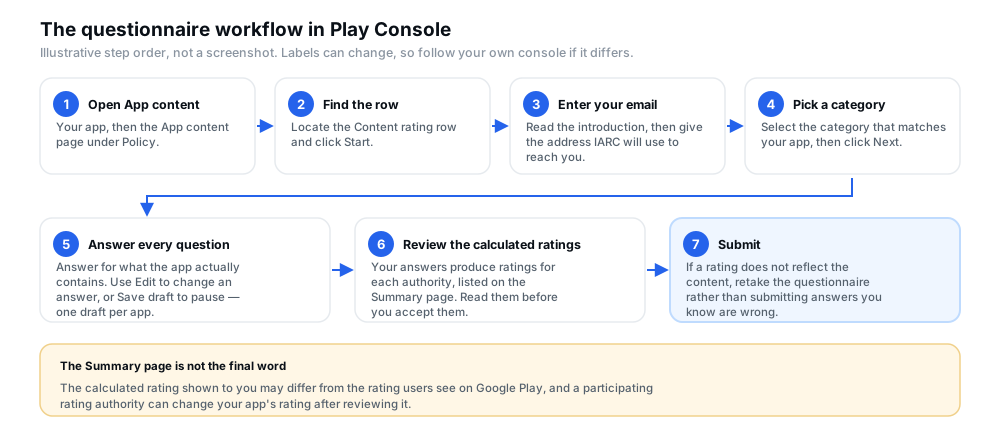
Figure 2 — The questionnaire workflow. The Summary page is a calculation from your answers, not the rating users necessarily see.
| Step | What to do | What to check |
|---|---|---|
| 1. Open the page | Go to the App content page in Play Console for the app you are rating. | You are on the app, not the developer account. Every app is rated separately. |
| 2. Start the workflow | Find the Content rating row and click Start. | An existing rating shows Manage rather than Start. One draft questionnaire per app. |
| 3. Enter contact details | Review the introduction and enter your email address. | This address is used for correspondence with IARC, and it is where the appeal link arrives. Use an inbox that survives staff changes. |
| 4. Select a category | Choose the category that matches your app, then click Next. | The category shapes which questions follow, so pick the one that describes the app rather than the one that looks easiest. |
| 5. Answer the questions | Complete every question. Use Edit to change a response, or Save draft to finish later. | Answer for the content that exists, not the content you intend to add. Google's guidance is to provide accurate, complete information about the nature of the app's content. |
| 6. Review the results | Read the calculated ratings on the Summary page. | Check each authority's rating against what you know the app contains. This is the last point at which a wrong answer is cheap to fix. |
| 7. Submit | Click Submit. | If a rating does not reflect the content, retake the questionnaire — click Start new questionnaire on the Content rating page — rather than submitting answers you know are wrong. |
| 8. Keep the record | Find the submitted ratings and your questionnaires in the Target audience and content section of the App content page. | Note the date and the content state you answered for, so the next review is a comparison rather than a fresh start. |
How content ratings can differ by country or rating authority
The same questionnaire produces different ratings in different territories, and this is by design rather than a sign that something was answered wrongly.
Google explains it as follows: your app can earn different ratings in different territories because rating standards can have differences by territory, and each rating authority uses its own logic when rating apps. Google's own description of the mechanism agrees — ratings are assigned by separate rating authorities determined by your questionnaire responses, and because they are independent third parties, each uses its own methodology.
Concrete examples of why the systems diverge:
- Different maturity ladders. ESRB in the Americas uses Everyone, Everyone 10+, Teen, Mature and Adults Only. PEGI in Europe and the Middle East uses 3, 7, 12, 16 and 18 plus a Parental Guidance Recommended band.
- Different treatment of the same material. PEGI reserves 16 for depictions of violence or sexual activity that look like real life, and 18 for gross violence or specific categories such as motiveless killing or sexual violence — thresholds that have no direct equivalent in another system's wording.
- Different scope. Google notes that Australian Classification Board ratings are only issued for games, so an app in Australia may simply not receive an ACB rating at all.
- Portal and social content. Authorities have explicit categories for variable content: PEGI's Parental Guidance Recommended exists for apps that act as portals offering a broad, variable range of content that consumers choose from.
Two consequences follow. First, there is no single "correct" rating to aim for — there is an accurate answer set that produces whatever each authority's standard requires. Second, when you advertise your app, Google advises including the assigned rating for each respective region, following the display guidelines IARC publishes.
Content rating vs. target audience vs. Data safety
These three declarations live on the same App content page and are routinely conflated. They answer different questions and none replaces another. Figure 3 sets them side by side.
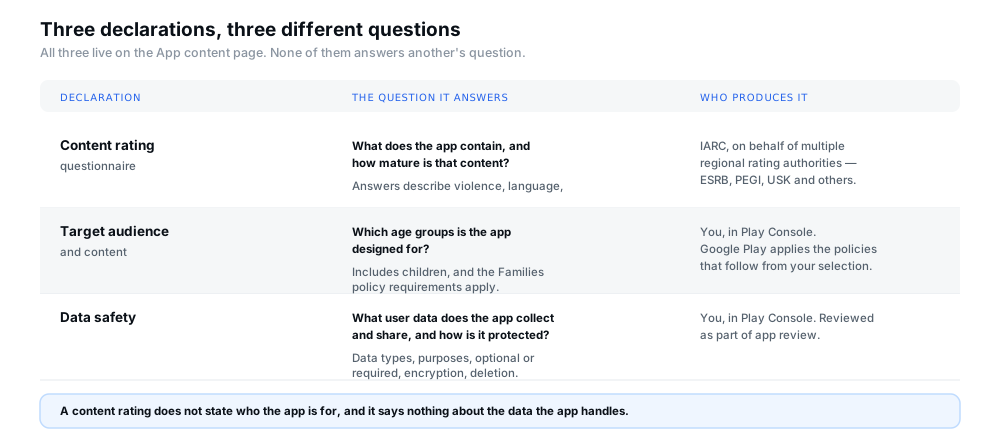
Figure 3 — Three declarations, three questions. A content rating says what the app contains; target audience says who it is for; Data safety says what happens to user data.
Google's documentation keeps the two that are most often confused deliberately separate. On target audience, it states that in addition to filling out the content rating questionnaire you must also provide details about your app's target audience and content, that you are required to declare your app's target age group when creating a new app or publishing an update, and that apps including children in their target audience must comply with the Families policy. Depending on your target audience selections, additional Google Play policies may apply.
Google also documents an ordering dependency that catches people out: before filling out the "Target audience and content" section, you must have declared whether or not your app contains ads, provided instructions for app access, and added a privacy policy. If you are working through the App content page for the first time, doing those three first avoids a blocked section later. Our guides on completing the Data safety form and providing app access instructions cover two of them in detail.
How app content, features and advertising affect rating accuracy
Rating accuracy is not only about the content you shipped in the build. Three things reliably move the answer, and none of them shows up in a screenshot of a single screen.
Features that surface variable content. A browser, a streaming portal, a feed, a marketplace or an in-app store changes what a user can reach without the app changing at all. Authorities recognise this with dedicated categories and by asking about it directly, which is why the portal case is worth thinking through rather than answering from the main flow.
User-generated content and moderation. As noted above, how thoroughly user content is reviewed, filtered or moderated is part of what determines the rating in at least some systems. An app that adds a chat or comment feature has changed its content profile whether or not the moderation is finished.
Advertising. Ads and their offers must be appropriate for your app's content rating, and the ad filter settings are what enforce it in practice. A rating is not a substitute for configuring the ad service; the two have to agree.
The habit that keeps all three accurate is the same: when a release changes what a user can see, hear or do — including through ads and through content other users supply — treat the questionnaire as part of that release rather than a task from the original launch.
Common questionnaire mistakes and how to avoid them
Table B collects the failures that recur most often.
| Mistake | Why it matters | How to avoid it |
|---|---|---|
| Answering from memory about the main flow | Secondary screens, settings, mini-games and easter eggs are exactly where ratable content hides. | Walk the shipped build screen by screen with the questionnaire open beside it. |
| Answering for the app you intend to ship | Google requires accurate information about the content that exists, and misrepresentation may lead to removal or suspension. | Rate the current build, then submit a new questionnaire when the new content actually ships. |
| Ignoring user-generated content | What users post changes what the app effectively contains, and moderation strength is part of some authorities' standards. | Decide what the moderation model actually is, then answer for that model rather than for the empty state. |
| Treating the summary rating as final | Google states the calculated rating on the Summary page may not be the rating shown to users, and an authority may override it after review. | Check the live store listing after publication rather than assuming the summary is what users see. |
| Forgetting the ads | Ads must not be significantly more mature than the app's own content, and their offers count too. | Confirm with your ad provider that campaigns match the rating, and configure the ad content rating and blocking controls. |
| Confusing the rating with target audience | They are separate declarations, and target audience selections can bring additional policies into play. | Complete both, and check the Families policy implications if children are in the target audience. |
| Never revisiting the questionnaire | Google requires a new questionnaire when content or features change in a way that affects the answers. | Treat content and feature changes as a trigger, and keep your notes from the last submission so the comparison is fast. |
| Using a contact email nobody monitors | The address you enter is used for correspondence with IARC and carries the appeal link in the certificate email. | Use a shared, monitored inbox, and keep the certificate email where the team can find it. |
What to do if your app has an incorrect content rating
Start by working out which of two situations you have, because they have different fixes. Figure 4 is the decision flow.
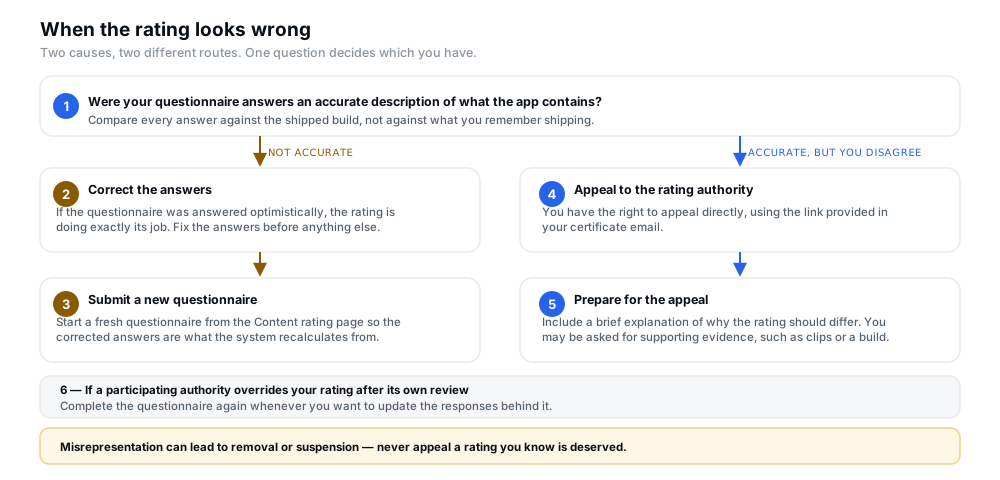
Figure 4 — Two causes, two routes. Work out which one you have before filing anything.
If the answers were inaccurate
Correct them. Reopen the questionnaire, fix the affected responses, and submit again. Google documents the mechanics: if you want to retake it, click Start new questionnaire on the Content rating page. Where the questionnaire was answered optimistically, the rating is doing its job, and the fix belongs on your side rather than in an appeal.
If the answers were accurate and you disagree with the rating
Google states that if you object to the rating assigned to your app by a participating IARC rating authority, you have the right to appeal directly using the link provided in your certificate email, and that questions for IARC not related to appeals can be raised through its website.
IARC describes what that process involves: developers can request a rating check for any rating their app has been assigned, must include a brief explanation of why the rating should be different, and may be asked to provide supporting evidence — such as video clips or a build — so that the request can be evaluated by the rating authority in question.
If an authority overrides your rating
Google notes that rating authorities participating in IARC may change your app's rating after a review, and that if an authority overrides your rating and you want to update your responses, you will need to complete the questionnaire again. In other words, the appeal and the questionnaire are separate levers: winning an override does not rewrite your answers.
When should you review or submit the questionnaire again?
Google's trigger is specific rather than calendar-based: submit a new questionnaire when you change app content or features in a way that affects the responses. Practical cases that meet that test:
- A new category of content appears — a combat system, a casino-style mechanic, chat, user profiles, or media uploads.
- Moderation changes in a way that alters what users can encounter — for example, adding UGC but moderating it less thoroughly than the answer you originally gave.
- The app gains a source of variable content, such as a browser, a store, or a feed driven by external material.
- A content toggle in settings changes the maturity of what is available by default.
- An ad provider or campaign selection changes to include more mature creative than the app's rating allows.
- You learn that a rating you already hold is inaccurate, whether from a user report or from an authority override.
Conversely, changes that do not touch content or features — a new translation, a performance fix, a redesigned settings screen — generally do not require a new questionnaire. Keeping a short note of what you answered for, and when, is what makes this judgement quick rather than a re-investigation.
Practical pre-submission checklist
Run this before you click Submit, and again before any release that changes what the app contains.
- The answers reflect the app's actual content and features, verified against the shipped build rather than memory.
- All relevant functionality has been considered — every screen, mode, mini-game and hidden flow, not just the main path.
- The calculated ratings have been reviewed on the Summary page, in the light of what you know the app contains, before you accept them.
- Advertising and content suitability have been considered where relevant, including the ad filter settings and whether campaigns match the rating.
- Target audience and Data safety have been checked separately, with the Families policy in mind if children are in your target audience.
- The contact email is one your team monitors, because it is the route to correspondence and to the appeal link.
- You know how to revisit the questionnaire — where the Content rating row lives, and that a fresh questionnaire starts from the Content rating page.
- Your answers are recorded somewhere you can find them at the next content change.
Frequently asked questions
What is the Google Play content rating questionnaire?
It is the form in Play Console that asks about the nature of your app's content. Your responses are used to generate content ratings from multiple regional rating authorities, and the resulting rating is shown on your app's store listing.
Is a content rating required for apps on Google Play?
Yes. Google's policy states that all apps must have a content rating from IARC to be on Google Play, and that apps without a content rating will be removed from the Play Store. You must complete the questionnaire for each new app and for all existing apps active on Google Play.
What is IARC?
The International Age Rating Coalition. It is composed of representatives from rating authorities around the world, each of which helps develop the questionnaire and the logic behind it. One questionnaire produces ratings for multiple territories, because the system applies each authority's own standards.
How do I complete the content rating questionnaire in Play Console?
Open the App content page, find the Content rating row and click Start. Enter the email address IARC will use, select a category, and complete the questions — using Edit to change an answer or Save draft to pause. Review the calculated ratings on the Summary page and click Submit.
Why can an app receive different ratings in different countries?
Because rating standards differ by territory and each authority applies its own logic. Google states that your app can earn different ratings in different territories for exactly that reason, and that because the authorities are independent third parties each uses its own methodology. An example of scope differing rather than thresholds: Australian Classification Board ratings are only issued for games.
Can I change an incorrect content rating?
Yes, and how depends on the cause. If your answers were inaccurate, correct them and submit a new questionnaire — start it from the Content rating page. If your answers were accurate and you object to the assigned rating, you have the right to appeal directly to the rating authority using the link in your certificate email, with a brief explanation and possibly supporting evidence.
When should I review the questionnaire again?
When you change app content or features in a way that affects your answers. Google requires a new questionnaire in that situation. Adding user-generated content, a gambling-style mechanic, a browser or store, or more mature ad creative are all examples; a translation or a performance fix generally is not.
Is content rating the same as target audience?
No. The content rating describes what the app contains. Target audience is a separate declaration about the age groups the app is designed for. Google documents them separately and requires both, and apps that include children in their target audience must comply with the Families policy.
Is content rating the same as the Data safety section?
No. Data safety declares what user data the app collects and shares and how it is protected; it says nothing about how mature the content is. The content rating says nothing about data. They are separate forms on the same App content page, and each has to be accurate on its own.
Can content ratings affect whether users see or access an app?
They can. Google documents that ratings help filter or block content in certain territories or for specific users where the law requires it, and that in the European Economic Area, Australia, Brazil, Singapore, Switzerland and the United Kingdom, for users determined to be minors, ratings are used to block the acquisition and purchase of mature content and to filter it from search and browse except through deep linking.
Official resources
These are Google's and IARC's own pages. Where anything in this article and those pages disagree, the official pages and your own Play Console win.
- Content Ratings — Google's policy: who must have a rating, how ratings are assigned and used, the requirement to submit a new questionnaire when content changes, and rating appeals.
- Content rating requirements for apps, games, and the ads served on both — the step-by-step questionnaire workflow, how ratings are used, ad suitability, rating authorities and their rating descriptions.
- IARC FAQ — how the questionnaire and rating logic work, how long the process takes, and what to do if a rating looks incorrect.
- Manage target audience and app content settings — Google's guidance for the separate target audience declaration.
- Google Play Developer Policy Center — the full Developer Program policies, including the Inappropriate Ads policy referenced by the content rating requirements.
Conclusion
The content rating questionnaire is a small form with an unusually long tail. It is required for every app, it is a legal filtering mechanism in several markets rather than a cosmetic label, and Google treats an inaccurate answer as misrepresentation.
The work that makes it reliable is not reading the questions carefully — it is knowing what your app contains before you open the form. Walk the build, account for user-generated content and ads, answer for what exists rather than what you plan to ship, review the calculated ratings before you accept them, and note what you answered so the next change is a comparison rather than a fresh investigation.
Get that right and the rating stops being a source of surprises: the numbers may differ between territories, but every one of them will be defensible because it describes what the app actually does.
If you are still working through Google's publishing requirements, the production access application covers the step after a completed test, and the closed testing requirement explains the gate that comes before it.
Preparing an app for release?
12 Testers Community helps Android developers run a managed closed test with real testers who stay opted in for the full required testing period, alongside guides for the rest of the Play submission process. Content ratings are produced by IARC and the rating authorities — no testing service decides, changes or replaces them, and nothing here guarantees production approval, which always remains Google's decision.