Last reviewed against the official Android Developers build, compatibility, and versioning documentation. API-level recommendations and Google Play requirements change, so confirm the current values before release.
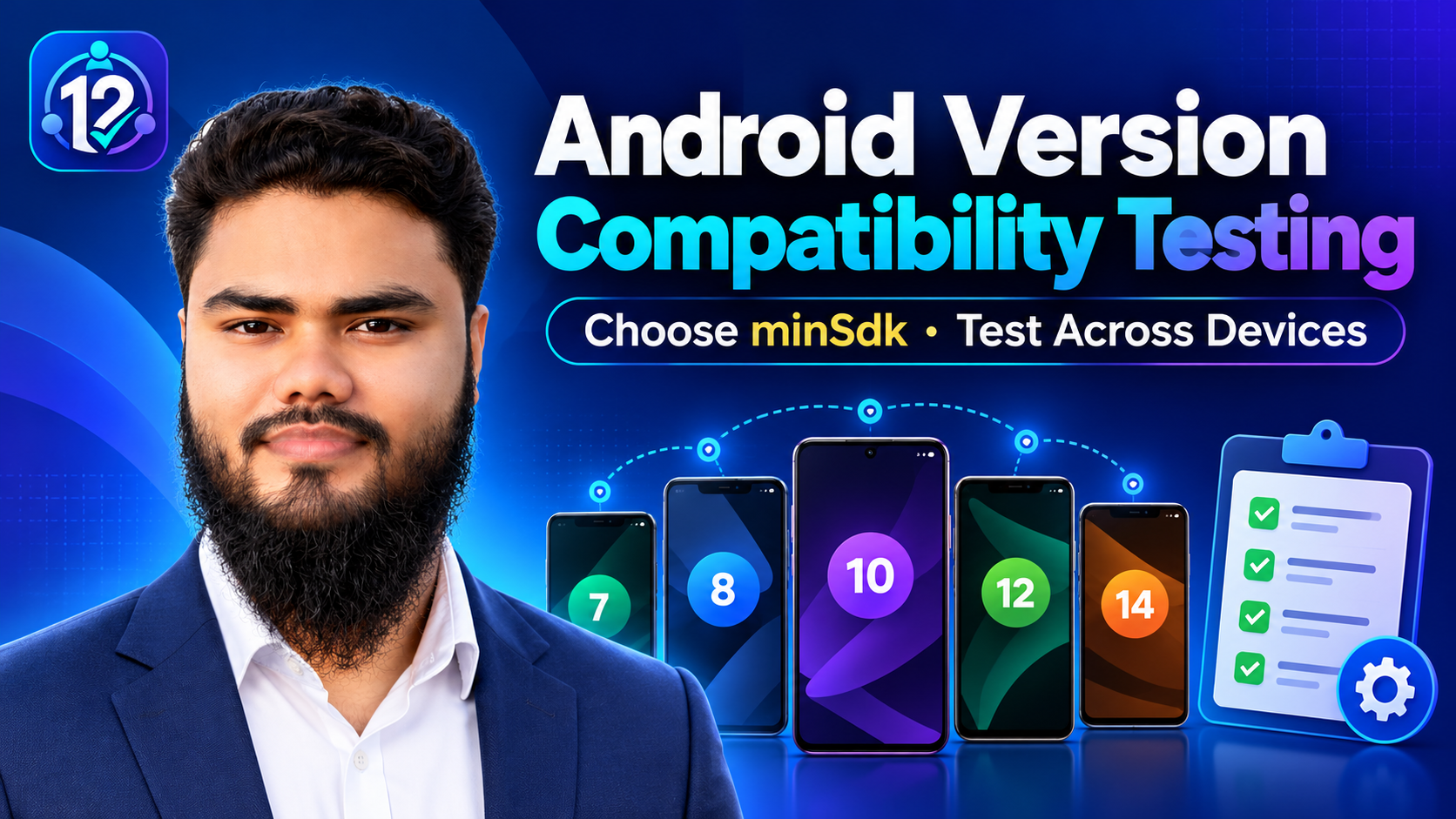
Choosing minSdk is a support decision, not a build-file detail. It determines which devices can install the app, which behaviours you are promising to support, and how much compatibility testing your claim requires. The existing device compatibility testing guide covers the wider test matrix; this guide covers the decision before it: which versions you support, how the three SDK settings differ, and how to test that range.
Quick answer: choose a range you can test
The short version
- There is no universal minimum Android version. The right
minSdkdepends on your core features, dependencies, audience, and testing capacity. minSdkis the install gate. A device below it cannot install; lowering it does not prove the app works there.targetSdkis the runtime-behaviour setting. It is not the minimum version, and Google Play enforces separate target API requirements.compileSdkcontrols compile-time APIs. It is not the same as either value; do not set all three equal by habit.- Test the edges: the minimum, a common audience version, and a recent stable version, plus device and manufacturer diversity.
What minSdk, targetSdk, and compileSdk actually control
Google's build documentation defines three different settings. They answer three different questions, and changing one does not automatically change the others.
| Setting | What it controls | What it does not control | Decision it drives |
|---|---|---|---|
minSdk |
The lowest API level on which the app is intended to install and run; restricts eligible devices. | Newer-version runtime behaviour, and whether every feature works at that minimum. | Who can install the app, and which OS versions you must test. |
targetSdk |
The API level whose behaviour the app targets; newer devices may use a compatibility mode. | The minimum supported version, or proof of testing on every recent release. | Which behaviour changes apply, and whether the app meets Google Play's target API requirements. |
compileSdk |
The Android and Java APIs available at compile time. | Install eligibility or runtime behaviour. | Which APIs you can call, and whether your Gradle plugin, JDK, and dependencies support that level. |
They can differ. A common configuration compiles against a recent SDK, targets a recent API level, and supports an older minimum. Google's build documentation is explicit: compileSdk controls API availability, minSdk restricts installation, and targetSdk sets runtime behaviour. For publishing, see the target API level guide.
How to choose a realistic minSdk
Feature and dependency floor
Start with primary functionality. If the core task depends on an API introduced at a certain level, a lower minSdk cannot deliver it without a fallback. Google's compatibility guidance recommends the lowest value that still supports the app's primary functionality, with runtime guards and graceful degradation for optional features.
Check the dependency floor. Libraries can declare their own minimums. Your effective minimum must be at least as high as every dependency. Inspect the merged manifest and provider documentation; if a dependency requires more, raise minSdk, replace it, or verify lower-level support.
Audience and testing capacity
Use audience data, not assumptions. Google suggests supporting roughly 90% of active devices as a starting point, but that is a recommendation, not a rule. Use Play Console statistics, Android Studio's device distribution, or analytics. Without reliable data, choose a range you can test rather than guessing.
Match the range to testing capacity. Every API level you claim is a promise that needs at least some coverage. A lower minSdk can be right, but only if you can test the minimum, its permission and background behaviors, and the important user journeys. A wide range with no devices or testers behind it is a documentation claim, not a verified capability.
Document the decision. Record why the minimum was chosen: the core feature floor, the highest dependency floor, the audience segment, and the test devices available. That record lets the next release change the value deliberately instead of inheriting it.
Why targetSdk is not the minimum version
targetSdk tells Android which platform behaviour the app is designed for. On a device running a newer Android version, the system can run the app in a compatibility mode based on the target value, withholding newer behaviour changes until the app opts in. Raising targetSdk is how you adopt those changes; it does not raise minSdk, and it does not make older devices eligible.
Google Play also enforces separate target API requirements for new apps and updates. Those concern publish eligibility, not the oldest device you support. A recent target is not evidence of testing on every recent release, and it is not a substitute for testing the minimum version. For publishing, see the target API level guide.
Why two devices on the same Android version can behave differently
“Android 14” is not one environment. Two devices on the same API level can differ in firmware, background limits, notifications, camera and sensor hardware, screen size and density, RAM, storage speed, and preinstalled services. Manufacturers may add privacy prompts or power rules that change what your app can do, and a device may lack a hardware feature your app assumed.
For compatibility reports, record the dimensions separately: Android version/API level, manufacturer and model, app version/build, relevant SDKs, screen size, memory, and the exact steps. Two testers saying “it fails on Android 14” is far less useful than “Pixel 8 on Android 14 and a Galaxy A-series device on Android 14 fail at the same step.” The difference may be your code, the manufacturer build, or the hardware.
Build a practical OS-version and device testing matrix
The table below is an example, not a Google requirement or a market-share claim. Adapt it to your features, audience, and available devices.
An example matrix
| Test target | Why it matters | What to verify | Expected result |
|---|---|---|---|
A device or emulator at the claimed minSdk |
The edge of your support claim. | Install, first launch, core task, permissions, storage, network, API guards. | Install and supported features work, or the limitation is documented. |
| A common Android version from your audience | Where many real users run the app. | Main journeys, notifications, background work, login, SDK features. | No regressions on the version most users have. |
| A recent stable Android version | New behaviour changes and stricter rules apply. | Runtime permissions, background limits, notifications, foreground services, storage, edge-to-edge. | The app behaves correctly under the newest supported behaviour. |
| A different manufacturer or OEM build | Firmware and power-management customisations can change behaviour. | Background survival, notifications, permission prompts, vendor settings. | The core journeys survive the manufacturer build, or the difference is documented. |
| Small screen and large screen/tablet | Window size changes layout and state restoration. | Clipping, overlap, rotation, multi-window, and saved state. | Readable and usable at both sizes. |
| A low-memory device | Memory pressure exposes assumptions hidden on a flagship. | Startup, image-heavy screens, background work, and recovery after low memory. | No ANR, crash, or unusable slowdown on modest hardware. |
| A permission- or SDK-heavy flow | Permissions and SDKs often have their own API-level requirements. | Denied or revoked permissions, notifications, camera/storage access, SDK availability. | The flow degrades cleanly or works across the supported range. |
A small matrix improves coverage; it does not prove compatibility with every device. Test the edges and the audience segments that matter, then state what was not covered.
Using closed testing to gather compatibility feedback
Closed testing is a chance to observe real devices, but tester participation and technical compatibility are different concerns. The 12-tester/14-day requirement is a publishing process; it does not guarantee that your testers cover your minimum version, your key manufacturers, or your low-memory segment. Do not assume that a full tester count proves device coverage.
- Record the app's settings separately:
minSdk,targetSdk, andcompileSdk. - Review dependencies: confirm each SDK supports your claimed minimum and target range.
- Inventory tester devices: collect model, Android version/API level, and manufacturer before the test starts.
- Match testers to the range: prioritize at least one device near the minimum, one common audience version, and one recent version.
- Record useful bug reports: device model, Android version/API level, app version/build, steps, screenshots, and whether the issue reproduces.
- Test essential flows: install, launch, login, core task, permissions, network, storage, notifications, and background work.
- Classify the problem: install failure, startup crash, feature failure, UI problem, permission issue, or performance problem.
- Fix and retest: reproduce on the same conditions, then run a regression pass.
- Document coverage limits: state which versions and devices were not tested.
For a consistent bug-report format, see the closed-testing feedback guide. For automated checks, the pre-launch report can catch stability and compatibility findings before release, but it does not replace testing your minimum version or your key device segments.
Troubleshooting table
“Likely cause” is a hypothesis, not a diagnosis. Collect evidence before changing code or build settings.
Reading the table
| Symptom | Likely cause | Information to collect | What to inspect | Next step |
|---|---|---|---|---|
| Cannot install on a tester's device | Device API level is below minSdk, or required hardware is missing. |
Device model, Android version/API level, install error, app build. | Merged manifest, minSdk, uses-feature, available storage. |
Confirm the device is in range; do not lower minSdk just to make installation succeed. |
| Installs but crashes on launch | Startup code calls an unavailable API, or a dependency is missing. | Full stack trace, device/API level, app version, whether every launch fails. | Startup path, SDK calls, manifest components, native libraries. | Reproduce on the same API level; guard or replace unsupported calls; retest. |
| A feature is unavailable on an older version | The feature needs a newer API or an SDK without lower-level support. | Feature name, device/API level, expected behavior, SDK version. | Feature guards, dependency documentation, runtime API checks. | Add a fallback or raise the support floor deliberately. |
| Permission behaviour differs | Runtime permission rules or manufacturer prompts vary by Android version. | Permission name, grant/deny state, device/API level, exact flow. | Permission request flow, rationale, denial handling, app settings. | Test granted, denied, revoked, and “don’t ask again” on each supported level. |
| Notifications or background work differs | Background limits, notification channels, or foreground-service rules changed. | Device/API level, battery settings, app state, notification channel setup. | Background work, notification code, Doze/standby, OEM power settings. | Follow the target level's behaviour changes; test with the screen off and the app backgrounded. |
| Layout differs across devices | Screen size, density, aspect ratio, or window mode. | Screenshot, device model, display size, orientation, font scale. | Layout resources, window size classes, state restoration. | Fix the layout for the failing window size; retest rotation and multi-window. |
| A third-party SDK does not support the minimum | The SDK declares a higher minimum or uses unavailable APIs. | SDK name/version, app minimum, stack trace or error. | SDK documentation, merged manifest, dependency tree. | Update or replace the SDK, or raise the minimum; do not assume undocumented support. |
| A bug appears on one manufacturer only | Firmware, power management, or a vendor-specific behaviour differs. | Both models, API levels, app builds, steps, screen recording. | OEM settings, background restrictions, permission prompts, logs. | Reproduce on both devices; treat the manufacturer build as a separate dimension. |
Frequently asked questions
What is the minimum Android version my app should support?
Start with the lowest API level that supports your primary functionality, check your dependencies' highest minimum, review audience data, and choose a range you can test.
Is it always better to support the oldest possible Android version?
No. A lower minSdk reaches more devices but adds testing, fallback code, and dependency constraints. Without verification on that version, the lower number is a claim without evidence.
What happens when a tester's phone is below minSdk?
The device is outside the supported range and normally cannot install. That is expected, not a bug. Do not lower minSdk just to include that tester unless you will support and test that version.
Why can an app install but still fail on an older device?
Installation only checks platform requirements. The app can still call an unavailable API, get a different permission result, hit a background limit, or depend on an unsupported SDK.
Why do two devices on the same Android version behave differently?
Same API level does not mean same environment. Manufacturer firmware, power management, hardware features, screen size, memory, and preinstalled services can all change behavior.
Should every tester use the same Android version?
No. A useful group covers the edges of your range and the versions your audience uses. Testing only the newest version hides problems near your minimum.
How can I test without owning older Android phones?
Use emulators for API levels and screen sizes, a device farm for hardware, the pre-launch report for automated checks, and testers who own older devices. Each covers a different gap.
Release checklist
- Record
minSdk,targetSdk, andcompileSdkseparately, including any product-flavour overrides. - Confirm the highest minimum required by your libraries and SDKs; check the merged manifest.
- Record why the minimum was chosen: feature floor, dependency floor, audience data, and testing capacity.
- Test at the minimum supported API level and at a common version from your audience.
- Test a recent stable Android version and at least one different manufacturer/build.
- Cover small and large screens, low-memory conditions, permissions, notifications, background work, storage, and network changes.
- Use the pre-launch report for automated findings and tester feedback for real-device context.
- Fix, retest on the same conditions, and record which devices and versions were not covered.
- Confirm that the support range is documented in the release notes or internal test plan.
Official sources
- Android Developers — App versioning —
minSdkandtargetSdkrequirements and install behavior. - Android Developers — Device compatibility overview — device versus app compatibility, API levels, feature requirements, and runtime checks.
- Android Developers — Configure your build —
compileSdk,minSdk, andtargetSdkdefinitions. - Android Developers — Android Gradle plugin — AGP and build-tool compatibility.
- Android Developers — uses-sdk element — manifest API-level attributes and Google Play filtering.
- Android Developers — Support different platform versions — runtime API checks and the practical 90% guidance.
- Android Developers — Target API level requirements — the separate Play publishing requirement.
- Android Developers — Android versions and API levels — release and behavior-change references.
Conclusion: treat minSdk as a promise you can test
minSdk is a support promise, targetSdk is a runtime-behaviour choice, and compileSdk is a build-time tool decision. Choose the range deliberately, check the dependency floor, and test the edges of the range rather than only the device on your desk. A smaller, well-tested range is more honest than a broad claim with no coverage behind it.
If you need real testers for a closed test, 12 Testers Community provides that service. It does not replace the compatibility work in this guide, and no testing service can guarantee production access or prove every device is compatible.