Last reviewed against the official Android Developers and Google Play Console documentation. Target API level requirements are raised periodically, so confirm the current figure on Google Play's requirements page before you release.
Google Play will not accept a new app or an app update unless it targets a recent Android API level, and that required level keeps moving upward. If you have ever had an upload refused for this reason, or you have an older app you have not touched in a while, this is the requirement that governs whether it can still reach new users.
The good news is that the change is usually small. For most projects, satisfying the requirement means editing one value in one Gradle block. The work is not in making the change — it is in understanding what the new target level switches on inside your app, because raising the target API level is what activates a set of behaviour changes you have not been subject to before.
The target API level also has nothing to do with whether your app still runs on older phones. Raising it does not raise your minimum supported version. Those are two separate settings, and confusing them is the single most common misreading of this whole topic.
Quick answer
The short version
- What Play checks: the
targetSdkvalue, also called the target API level — notminSdk, and notcompileSdk. - Ordinary mobile apps: new apps and app updates must currently target Android 16 (API level 36) or higher.
- Other form factors: Wear OS and Android Automotive OS apps need API level 35 or higher; Android TV and Android XR apps need API level 34 or higher.
- Existing apps: must target API level 35 or higher to stay available to new users on devices running a newer Android version than the app targets.
- What to do: confirm the current requirement, read the behaviour changes for every level you are skipping, update your tooling and dependencies, then raise
targetSdkand test.
Those figures are the position at the time of writing. Google Play raises them periodically, so always confirm the live requirement before you submit.
What is an Android target API level?
Every Android app declares a targetSdkVersion, and Google's documentation uses "target API level" as another name for exactly that value. The Play Console help pages describe it plainly: the target API level indicates how your app is meant to run on different Android versions.
Android Developers describes targetSdk as serving two purposes. First, it sets the runtime behaviour of your application. Second, it attests which version of Android you have tested against. That second purpose is why Google Play can use it as a policy lever: declaring a target level is your statement that the app has been validated against that level's contract.
The mechanism that makes this consequential is compatibility mode. If your app runs on a device using a higher version of Android than your targetSdk, Android runs it in a compatibility mode that behaves similarly to the lower version you declared. Nothing crashes and the app is not blocked — but the newer behaviour changes are not applied to it either.
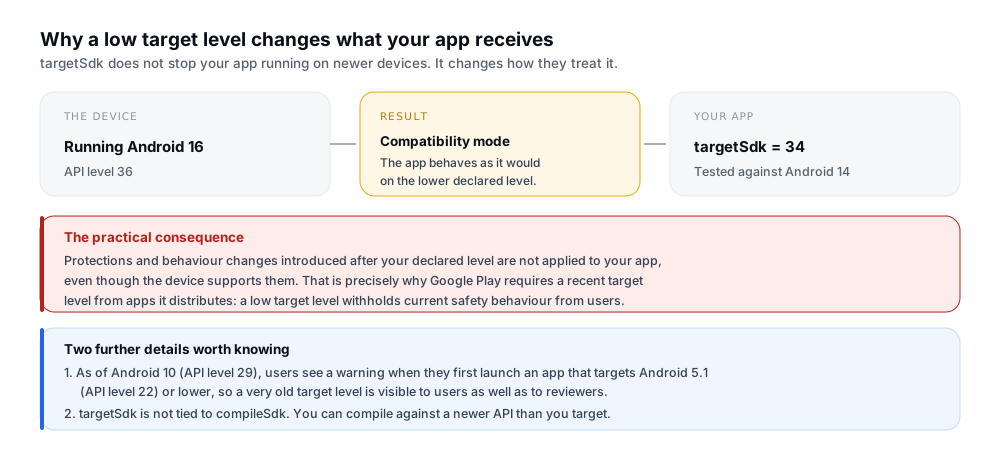
Figure 1 — A low target level does not stop your app running on newer devices. It changes how they treat it.
That is the whole rationale behind the Play requirement. A low target level withholds current safety and behaviour improvements from users, which is why Google Play enforces a floor.
Target SDK vs minimum SDK vs compile SDK
These three settings sit next to each other in the same block and are all integers, which is exactly why they get conflated. They answer three unrelated questions.
Google's build documentation defines them as follows. compileSdk determines which Android and Java APIs are available when compiling your source code; to use the latest Android features, compile against a recent SDK. minSdk specifies the lowest version of Android you want your app to support, which restricts which devices can install it. targetSdk sets the runtime behaviour of your app and attests which version you have tested against.
| Setting | Purpose | What it affects | What to verify |
|---|---|---|---|
minSdk |
The lowest Android version your app supports. | Which devices are allowed to install the app. Lint warns when you call an API that does not exist at this level. | How many users you would exclude before raising it, and whether newer features need conditional guards or AndroidX libraries. |
targetSdk |
The Android version your app is designed and tested against. Also the value Google Play checks. | Runtime behaviour. On newer devices, an app with a lower target runs in compatibility mode. | That it meets the current Play requirement, and that you have tested the behaviour changes for every level you are skipping. |
compileSdk |
The Android and Java APIs available while compiling. | Which APIs you can call in source. It does not decide runtime behaviour. | That your Android Gradle Plugin, Gradle, JDK and library dependencies support the level you compile against. |
One relationship worth stating explicitly
targetSdk is not connected to compileSdk. Your target can be higher than, the same as, or lower than what you compile against. Google's own summary of the distinction is that compileSdk gives you access to new APIs while targetSdk sets your app's runtime behaviour.
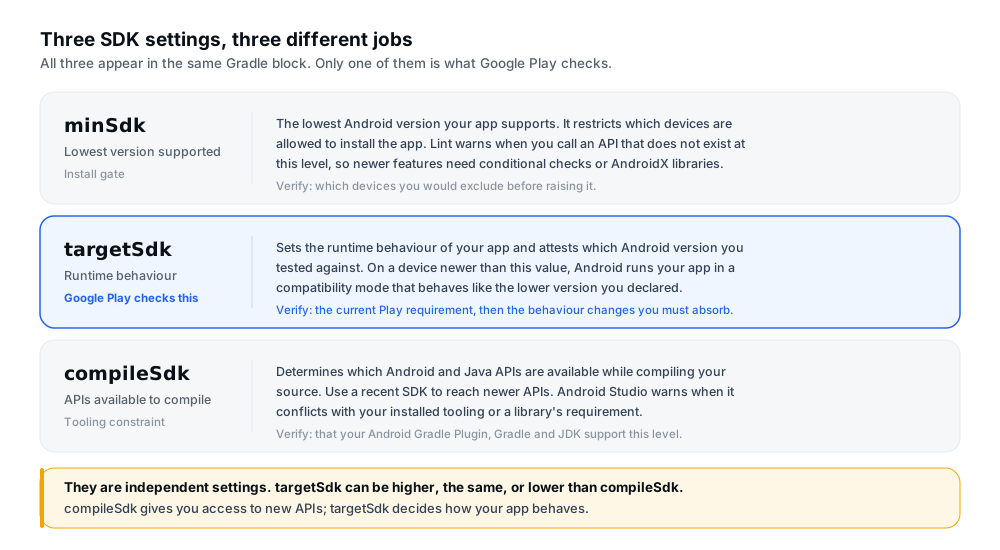
Figure 2 — Three settings, three different jobs. Only one of them is what Google Play checks.
What target API level does Google Play currently require?
Google Play's requirements page states the current position, and it differs by app type. For ordinary Android mobile apps, new apps and app updates must target Android 16 (API level 36) or higher to be submitted. Other form factors have their own thresholds: Wear OS and Android Automotive OS apps must target Android 15 (API level 35) or higher, while Android TV and Android XR apps must target Android 14 (API level 34) or higher.
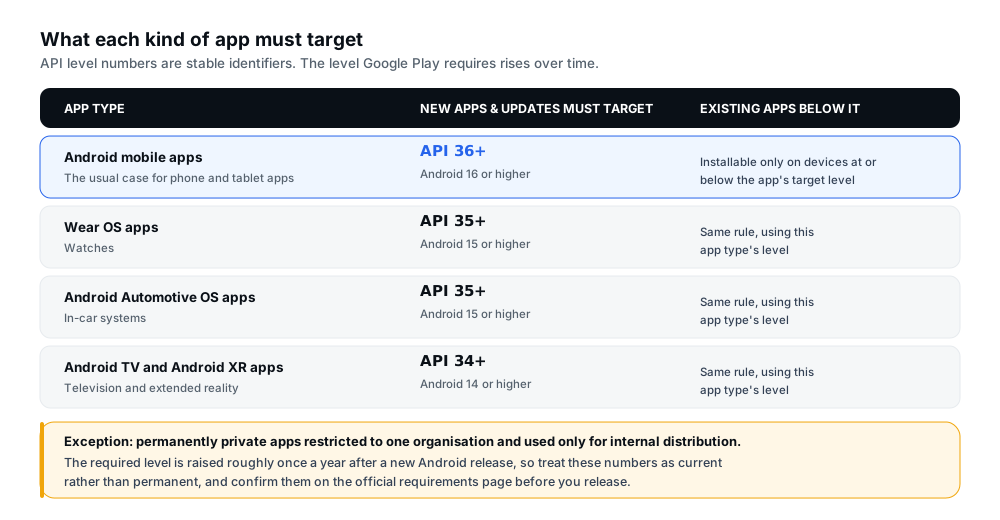
Figure 3 — The requirement by app type. These figures are current, not permanent.
Two things about this list deserve emphasis.
First, the requirement is raised rather than fixed. Google Play's own tables show the thresholds moving up alongside new Android releases, roughly on a yearly cadence. An app that satisfied the requirement when it was last updated may not satisfy it now, even though nothing about the app changed. That is why the official requirements page, not a remembered number, is the thing to check.
Second, there is an extension mechanism. If you need more time, Google Play allows you to request an extension to continue distributing to all users temporarily. Only apps that are not compliant receive the notification, and the form appears in Play Console through the details page of the warning or issue on the Policy status page. Because the window is time-limited and its dates change each cycle, confirm the current deadline on the official requirements page rather than relying on a figure quoted anywhere else — including here.
New app requirements vs existing app availability
Google Play defines three terms precisely, and the distinction between them decides which rule applies to you.
- New app — an app that is not yet published on Google Play.
- Existing app — an app that is published on Google Play.
- App update — a new version of the app you are submitting to replace your existing app.
For new apps and app updates, the requirement is a submission gate. If your target API level is below the current threshold, Google Play will not accept the submission.
For existing apps, the consequence is about availability rather than submission, and it is narrower than it first sounds. An existing app must target Android 15 (API level 35) or higher to remain available to new users on devices running an Android OS version higher than the app's target API level. An app that targets API level 34 or lower — and correspondingly lower values for the other form factors — will only be available on devices running an Android OS version the same as, or lower than, its target API level.
Three details matter here, because they are widely misunderstood:
- Users who already installed your app are not affected. Google's documentation is explicit that people who previously installed the app can still discover, re-install and use it on any Android version the app supports.
- The impact is on discovery by new users. Google notes this may affect download levels, because new users on newer Android versions cannot find or download the app.
- The user sees a specific explanation. If someone on a newer device opens a link to the store page, Google Play tells them the app is not available to install on their device because it was made for an older version of Android.
The only exception Google documents is for permanently private apps — those restricted to users in a specific organisation and intended for internal distribution only. If your app is distributed publicly, there is no exemption to apply for; you either meet the level or you accept the availability restriction.
If you do update an app to meet the requirement, that update is an app update like any other, which means the usual release mechanics also apply — including raising the version code on every upload. And if the app is mid-way through a closed test when you update it, check how that interacts with your testing window before you ship.
How to check your app's current target SDK
In a modern Android project the value lives in Gradle, not in the manifest. Look in your application module's build file — the module directory typically contains a file named build.gradle or build.gradle.kts — and find the android {} block, then the defaultConfig {} block nested inside it.
android {
    defaultConfig {
        minSdk 24
        targetSdk 36
        compileSdk 36
    }
}
The same values in Kotlin DSL use assignment:
android {
    defaultConfig {
        minSdk = 24
        targetSdk = 36
        compileSdk = 36
    }
}
Three things to check when reading the values
- The manifest is not the source of truth. If version or SDK values are also declared in the
<manifest>, Google's documentation is clear that the Gradle build file settings override the manifest. Defining them in Gradle is also what lets you vary them per build type or product flavour. - Check for overrides. A
defaultConfigvalue can be overridden in a particular build type or product flavour. If your release variant setstargetSdkexplicitly, that is the number that matters. - Confirm what actually shipped. To be certain, inspect the built artifact or Play Console's own reporting rather than trusting the source file alone, especially if the app was last released by someone else.
Android Studio also surfaces the effective values in its project and build-variant views, which is a fast way to see what a specific variant will actually use.
How to update targetSdkVersion safely
The change itself is one line. The surrounding work is what determines whether the release is smooth. Google Play's own guidance points at the steps below, and Figure 4 shows the same sequence.
1. Confirm the current requirement. Read Google Play's target API level requirements page rather than working from memory. Confirm the threshold for your app type — mobile, Wear OS, TV, Automotive or XR.
2. Record what you are skipping. Note your current target and the level you intend to move to. Every level in between has behaviour changes that were not applied to your app, and they will all apply at once when you raise the target.
3. Read the behaviour changes. Android Developers publishes these in two groups for each release: changes that affect all apps running on the version, and changes that apply exclusively to apps targeting that version or higher. Only the second group is new work when you raise a target level. Read the second group for each level you are skipping.
4. Check tooling and dependency compatibility before you change the value. Confirm that your installed Android Gradle Plugin, Gradle, JDK and library dependencies support the new API level. Raising the target on unsupported tooling is a reliable way to create a build failure that looks unrelated to the change you made.
5. Give third-party SDKs their own check. Google's guidance is specifically that some SDK providers publish their supported API level in their manifest, while others require additional investigation. Do not assume a library is ready — verify it.
6. Change the value and nothing else. Raise targetSdk in defaultConfig. Do not raise minSdk as a side effect unless you have separately decided to drop older devices, and do not change compileSdk merely to match. Each of those is its own decision with its own consequences.
7. Test, then build the release. A passing debug build proves less than usual here, because some behaviour changes differ between debug and release. Test the release artifact.
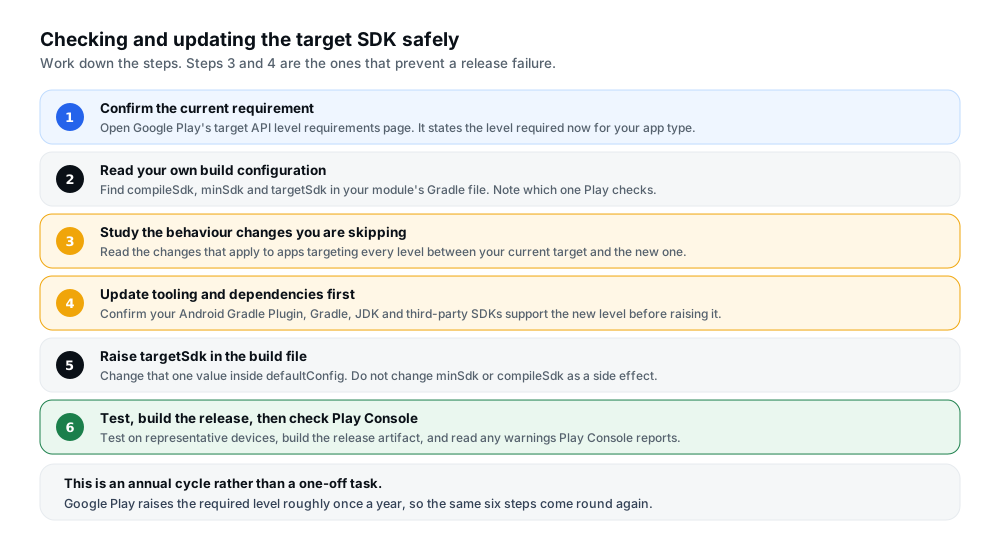
Figure 4 — Steps 3 and 4 are the ones that prevent a release failure rather than causing one.
Special considerations for Flutter developers
A Flutter project still has an Android application module, and its SDK settings are configured in the same place — but the values are usually supplied by Flutter rather than written out as plain integers.
Flutter's own deployment documentation points to the Gradle build script at [project]/android/app/build.gradle.kts and shows the defaults it generates:
android {
    compileSdk = flutter.compileSdkVersion

    defaultConfig {
        applicationId = "com.example.app"
        minSdk = flutter.minSdkVersion
        targetSdk = flutter.targetSdkVersion
        versionCode = flutter.versionCode
        versionName = flutter.versionName
    }
}
Flutter's documentation explains that any value beginning with flutter. is supplied by the Flutter Gradle plugin, and that these defaults are managed by Flutter to keep the framework and its plugins compatible. It also states that you typically do not need to change them, and gives two reasons you might: you need a newer API than the default allows, or you want to lock versions so they do not shift when you upgrade Flutter. In the second case you replace the variable with a specific integer.
So the practical steps for a Flutter project are:
- Check the effective value first. Note what
flutter.targetSdkVersioncurrently resolves to for your installed Flutter version, because that is the number competing with the Play requirement. - Prefer upgrading Flutter before hard-coding. When Flutter raises its managed default, you inherit a compliant value without pinning anything. Hard-coding a number means you own it from then on, including the next time the requirement moves.
- If you do pin it, pin deliberately. Setting
targetSdk = 36is a legitimate choice, but treat it as a value you must now maintain. - Remember where version names come from. Flutter takes
versionCodeandversionNamefrom theversion:field inpubspec.yaml, so that is where the release version is actually set. - Confirm your plugin set supports the level. A plugin that has not been updated may not support a newer target, which is the same third-party SDK problem described above wearing Flutter clothes.
To produce the release artifact, Flutter's documented command is flutter build appbundle, which writes the bundle to the release output directory inside your project's build folder.
Behaviour changes and compatibility risks to test
The reason to test rather than assume is that raising a target level typically produces no compile errors. The app builds, ships, and behaves differently in specific runtime situations — which is exactly the kind of change that reaches production if it is not looked for deliberately.
Google's migration documentation suggests a testing pass that covers core use cases rather than only the happy path. The items worth checking in almost every project are:
- Permission requests, and specifically what happens when the user denies them. A strategy for refusal is an expected part of a modern app.
- Background work — jobs, alarms and scheduled tasks — particularly how they behave under Doze and App Standby.
- Foreground services, since several releases have tightened when they can be started.
- Notifications, including any custom notification content views.
- Photo and video capture or picking, which has repeatedly changed shape across Android releases.
- Sharing files with other apps, including another app from the same developer.
- Deep links and app link verification.
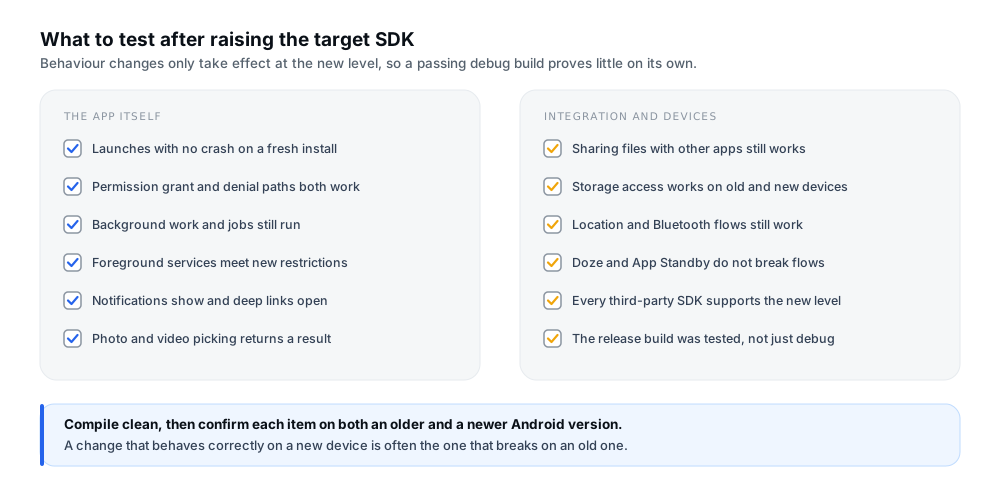
Figure 5 — Test on both an older and a newer Android version. The change that works on the new one is often the one that breaks on the old one.
Two coverage points that are easy to miss
Test on representative Android versions, not just the newest device you have — behaviour changes can interact with your minSdk support in ways that only appear on older releases. And test the release build, because shipping configuration such as code shrinking is not active in debug.
If your test matrix is broad, the practical guidance on testing across different devices and Android versions is a useful companion to this list.
Common target API level problems and practical fixes
Table B maps the situations developers report most often to their likely cause and a safe next step. Google's wording varies between surfaces, so these are described as problems rather than quoted error strings.
| Problem | Likely cause | Safe next step |
|---|---|---|
| An upload is refused for not meeting the target API level requirement. | The targetSdk in the release variant is below the level Google Play now requires for your app type. |
Confirm the current requirement for your app type, then raise targetSdk in the build file and rebuild. |
| You changed the value but the upload still reports the old level. | The value you edited is overridden in the build type or flavour that produces the release, or the old artifact was uploaded. | Inspect the effective value for the release variant, confirm the manifest is not re-declaring it, and verify the built artifact. |
| The build fails after raising the target level. | Too small a leap for the installed tooling, or a dependency that does not yet support the new level. | Confirm your Android Gradle Plugin, Gradle and JDK support the level, and update or replace the offending dependency. |
| A library refuses to compile against the new API level. | Some SDK providers publish their supported level in their manifest and others do not, so compatibility has to be checked rather than assumed. | Check the provider's release notes and manifest; if a newer version exists, upgrade. Otherwise raise it with the provider before shipping. |
| Existing users report that new users cannot find the app. | The app targets a level below the availability threshold, so it is hidden on newer devices for people who have not installed it before. | Raise the target level to restore availability, or request an extension if you need time. Already-installed users are unaffected either way. |
| Permissions stop working after the update. | A behaviour change at the new target now applies to your app, commonly around permission prompts or background access. | Read the behaviour change for that release, implement the new expectation, and test both the allowed and denied paths. |
| The app works when run from Android Studio but not as a release build. | Shipping configuration such as code shrinking or release-only build settings changes which code paths survive. | Always validate with the release artifact that you intend to upload, not the debug build. |
| You raised the target level and it did not fix a Play Console warning. | The warning may concern a different requirement entirely, such as data safety, content rating or signing. | Read the specific warning on the Policy status page rather than assuming it relates to the target API level. |
Pre-submission checklist
Run through this before you submit an update that raises the target API level.
- Confirm the current requirement on Google Play's requirements page, for your specific app type.
- Check your project's SDK settings and confirm which value the release variant actually uses.
- Review the official behaviour changes for every level between your old target and the new one.
- Update incompatible tooling and dependencies, including third-party SDKs.
- Test important user flows and permissions, covering both grant and deny paths.
- Test on representative Android versions and devices, not only the newest one you have.
- Build and verify the release artifact — the actual bundle or APK you will upload.
- Check Google Play Console for warnings and confirm the submission status after uploading.
On the last point: the Policy status page is where Google Play reports a compliance issue on a specific app, and it is also where the request form appears if you need an extension. Checking it after an upload is how you find out about a problem while you can still act on it.
Frequently asked questions
What is the target API level on Android?
It is the value of your app's targetSdkVersion setting — Google's documentation uses the two names interchangeably. It tells Android how your app is meant to run on different versions, and it is the value Google Play checks against its submission requirements.
What is the difference between target SDK and minimum SDK?
minSdk is the lowest Android version your app supports and controls which devices can install it. targetSdk sets the runtime behaviour your app is tested against. Raising the target does not change which devices can install your app — that is minSdk's job, and the two move independently.
Where can I check targetSdkVersion in my project?
In your application module's build.gradle or build.gradle.kts, inside defaultConfig {} within the android {} block. Check for per-variant overrides, and remember that Gradle values take precedence over anything declared in the manifest.
Can I change targetSdkVersion without changing minSdkVersion?
Yes, and in most cases you should. They are independent settings. Raising minSdk would drop devices that can still run your app, so only change it as a deliberate decision about which devices to support.
Does increasing the target SDK affect app behaviour?
It can, and that is the main risk. Behaviour changes that apply to apps targeting a given level or higher only take effect once you raise the target. The app will typically still compile, so these changes surface at runtime rather than at build time — which is why a testing pass is part of the work rather than optional.
Do Flutter apps have target API requirements?
Yes. A Flutter app is still an Android app and Google Play applies the same requirement. Flutter's Gradle setup usually supplies the value through flutter.targetSdkVersion, so the first step is to see what your installed Flutter version resolves that to. Upgrading Flutter is often enough; if you pin an explicit value instead, you take on maintaining it.
What should I do if Google Play rejects my app because of its target API level?
Confirm the current required level for your app type, then raise targetSdk accordingly and resubmit. Before doing so, read the behaviour changes for the levels you are skipping and test them, because the rejection means the app was validated against an older contract than the one it will now run under.
Does updating the target SDK guarantee Google Play approval?
No. Meeting the target API level requirement satisfies that requirement. It does not address content policy, data safety, signing, content rating, or any other review criterion, and it is not a route to faster review. Treat it as one gate among several rather than a pass.
Official resources and further reading
- Google Play Console Help — Target API level requirements — the authoritative, currently applicable thresholds by app type, the availability rules for existing apps, the exception for permanently private apps, and the extension process.
- Android Developers — Meet Google Play's target API level requirement — why targeting newer SDKs matters, migration guidance, and testing suggestions.
- Android Developers — Configure your build — the definitions of
compileSdk,minSdkandtargetSdk, and how they are declared in Gradle. - Android Developers — Android version overview and behaviour changes — the release-by-release behaviour change lists, split between changes affecting all apps and changes affecting apps targeting that version.
- Flutter — Build and release an Android app — reviewing the Gradle configuration, how Flutter supplies default SDK versions, and building a release bundle.
Final takeaway
Meeting Google Play's target API level requirement is usually a one-line change wrapped in a testing job. The line is targetSdk in defaultConfig. The job is reading the behaviour changes you have been shielded from and confirming your app still behaves correctly under them.
Two habits make this sustainable. Check the official requirements page rather than working from a remembered number, because the threshold moves. And raise the target a little each cycle rather than in one large jump — the fewer behaviour changes you absorb at once, the easier each one is to attribute when something breaks.
And if you are mid-release, remember that this requirement sits alongside the other submission rules rather than above them. Preparing the signed release artifact and the store listing are separate steps, and clearing the target API level gate does not exempt you from either.
Preparing an app for release?
12 Testers Community helps Android developers run a managed closed test with real testers who stay opted in for the full required testing period, alongside guides for the rest of the Play submission process. SDK levels are yours to set: no testing service can choose your target API level, absorb a behaviour change for you or take over responsibility for preparing a valid release, and nothing here guarantees approval, production access or ranking.