
Last reviewed against the official Android Developers and Google Play Console documentation. Version requirements and limits are set by Google and can change, so confirm the current position in your own Play Console and on the pages linked below.
Every Android app carries two version values, and they do completely different jobs. versionCode is an internal integer that must increase with every single upload. versionName is a string that users actually see. Change the wrong one — or change the right one and forget the other — and Google Play will reject your upload, usually with a message about the version code being too low or already used.
This is one of the most common walls a developer hits when publishing an update, and it is also one of the easiest to avoid, because the rules are short and they do not change. The version code is the only one with hard constraints: it must go up, it must never repeat, and it must stay under a fixed maximum. The version name has almost no constraints at all.
Crucially, these two values have nothing to do with a separate family of settings you will see in the same file — minSdk, targetSdk and compileSdk. Those describe which Android platform versions your app works with. Confusing them with versioning is a common and costly mistake, and this guide keeps the two ideas strictly apart.
Why Android app versioning matters
Android's versioning system exists to answer one question at install time: is this build newer than what is already on the device? Google's documentation lists three reasons versioning matters:
- Users need to know which version is installed and what upgrades are available.
- Other apps — including other apps you publish as a suite — may query your app's version to determine compatibility and identify dependencies.
- Publishing services such as Google Play query your version so they can display it to users and establish upgrade or downgrade relationships.
That third point is where the trouble usually starts, because Google Play treats the version code as a permanent record. Once a number has been uploaded for your app, it is spent. There is no way to un-spend it and no way to reuse it for a different build, even if that earlier upload was never released, was rejected, or was rolled back afterwards.
One important limit on what the system will do for you: the platform uses version information to protect against downgrades, but it does not enforce upgrade or compatibility restrictions for third-party apps. If you need your app to refuse to run against an incompatible version of a companion app, you enforce that yourself and tell users about it.
What is versionCode?
versionCode is a positive integer used as an internal version number. Google's documentation describes it as a value that helps determine whether one version is more recent than another, with higher numbers indicating more recent versions. It is explicitly not the version number shown to users — that is the job of versionName.
The Android system uses the version code to protect against downgrades by preventing users from installing an APK with a lower versionCode than the version currently installed on their device. Because it is an integer, other apps and services can evaluate it programmatically to check an upgrade or downgrade relationship.
Three constraints matter more than anything else in this article:
- It must increase. Google's guidance is to make sure each successive release of your app uses a greater value, regardless of whether the release is major or minor.
- It must be unique for your app. You cannot upload an APK or bundle to Google Play with a
versionCodeyou have already used for a previous version. - It has a ceiling. The greatest value Google Play allows is
2100000000.
Google Play's help documentation describes the same value as a 32-bit integer used internally by the Android system and Google Play to decide which version is more recent. In practice most developers never come close to the ceiling, but the ones who do tend to have adopted a fast-growing numbering scheme early and only discovered the problem years later.
What is versionName?
versionName is a string used as the version number shown to users. It is described in Android's documentation as the only value displayed to users, and it can be specified either as a raw string or as a reference to a string resource.
Because it is a string, you can describe the app version as a <major>.<minor>.<point> string such as 2.4.1, or as any other absolute or relative version identifier — 1.1 Beta, 3.0, or something entirely of your own design. Google places no format requirement on the string itself.
The one-sentence version of this article
If you change nothing else, remember that versionCode must increase on every upload, and versionName must simply be accurate. Changing versionName alone does not satisfy Google Play — it does not create a new installable release, because nothing in the system treats the name as a build identifier.
versionCode vs versionName: key differences
Table A is the reference comparison. Figure 1 is the same distinction in visual form.
| Attribute | Purpose | Data type | Visible to users? | What to change for a new release |
|---|---|---|---|---|
versionCode |
Internal build identifier. Lets the system and Google Play decide which build is more recent. | Positive integer (no letters, no decimals). | No. Google's guidance is that apps and publishing services should not display it. | Always raise it. Every upload needs a value that is higher than what you have used and never used before. |
versionName |
The version label shown to users on the store listing and on the device. | String. Any format you choose. | Yes. It is the only version value users see. | Update it when the release is something users should know about. Leaving it unchanged is allowed. |
| Can it repeat? | A repeat version code means two different builds claim the same identity. | — | — | Never for versionCode. Freely for versionName. |
| Maximum value | A hard ceiling on how many releases the current scheme supports. | — | — | 2100000000 for versionCode. No practical limit for versionName. |
| Does it control installs? | Only the version code affects what the system will install over what. | — | — | Changing versionName alone will not deliver an update to anyone. |
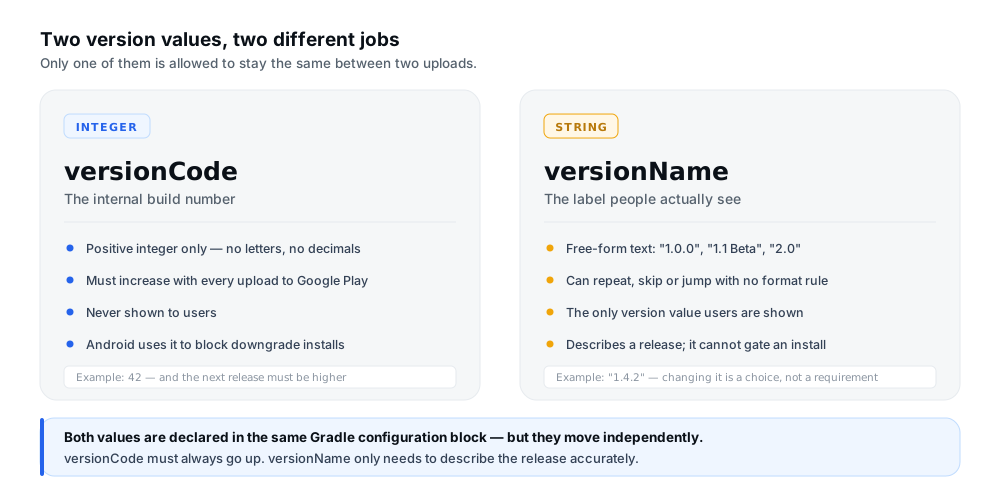
Figure 1 — Two values, two different jobs. Only one of them may stay the same between uploads. Illustrative diagram, not a screenshot of Play Console.
Where to configure version values in Gradle
Both values are declared in your module's build.gradle or build.gradle.kts file, inside the defaultConfig {} block, which is itself nested inside the android {} block. During the build process these values are merged into your app's manifest.
In Groovy:
android {
    namespace 'com.example.testapp'
    defaultConfig {
        applicationId "com.example.testapp"
        minSdk 24
        targetSdk 34
        versionCode 44
        versionName "2.0.0"
    }
}
In Kotlin DSL, the same block with assignment syntax:
android {
    namespace = "com.example.testapp"
    defaultConfig {
        applicationId = "com.example.testapp"
        minSdk = 24
        targetSdk = 34
        versionCode = 44
        versionName = "2.0.0"
    }
}
Notice that minSdk, targetSdk and the version values sit side by side in that block. They are unrelated. minSdk and targetSdk describe which Android platform versions your app supports and what it is designed to run against; they have no bearing on whether an upload is accepted as a new release. See the official guidance on versioning your app for the full reference.
Overriding values per build type or product flavor
You can override the defaults for individual build types or product flavors. Google's example defines two flavors where a "demo" flavor sets versionName to "1.1-demo" while the "full" flavor inherits the default. This is a legitimate way to label internal variants. Be careful with versionCode here: if two flavors produce builds that both reach Google Play, they still need distinct, never-before-used codes.
One more thing worth knowing: if you define version values directly in the <manifest> element, the Gradle build file overrides them. Google recommends removing those attributes from the manifest and defining version settings in Gradle instead, to avoid unexpected overwriting during manifest merging.
How to choose a versionCode for your next release
The mechanics are simple. Find the highest version code you have ever uploaded for that app — not just on the track you are publishing to — and pick a value higher than it. Then increment monotonically from there.
A release progression makes this concrete. Figure 2 shows four releases where the version code goes up by exactly one each time, while the version name moves according to what the release means.
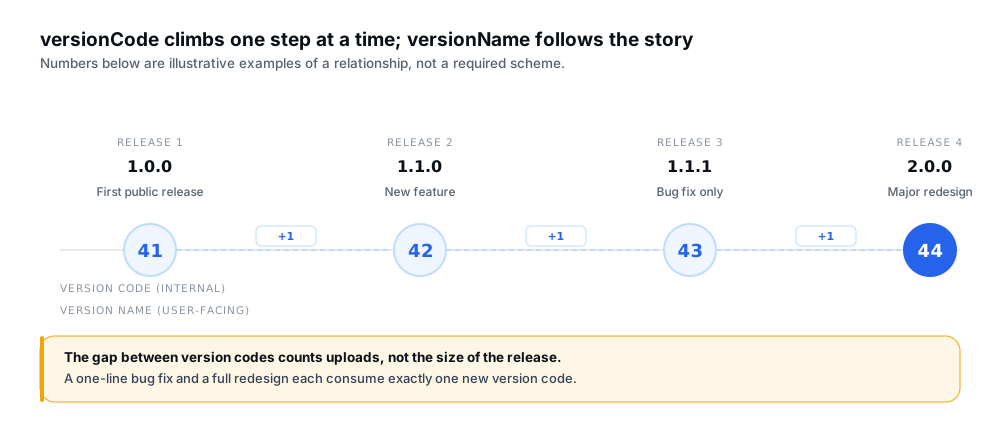
Figure 2 — One code per upload. The gap between codes counts uploads, not the size of the release.
Those numbers are illustrative examples of the relationship, not recommended values or a universal scheme. What matters is the behaviour, not the specific integers.
Two practical points that catch people out:
- Check every track, not just the one you are publishing to. A version code consumed by an internal or closed-track upload still counts as used for that app.
- Don't raise the code for a build you are not actually shipping. Google notes that increasing the version code prompts users of the previous version to update, so you should avoid raising it for builds that contain no real changes.
The second point is the one developers underestimate. Because the version code triggers the update prompt, treating it as a scratch counter that you bump for every local experiment causes unnecessary update prompts for real users. Reserve it for uploads.
How to choose a clear versionName
The version name is a communication decision, not a technical one. Google's documentation suggests that many developers consider Semantic Versioning a good basis for a versioning strategy, which gives you a widely understood three-part pattern.
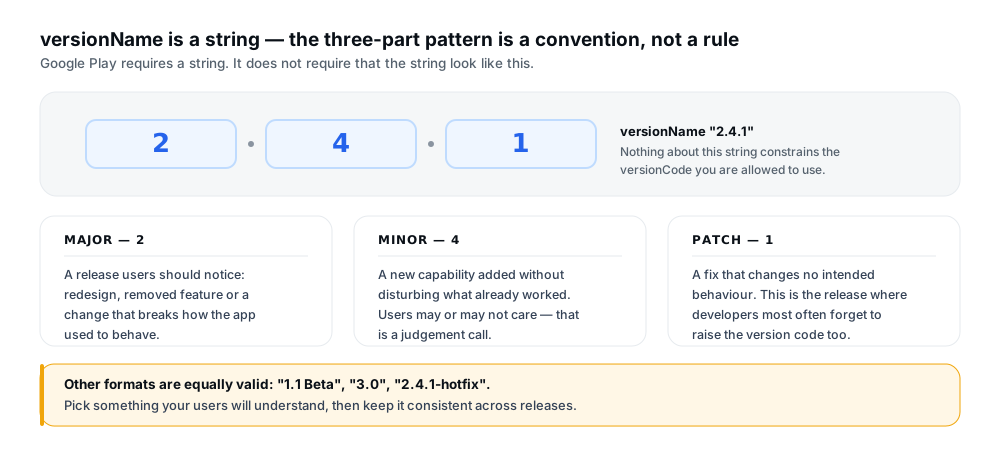
Figure 3 — What each part of a conventional version name communicates. Other formats are equally valid.
Whichever format you choose, keep it consistent. Users see the version name in the store listing and on the device, and inconsistent naming makes it harder for them to tell whether an update is significant or trivial — and harder for your own support conversations to stay precise.
A practical rule: change the version name when the change is something a user would want to know about. A pure bug fix that changes no intended behaviour is a good candidate for a patch-level bump; a redesign is a good candidate for a major one. Nothing enforces this, and nothing breaks if you deviate.
How to avoid running out of version codes
The maximum of 2100000000 sounds unreachable, and for most apps it is. Google's own help page notes that while the number may seem high, unmanaged or inefficient versioning can cause problems — specifically, that if your app's version code reaches or exceeds the maximum, you can no longer upload new APKs or app bundles for that application. No bug fixes, no new features, no compatibility updates.
Why the limit is 2100000000 and not Android's maximum integer
These are two different numbers. Android's own maximum integer is larger than the value Google Play accepts on upload, and Google's documentation explicitly warns that the Android MAXINT differs from Play Console upload requirements. Play Console states that if your versionCode exceeds 2100000000, it will prevent you from submitting a new app bundle. Design your scheme around the Play limit, not the platform's integer ceiling.
Sustainable schemes share a few properties. Google's guidance for version codes suggests:
- Leave room between values. Adopt a generation strategy that increases gradually and consistently, rather than consuming a large block of numbers per release.
- Monitor your progression. Track how your version code is climbing so you can anticipate when it might approach the limit.
- Add an automated check. Google explicitly recommends integrating checks into your build and release process that warn about or prevent excessively high version code values.
For apps that publish multiple APKs, Google suggests a version code of at least seven digits, where the higher-order digits represent supported configurations and the lower-order digits reflect the version name. Their worked example: when the version name is 3.1.0, an API level 4 APK might use 0400310 and an API level 11 APK might use 1100310. Google is direct that this is a suggestion for establishing a scalable pattern, not a requirement — you can use any scheme, provided you think about how future releases will increase.
If you do reach the maximum, it is not automatically terminal: Google's documentation states that Google Play may be able to provide support, and directs developers to contact the Google Play support team. It is still a worse position than planning ahead.
What happens if you reuse a version code
Google's rule is unambiguous: you cannot upload an APK to the Play Store with a versionCode you have already used for a previous version. There is no reset, no expiry and no way to free a spent number.
The part that surprises developers is how broadly "used" applies. A version code is spent when it is uploaded, not when it is released. If you uploaded a bundle with version code 43, then decided not to roll it out, version code 43 is still gone for that app. The same applies to a build you uploaded to an internal testing track, or one that was rejected during review.
There is one documented situation where a lower version code is legitimate rather than an error, and it is narrow. Google's guidance for publishing multiple APKs notes that in some situations you might want to upload a version of your app with a lower versionCode than the most recent version — for example, when you are publishing multiple APKs and have pre-set version code ranges for specific APKs. The related rule is that you cannot activate a new APK with a version code lower than that of the APK it is replacing, because users of the previous APK would not be able to update.
For a single-bundle app being updated normally, the rule is simply that the new version code must be higher than the applicable existing release. If you are unsure what the highest used value is, Play Console's app bundle explorer is the place to check.
How to fix common Google Play versioning errors
Table B maps the problems developers report most often to their likely cause and a safe next step. These are common scenarios rather than quoted error strings — Google's wording varies between surfaces and can change, so treat them as diagnoses, not as the exact text you will see.
| Error or problem | Likely cause | Recommended action |
|---|---|---|
| A version code has already been used. | The number was uploaded previously — possibly in a build you never released, or on a different track. | Choose a number you have never uploaded for this app. Do not try to free the old value. |
| The uploaded version code is not higher than the applicable existing release. | Another release on the same app already carries the same or a higher code, so the new build would not be an upgrade. | Check the highest code across every track, then set a value above it and rebuild. |
| versionName changed but the upload is still rejected. | versionCode was left unchanged. Only versionCode identifies a build to the system. |
Raise versionCode as well, then rebuild and upload. |
| Submission is blocked because the value exceeds the allowed maximum. | The scheme has pushed the value above 2100000000, or a build script generated an out-of-range number. |
Inspect the versioning logic, correct the value, and add a build-time check so it cannot recur. |
| The numbering scheme grows far too quickly. | A scheme that multiplies by date or build number, or multiplies per module, can consume the range far ahead of schedule. | Estimate how many releases per year you realistically ship, then confirm the scheme still has room for a long horizon. |
| A feature module seems to need its own version code. | Confusion about how app bundles version their parts. | For app bundles, increase the version code in the base module. Google Play generates updated APKs from it. |
versionCode is treated as the same thing as targetSdk. |
Both are integers in the same Gradle block, so they are easy to conflate. | They are unrelated. targetSdk describes platform behaviour; versionCode identifies a build. |
| Testers are not offered the new build. | The version code on the track is not higher than the build the tester already has installed. | Confirm the track's code exceeds what testers currently run, and that the track is active. |
Most of these collapse into one diagnostic sequence. Figure 4 is that sequence as a flow, and it is worth working through in order rather than guessing.
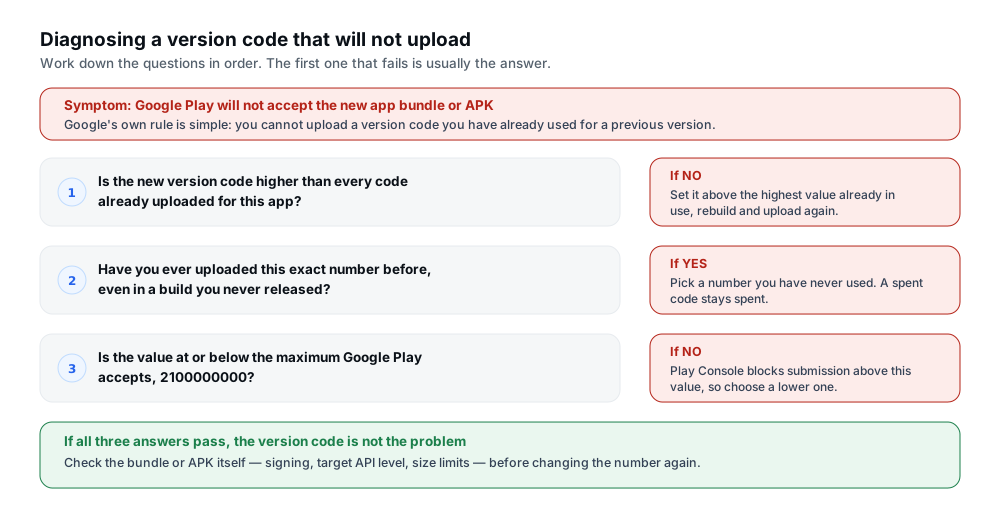
Figure 4 — Work down the questions. The first one that fails is usually the answer.
Versioning Android App Bundles and Play Console releases
If you publish an Android App Bundle — Google's recommended upload format — one detail of the workflow changes. To update your app after uploading it to Play Console, you need to increase the version code included in the base module, then build and upload a new bundle. Google Play then generates updated APKs with new version codes and serves them to users as needed.
So the number you manage is the one on the base module. Feature modules do not carry independent version codes that you increment separately; Play Console derives the delivered APK versions from the bundle you uploaded.
The app bundle explorer includes a version filter, the functional equivalent of the artifact library in older versions of Play Console. If you are ever unsure which values are already spent for an app, that is the surface to inspect before choosing the next number. If you are still working through the wider publishing process, how Play App Signing relates to your upload key covers the signing half of the release, and what happens to testers when you update an app covers how a new version code interacts with an active closed test.
A practical pre-upload versioning checklist
The first five checks below prevent a rejected upload. The last five prevent a problem you would otherwise discover years from now, when the numbers run out.
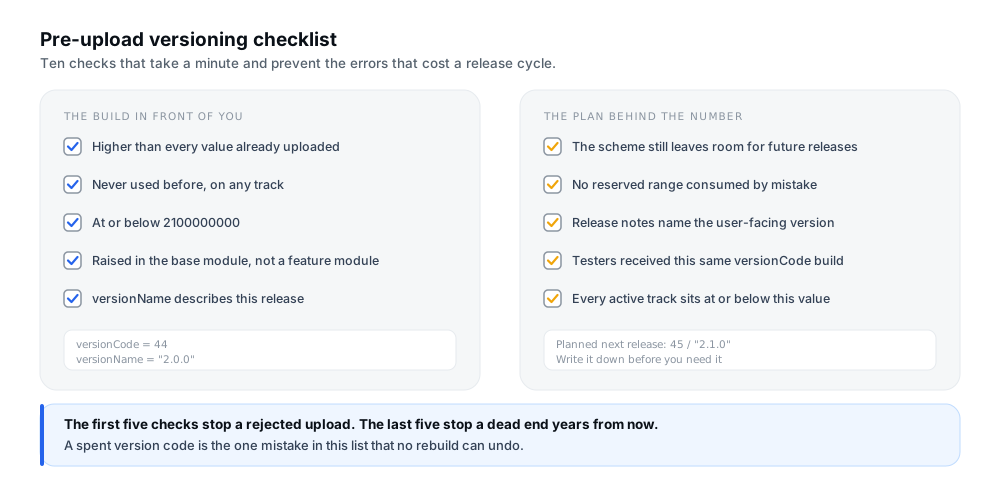
Figure 5 — Ten checks that take a minute and prevent the errors that cost a release cycle.
- The new
versionCodeis higher than every value you have ever uploaded for this app. - You have never uploaded this exact number before, on any track.
- The value is at or below
2100000000. - You raised the code in the base module, not in a feature module.
versionNamedescribes this release accurately.- Your numbering scheme still leaves room for the releases you expect to ship.
- No reserved or pre-set range was consumed by mistake.
- Release notes name the user-facing version so testers and users can match them up.
- Testers received a build with this same version code.
- Every active track sits at or below the new value.
Frequently asked questions
What is the difference between versionCode and versionName?
versionCode is a positive integer used internally to decide which build is newer, and it must increase with every upload. versionName is a string and is the only version value shown to users. They are independent values that happen to live in the same Gradle block.
Does versionCode need to increase for every Google Play update?
Yes. Google's guidance is that each successive release uses a greater value, and the version code must be unique for your app. To update an app bundle you increase the version code in the base module, then upload a new bundle.
Can I reuse a versionCode that was already uploaded?
No. Google's documentation states that you cannot upload an APK with a versionCode you have already used for a previous version. A code is spent when it is uploaded, even if that build was never released or was later removed.
What is the maximum Google Play versionCode?
The greatest value Google Play allows is 2100000000. Play Console states that it will prevent you from submitting a new app bundle if the version code exceeds this value.
Can I change versionName without changing versionCode?
You can change it freely, and it does not have to change on every release. Changing it will not, however, make the build a new release for Google Play — that decision comes from the version code, which must always be raised for a new upload.
Where do I change versionCode in Android Studio?
In your module's build.gradle or build.gradle.kts, inside defaultConfig {} within the android {} block. You can override the default per build type or product flavor. If version values are also set in the <manifest>, the Gradle values take precedence.
Why does Google Play reject my app bundle because of its version code?
Almost always one of three reasons: the number has been used before, it is not higher than the applicable existing release, or it exceeds 2100000000. Work through those three in order before changing anything else.
Is versionCode the same as targetSdk?
No, and they are not related in any way. targetSdk declares the API level your app is designed to run against. versionCode identifies your build. They sit near each other in the Gradle file, which is the only reason they get confused.
Does changing versionName alone create a new installable release?
No. The version name is display metadata. Google Play determines whether an upload is a new release from the version code, so changing only the name leaves you with the same build identity and a rejected or ineffective upload.
How can I choose a sustainable versioning strategy?
Pick a scheme that increases gradually, confirm it still leaves room after several years at your realistic release cadence, and add a build check that refuses an out-of-range value. Google suggests putting the version name in the lower-order digits of the code so the two are easy to associate later. The right scheme depends on your release process, so treat any specific pattern as a starting point rather than a standard.
Official resources
- Android Developers — Version your app — the authoritative reference for
versionCode,versionName, the2100000000limit, and where to set values in Gradle. - Google Play Console Help — Maintaining Android app version codes sustainably — the maximum limit and the consequences of approaching it.
- Google Play Console Help — Create and set up your app — how version codes relate to uploads and the app bundle explorer.
- Android Developers — Upload your app to the Play Console — updating a bundle, including the base-module version code requirement.
- Android Developers — Multiple APKs and version codes — the version code scheme suggestion and the rules for cases where a lower code is legitimate.
Conclusion
Versioning is one of the few parts of Android publishing where the rules are genuinely short. A positive integer that always goes up, never repeats, and stays under 2100000000; and a string that users read, which you keep accurate and consistent. Everything else in this article follows from those two sentences.
The expensive mistakes rarely come from misreading the rule. They come from version codes being consumed without anyone noticing — a bundle uploaded to an internal track during testing, a build rejected in review, or a scheme that allocated a million numbers per release because it looked tidy. So the check worth building into your process is the boring one: before every upload, find the highest code across every track and confirm the new one is above it.
If you are working through the rest of the publishing process, testing your app across different devices covers what to verify once a build is out, creating a compliant store listing covers the page users and reviewers read, and the production access application covers the gate that comes after a completed test.
Preparing an app for release?
12 Testers Community helps Android developers run a managed closed test with real testers who stay opted in for the full required testing period, alongside guides for the rest of the Play submission process. Version numbers are yours to manage: no testing service can choose them, repair a spent version code or take over responsibility for preparing a valid release, and nothing here guarantees approval, production access or ranking.