Last reviewed against Google Play Console Help and Android Developers documentation on 26 November 2026.
Most guides to Google Play closed testing assume the app is open the moment it installs. Login-based apps break that assumption. There is a registration screen, an email to confirm, a one-time code that arrives as an SMS, and a session that quietly expires on day nine of a fourteen-day test.
That is why authentication deserves its own plan rather than a paragraph in the tester instructions. It is the one part of the closed test that a developer cannot complete alone: a tester has to hold an account, and a reviewer has to hold one too. When either fails, the app looks broken to the only two audiences that decide whether it reaches production.
This guide separates those two audiences from the start. It covers what Google actually requires of the credentials you declare, how to build a demo account you can hand to a stranger, how to keep one-time codes from blocking a review, and how to test your own login flow before a single tester is invited.
Quick answer
- Two audiences, two accounts. A closed-test tester signs in with their own credentials for 14 days. A Google reviewer signs in with the demo account you declare in Play Console. Fixing one does nothing for the other.
- The declaration is mandatory when access is restricted. Google's wording is direct: if your app, or parts of it, are restricted by login credentials, sign-in details, memberships, location or any other authentication, you must provide the details needed to get in.
- One-time codes must be bypassed, not described. If the app normally uses a one-time password or two-step verification, the credentials you supply must be reusable and able to bypass those steps.
- Location and payment gates count as access gates. A geo-gated password needs a master credential that works from anywhere, and a subscription paywall needs instructions or access details that unlock the paid area.
- None of this guarantees approval. Access is one rejection reason among many, and the production access decision stays with Google.
Closed testing and app review are different checkpoints
Closed testing and Google Play app review get conflated because both involve someone installing your app and signing in. The mechanics are unrelated.
Closed testing is a track inside Play Console. For personal developer accounts created after 13 November 2023, it is the route to production access: at least 12 testers opted in continuously for the preceding 14 days, with app setup completed before the test can start. Google documents internal, closed, open and production tracks separately, and closed testing supports more than one named track, which is useful when you need a fresh cohort without disturbing an existing one. The overview of testing tracks covers those differences in full.
App review is the human or automated check of your submission against policy. It happens on every release, and it needs to reach the same screens your testers reach. That is where the sign-in details declaration lives — not in the testing track, but in App content.
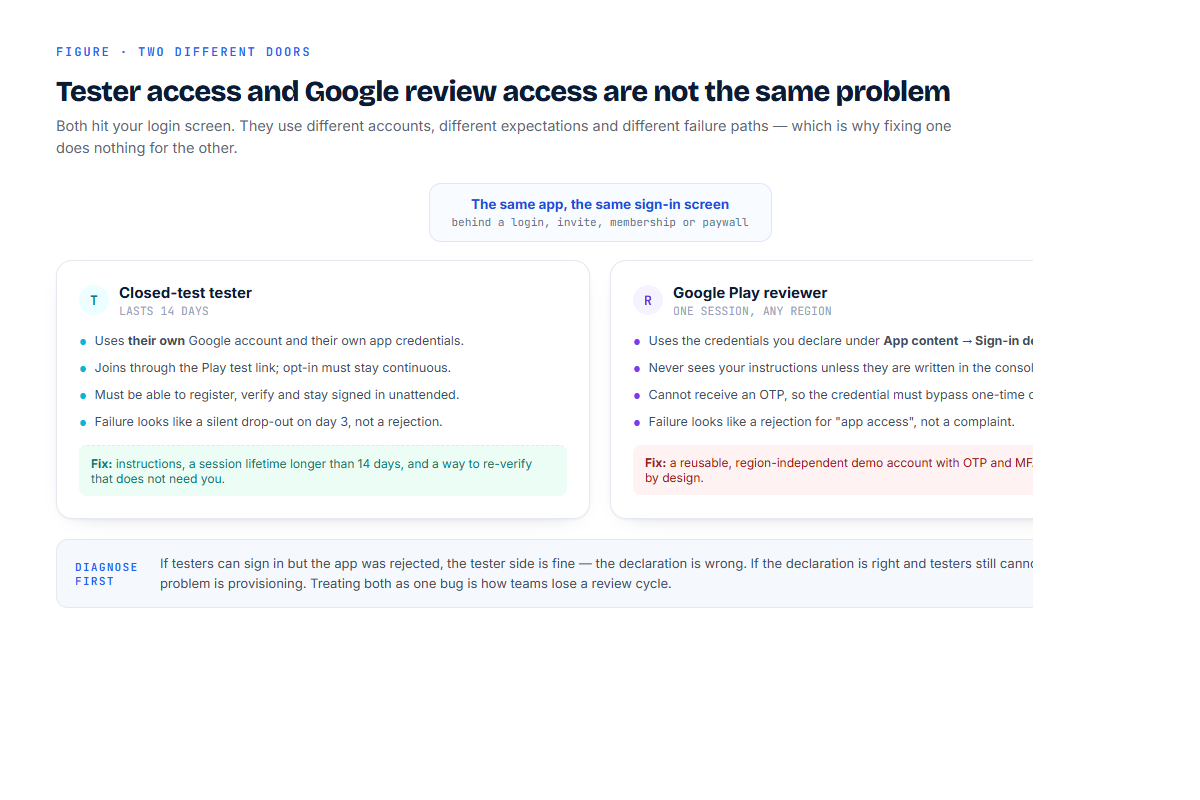
Figure 1 — Same sign-in screen, two different access problems. Original illustration for 12 Testers Community.
| Question | Closed-test tester | Google Play reviewer |
|---|---|---|
| Whose account is used? | The tester's own, on their own device | The demo account you declare in App content |
| How long must access last? | The full 14 days, continuously opted in | Long enough to complete one review |
| Can they receive an OTP? | Yes — it is their phone number | No; the credential must bypass the code |
| Does location matter? | Only if your app geo-gates features | Yes; the credential must work in any region |
| Who writes the instructions? | You, in the message sent with the test link | You, in the sign-in details declaration |
| How failure shows up | Silent drop-out, a lower day-14 count | A rejection or removal citing app access |
How authentication changes a closed test
Every extra step in a login flow is a step where a volunteer can leave. A tester who has never met you, testing an app they have no stake in, will not chase a verification email through a spam folder at 11pm. They will simply stop opening the app — and because opt-in has to be continuous, a stop on day three removes that tester from your count.
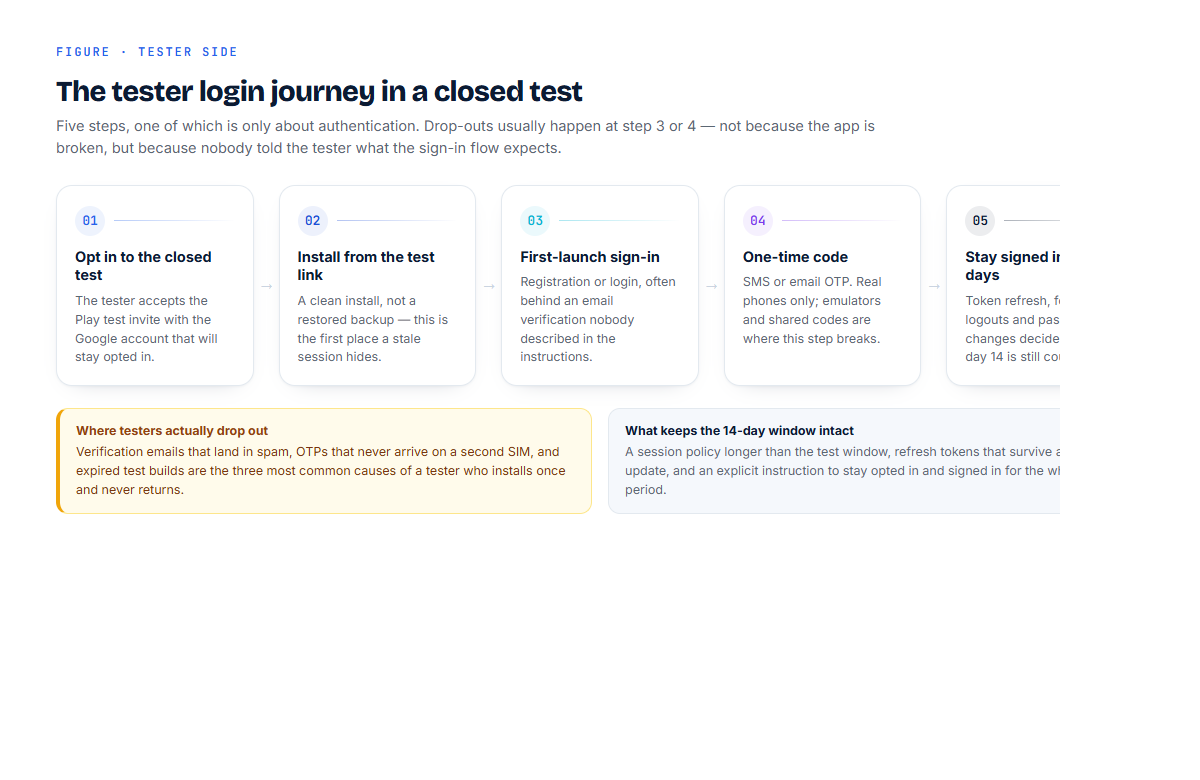
Figure 2 — Where the 14-day clock is actually lost. Original illustration for 12 Testers Community.
Three design decisions reduce that attrition more than any reminder message:
- A session lifetime longer than the test. If tokens expire after seven days and your refresh logic is fragile, half of your testers are signed out before day 14. Make refresh survive an app update and a device restart.
- A verification path that does not need an inbox. If email confirmation is mandatory, say so in the tester instructions, and tell testers to check spam before reporting a failure.
- Re-authentication that does not destroy progress. A tester forced to sign in again should land back where they were, not on an empty dashboard.
The continuity problem is bigger than the login screen, which is why keeping 12 testers opted in and what makes a tester eligible are worth reading alongside this one. Authentication is simply the first place continuity breaks.
The authentication methods you are likely to ship
Each mechanism creates a different obligation at review time. The table below is the one to keep open while you fill in the declaration.
| Method | Tester experience | Review-time obligation | Where it breaks |
|---|---|---|---|
| Email and password | Registration, then a verification email | A working pre-configured account whose password does not expire mid-review | Verification mail filtered as spam |
| Phone number and OTP | A code by SMS or call, often auto-filled | Reusable credentials that bypass the one-time code | No phone on the reviewing side |
| Two-step verification | Password plus a second step | The same bypass requirement, stated explicitly | Second step triggered on a new device |
| Google Sign-In | One tap with an existing Google Account | Full account details plus step-by-step instructions | Account picker shows no usable account |
| Facebook or other third-party login | OAuth redirect and consent | All account information and detailed instructions | Provider blocks a sign-in from an unexpected region |
| Membership or invite code | Code, referral or employer domain | An account already inside the membership | Reviewer account created outside the tenant |
| Subscription features | Paywall inside the app | Instructions or access details for the paid area | Reviewer reaches a checkout screen and stops |
| Location-restricted access | Content or login tied to a country | A credential valid regardless of location | Geo-gate rejects the review session |
Two of these deserve a warning. Third-party sign-in is the method most often declared incompletely, because Google's guidance asks for all account information and detailed instructions — an OAuth screen is not self-explanatory to someone who does not know which identity provider you used. And membership gating is the method teams forget entirely, because the app “works”: it just shows an empty state to anyone outside the tenant.
What Google actually requires of the credentials you declare
The requirements are published, short and specific. They are also the checklist most access rejections are traceable to.
| Requirement | What it means for your app | Common miss |
|---|---|---|
| Accessible at all times, reusable, and valid regardless of user location | The account must not be single-use, time-limited or geo-fenced | A credential tied to one region or one device |
| Maintained without error, so an expiring password cannot block review | Own the account, control its expiry, update the declaration when it changes | A password on a rotation nobody owns |
| Where a one-time password or 2-Step Verification is normal, provide reusable credentials that bypass it | The declared account must skip the code, in the app, for that account only | A demo account that still triggers the SMS |
| Details provided in English | Instructions and any localised login vocabulary translated | Instructions written in the team's own language |
| Non-text credentials such as a QR code or barcode supplied as a static URL | Publish a stable URL for the code and put it in the declaration | A screenshot of a rotating code |
| Self-set passwords, such as an in-app PIN, need clear instructions | State the PIN, or the exact flow that sets it | “Enter your PIN” with no PIN given |
| Sign-in through other accounts needs all account information and detailed instructions | Name the provider, the account, and every tap | “Sign in with Google” and nothing else |
| Subscription paywalls need extra instructions or access details | An entitled account, or a documented way through the paywall | Reviewer stuck at a purchase screen |
Google also documents the maintenance side: if an update is rejected or the app is removed for access reasons, you can correct the declaration and resend it from Publishing overview without waiting on a support reply. Treat the declaration as live configuration, not a one-time form.
The practical reading is simple. Anything that stops a stranger from reaching your last screen is an access requirement, and Google expects to be told about it in the place it looks: Requirements for providing sign in details for review.
Configuring sign-in details in Play Console
The declaration sits on the App content page, under Sign-in details. You add a set of instructions, and you can add up to five. Two fields do the heavy lifting: the credentials themselves, and the free-text instructions field that describes anything unusual about your login mechanism.
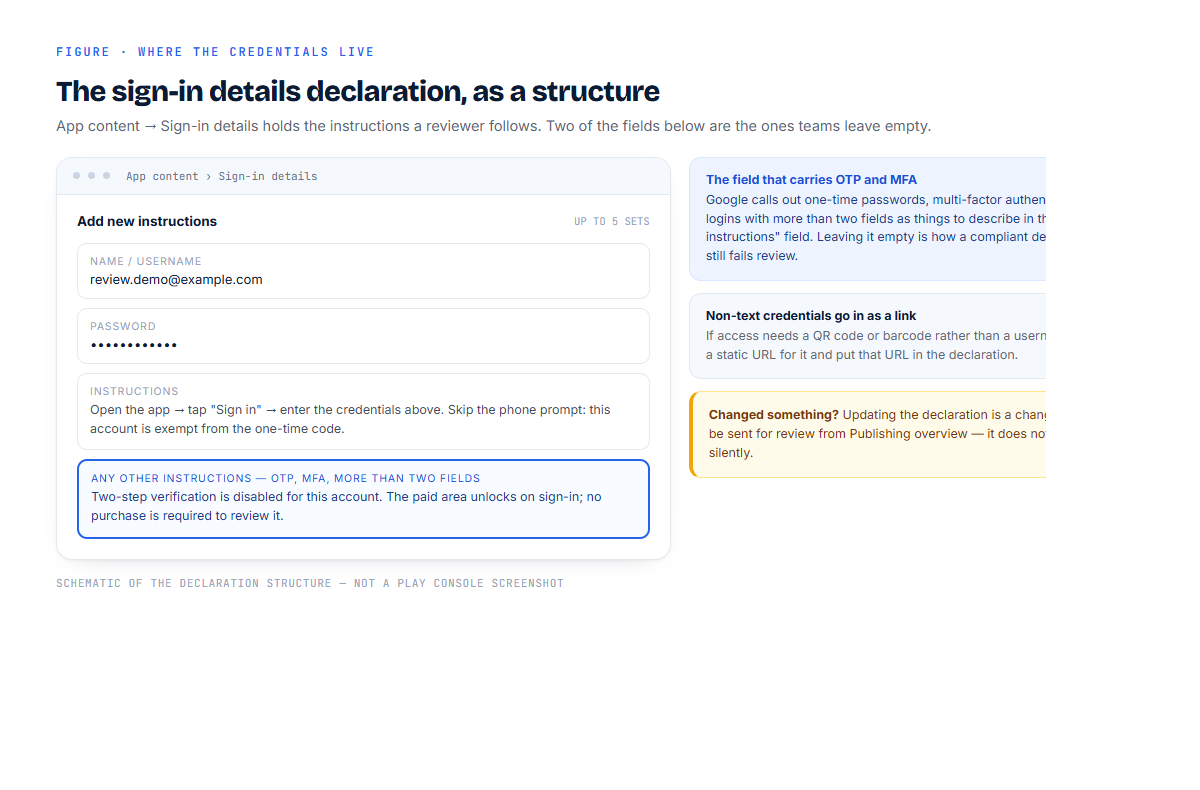
Figure 3 — The declaration structure, drawn as a schematic rather than a screenshot. Original illustration for 12 Testers Community.
Google names that second field explicitly as the place to explain one-time passwords, multi-factor authentication and logins with more than two fields. It is the field most often left empty, and an empty field is why a perfectly good demo account can still fail review: the account works, and nobody told the reviewer how.
Write instructions as a sequence, not a description. “Open the app, tap Sign in, enter the account above, skip the phone prompt, the paid area unlocks on the dashboard” beats “uses standard login with premium enabled” every time. If a step needs a second field — a tenant code, an employee ID, a PIN — it belongs in the instructions, not in the reviewer's imagination. The full walkthrough of app access instructions covers the console mechanics step by step; this section assumes you already know where the page is.
Preparing a reusable demo account
The mistake to avoid is treating the demo account as a customer record with a known password. It should be a separate identity that the auth layer routes into seeded, non-production data, so a reviewer sees a populated app and you never expose a real customer.
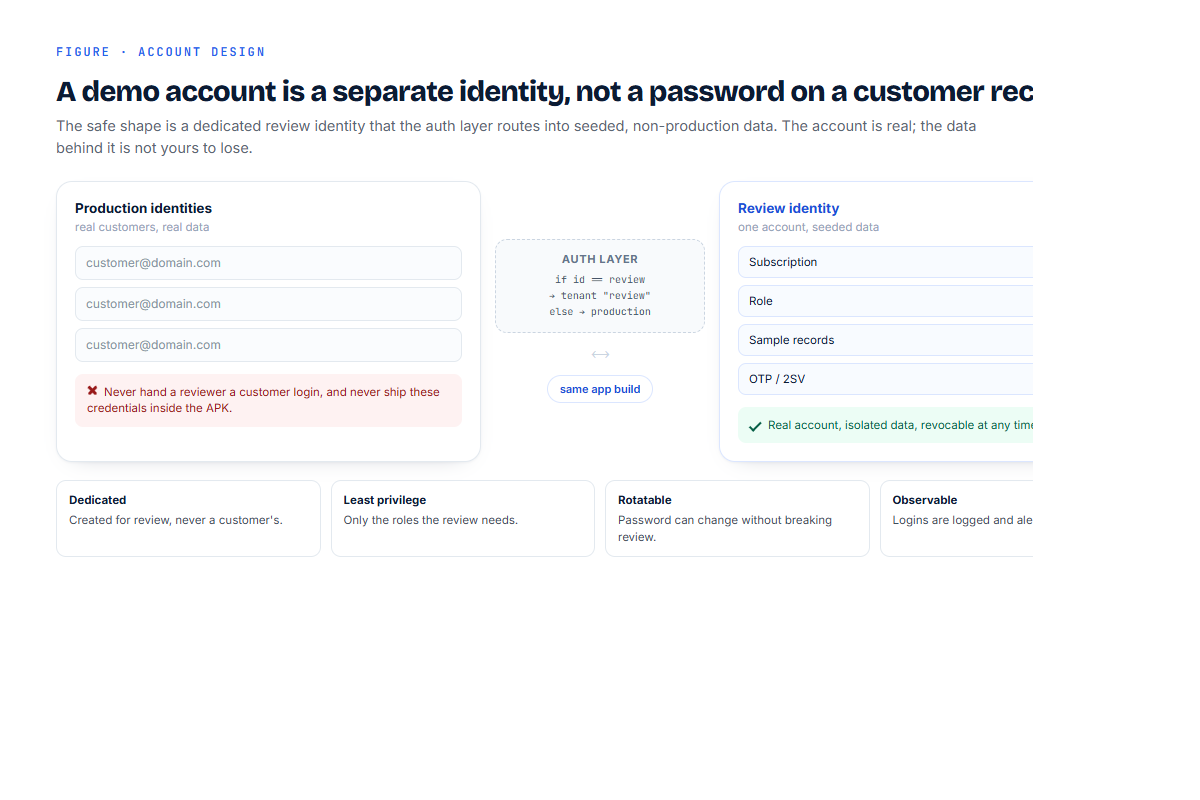
Figure 4 — One identity, isolated data, the same app build. Original illustration for 12 Testers Community.
A working version of that shape, in practice:
- Own the address. Create the account on a team mailbox you control, not a personal one and not a customer's. Password resets stay inside the team.
- Pre-complete onboarding. Skip the tutorial, accept the terms, and land the reviewer on a screen with content rather than an empty state.
- Seed deterministic data. Three records with obvious names beat an empty list, and they make your instructions verifiable: “you should see three orders” is a test the reviewer can pass.
- Entitle what the review needs. If the paid area is the point of the app, the account must already be entitled — or the declaration must explain how to get there without paying.
- Give it the smallest role that shows the app. A demonstration account does not need administrative powers, and least privilege limits what a leaked password can do.
- Plan the rotation. Decide who changes the password, how often, and how the change reaches Play Console. Google's warning is explicit: an expired password can make the app unreviewable, and therefore rejected.
OTP and MFA: getting a code out of the reviewer's way
A one-time code exists to prove that a human holds a specific phone. A review session has no such phone. That conflict is the most common cause of access-related rejections for apps that use SMS verification, and it cannot be solved by explaining the flow more carefully — the account has to be exempt.
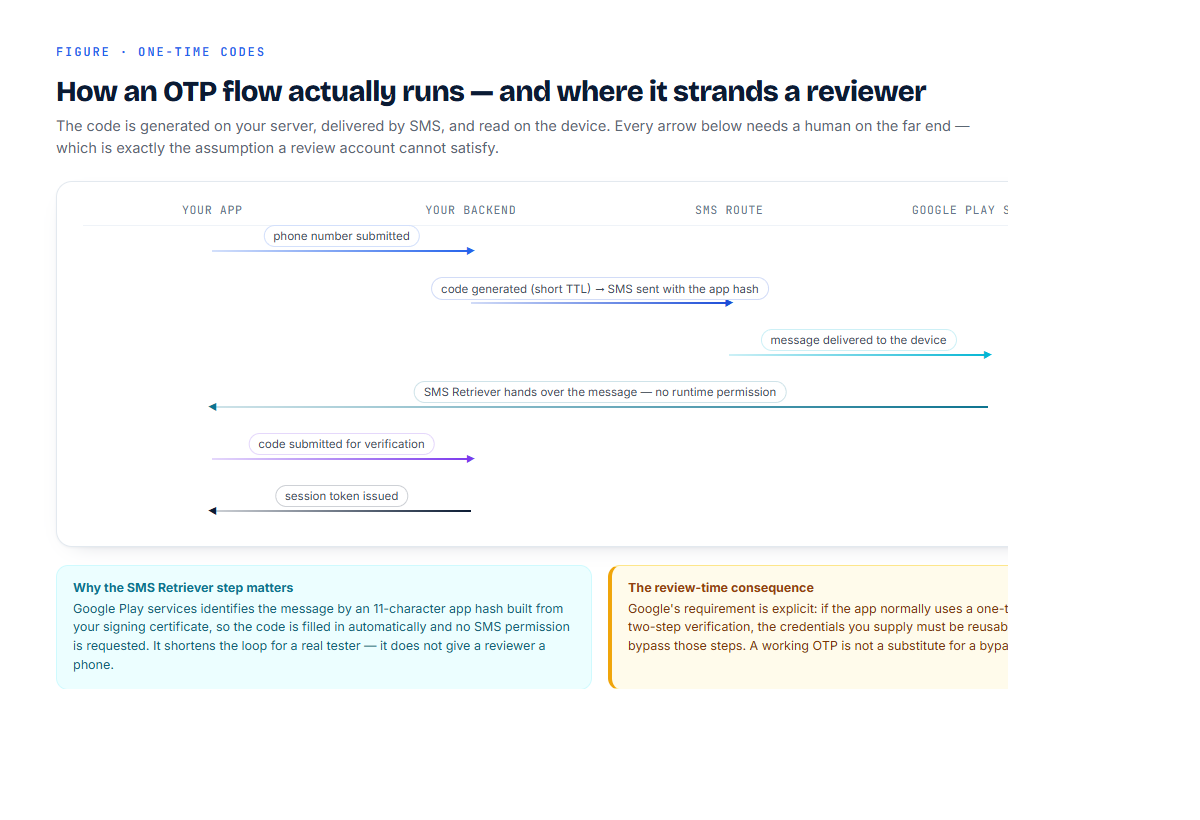
Figure 5 — Every arrow needs a human at the far end, which is exactly what a review account cannot supply. Original illustration for 12 Testers Community.
The automated path is worth understanding even if you exempt the review account, because it improves the tester experience. Google's SMS Retriever API fills the code in automatically: Play services matches an 11-character app hash derived from your signing certificate, and the user never types anything or grants an SMS permission. It removes a step for a real tester — it does not create a phone for a reviewer.
| Problem | What it looks like | Practical fix |
|---|---|---|
| Reviewer cannot receive the code | Review stops on the code entry screen | Exempt the declared account from OTP, and say so in the instructions field |
| Second step triggers on a new device | An MFA challenge appears only for the reviewer | Pre-trust the account, or use a credential with no second step |
| Code expires before it is used | Testers report “code invalid” after a pause | Show the code lifetime on screen; resend without resetting the session |
| SMS never arrives on a second SIM | Testers on dual-SIM or VoIP numbers are blocked | Offer an authenticator or email fallback, and document it |
| Hash mismatch after a signing change | Auto-fill stops working after the signing certificate changes | Rebuild the app hash from the current certificate |
| Bypass exists but is undocumented | The account works; the reviewer still cannot proceed | Describe the bypass in the “any other instructions” field |
Testing your login flow before anyone is invited
Test the authentication pass on a physical device, in this order, and you will find most of what a tester or reviewer would have found for you.
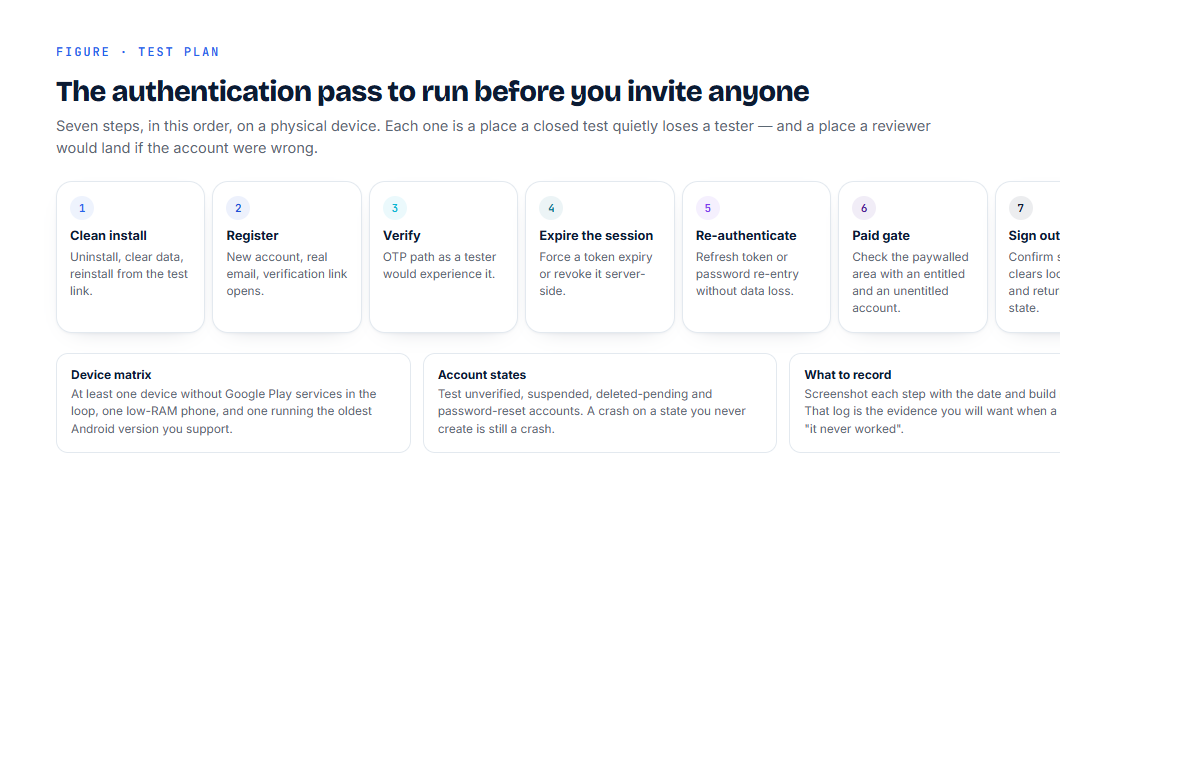
Figure 6 — Seven steps that decide whether the window survives contact with real people. Original illustration for 12 Testers Community.
The step teams skip is session expiry. Force it deliberately — revoke the token server-side, or shorten its lifetime in a staging build — and watch what the app does. If a returning tester is dropped on a login screen with no memory of where they were, expect drop-outs. If the refresh flow silently fails after an app update, expect a large drop-out on the day that update ships.
Also test the states you never create by accident: an unverified account, a suspended account, a password reset in progress, an account pending deletion. Google requires an account deletion route for apps that allow account creation, so those states exist in your product whether or not they exist in your test plan. A crash on an edge state is still a crash report from a tester who then leaves.
Common problems, and how to tell them apart
When access fails, the useful question is not “what is wrong with the login?” but “which side of the door is failing?” Testers and reviewers fail in different ways, and the evidence looks different too.
A tester failure is almost always reported to you, in words, by someone who was already inside the app once. A review failure is silent: you learn about it from a rejection message that mentions app access or sign-in details, often accompanied by a screenshot of your own login screen. If testers are signing in successfully and the app was still rejected, stop debugging the app and read your declaration.
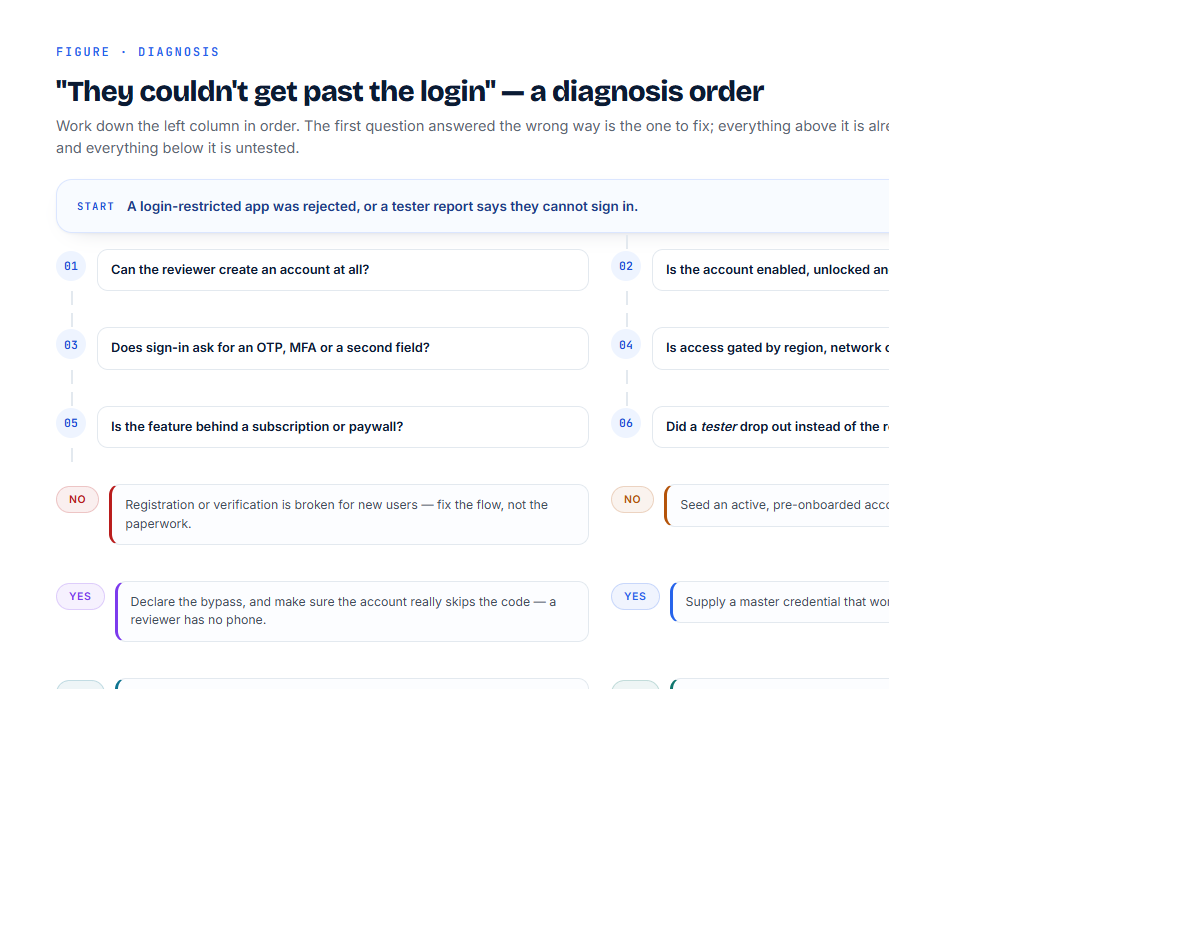
Figure 7 — Work down the list; the first wrong answer is the one to fix. Original illustration for 12 Testers Community.
Troubleshooting comparison table
| Error seen | Likely cause | Verify by | Fix |
|---|---|---|---|
| “Invalid credentials” for a working account | Whitespace, autocapitalisation or a non-English keyboard | Copy-pasting the credential exactly as declared | Publish the password without trailing spaces; state the layout |
| Account created but never verified | Verification email filtered, or the link expired | Checking the team mailbox for the message | Pre-verify the demo account and skip verification for it |
| Code screen with no code arriving | OTP required for the declared account | Signing in on a device with no SIM | Exempt the account; document the exemption |
| Third-party sign-in loops back to login | OAuth redirect misconfigured for the release build | Completing the flow on a clean install of the uploaded build | Fix the redirect URI; name the provider in the declaration |
| “Not available in your region” | Location-gated content or password | Testing from a network outside your home country | Issue a master credential valid in any region |
| App opens on a paywall | Features behind a subscription with no access instructions | Reviewing with an unentitled account | Entitle the demo account, or describe the unlock path |
| Signed out after an update | Refresh token invalidated by a signing or schema change | Installing the update over a signed-in session | Preserve refresh tokens across updates; test the upgrade path |
One pattern repeats: most of these fixes are configuration, not code. That is why the diagnosis order matters — changing authentication code to fix a declaration problem wastes a release cycle and puts the working flow you already have at risk.
Security practices for demo accounts
A credential you hand to a review team is a credential in someone else's hands. The aim is an account a stranger can use and nobody else can abuse.
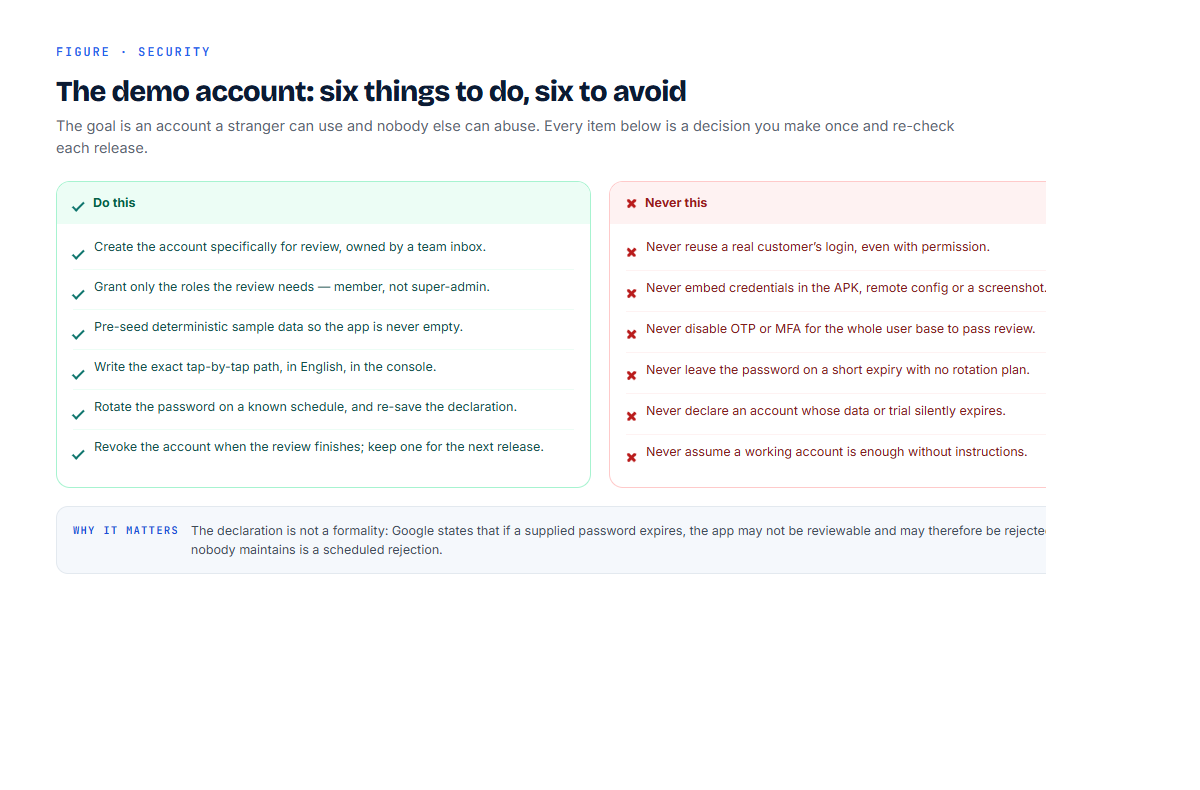
Figure 8 — Six habits, six traps. Original illustration for 12 Testers Community.
The rule that matters most: never relax security for the whole user base to satisfy a review. Disabling OTP globally, or shipping a universal bypass, trades a review problem for a production vulnerability. The exemption belongs to one account, enforced server-side, logged, and reversible.
| Control | Implementation | Why it matters |
|---|---|---|
| Dedicated identity | Created for review, owned by a team mailbox | No customer data is exposed, and resets stay in-team |
| Least privilege | Member-level role with the features the review needs | Limits the damage from a leaked credential |
| Seeded, non-production data | Deterministic sample records in an isolated tenant | The app looks complete without exposing real records |
| Server-side exemption | OTP and MFA bypass keyed to that account only | Security is relaxed for one identity, not everyone |
| Rotation with an owner | Named person, scheduled change, declaration updated | An expired password can make the app unreviewable |
| No credentials in the client | Never in the APK, remote config or screenshots | A credential in the binary is a public credential |
| Audit trail | Log sign-ins and alert on unusual regions | You notice misuse before it becomes a breach |
| Revocation plan | Disable the account after review; keep one for next time | A stale review account is standing attack surface |
Developer pre-submission checklist
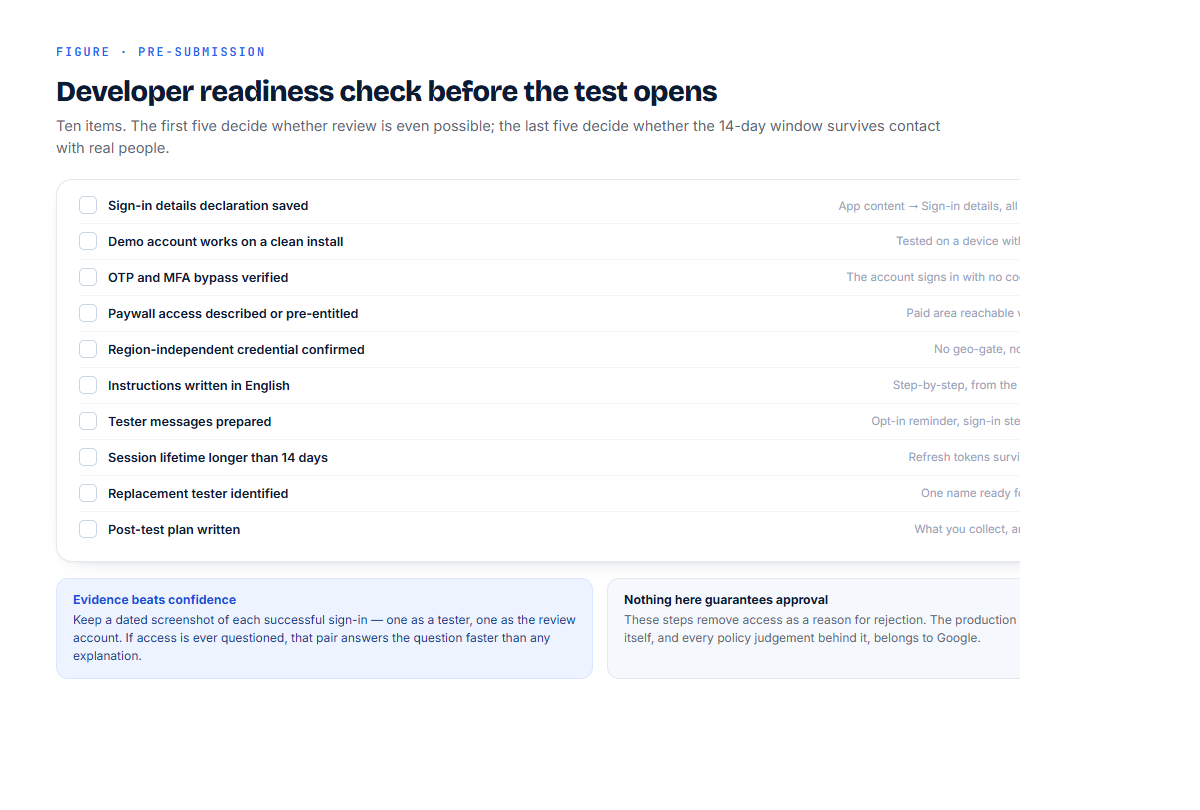
Figure 9 — The first five decide whether review is possible; the last five decide whether the test survives. Original illustration for 12 Testers Community.
Run this list before the test opens, not before the production access application. Finding a broken sign-in on day one is a fix; finding it on day twelve, with 11 eligible testers instead of 12, is a lost cycle. The 14-day closed testing checklist covers the rest of the run-up, and the rule itself is worth re-reading if you are unsure what counts.
Flutter and native Android implementation notes
Two implementation details cause more test-window damage than any policy question.
Session persistence. Store tokens in platform-backed secure storage rather than plain preferences, and refresh them before expiry rather than after a failure. Android's Keystore — reachable through flutter_secure_storage or directly through EncryptedSharedPreferences — keeps secrets out of ordinary app storage. Google's security best practices and the Keystore overview are the references to follow.
// Flutter: refresh proactively, keep the token out of plain storage
final storage = const FlutterSecureStorage();
final expiry = await storage.read(key: 'expires_at');
if (DateTime.parse(expiry!).isBefore(DateTime.now().add(const Duration(minutes: 5)))) {
  final token = await auth.refresh();          // silent, no UI
  await storage.write(key: 'access_token', value: token.accessToken);
  await storage.write(key: 'expires_at', value: token.expiresAt.toIso8601String());
}
One entry point for credentials. Google's recommended credential API on Android is Credential Manager, a Jetpack API that covers passkeys, Sign in with Google, passwords and digital credentials behind one interface, and integrates with credential restore on a new device. Using it does not change the review requirement — a reviewer still needs your account — but it shortens the tester's path to a signed-in state, which is the number that decides your day-14 count.
If you are testing a multi-step sign-in, log the steps you take. A structured record of what a tester did, in order, is what turns “login broken” into an actionable report; the bug report template is built for exactly that.
Frequently asked questions
Do I need a demo account for every app? No. You need one when access to your app, or part of it, is restricted by credentials, membership, location or another authentication mechanism. A fully open app has nothing to declare beyond stating that no sign-in is required.
Can I just tell the reviewer to contact me for a code? No. Google's requirement is that the credentials be reusable and able to bypass one-time passwords and two-step verification. A flow that depends on a human being available is a flow that can stall.
Is it acceptable to use a real customer's login? Not in practice, and not in spirit. It exposes personal data to a third party, breaks the moment that customer changes their password, and is the shortcut that turns a review into an incident.
What if my sign-in needs a QR code? Google's guidance is to generate a static URL for the code or barcode and upload that to Play Console. A screenshot of a rotating code will be out of date before it is read.
Does a good declaration guarantee approval? No. It removes access as a reason for rejection. Every other policy judgement, and the production access decision itself, remains Google's.
Can I change the declaration after publishing? Yes, and you should whenever credentials change. Updates go through review, so make the change early rather than during an active test.
Conclusion
Login-based apps do not need a different closed testing process. They need the same process with one extra layer of preparation: an account you can hand to a stranger, instructions that survive being read without you, and a session that lasts longer than the test.
The two audiences should stay separate in your head. Testers need continuity for 14 days. Reviewers need one uninterrupted session and a declaration that explains every unusual step. Fix the first with design, the second with documentation, and confirm both with a clean-install test before anyone is invited.
Action plan. Create the review account on a team mailbox, exempt it from OTP and MFA server-side, seed three records, write the tap-by-tap instructions in English, save the declaration, then run the seven-step authentication pass on a physical device. Only then open the test. If you would rather the fourteen days were handled by people whose job is to stay opted in, a managed closed test can run alongside your own authentication work — the preparation above is still yours to do.
Official Google resources
Checked 26 November 2026. These are the primary sources for every requirement quoted above.
- Requirements for providing sign in details for review — the conditions a declared credential must satisfy.
- Prepare your app for review (App content) — where sign-in details live, the “any other instructions” field, and the five-set limit.
- App testing requirements for new personal developer accounts — the 12 testers and 14 continuous days rule.
- Set up an open, closed, or internal test — track prerequisites and tester management.
- Automatic SMS verification with the SMS Retriever API
- Credential Manager and passkeys
- Turn on 2-Step Verification — what the second step is, and why it blocks an unattended review.
- Android security best practices