Last reviewed against current Google Play Console Help documentation.
A tester installs your closed-testing build, then reports something strange. A screen you removed is still there. A bug you fixed last week is still happening. Sometimes the version in the app's settings does not match the release you published this morning.
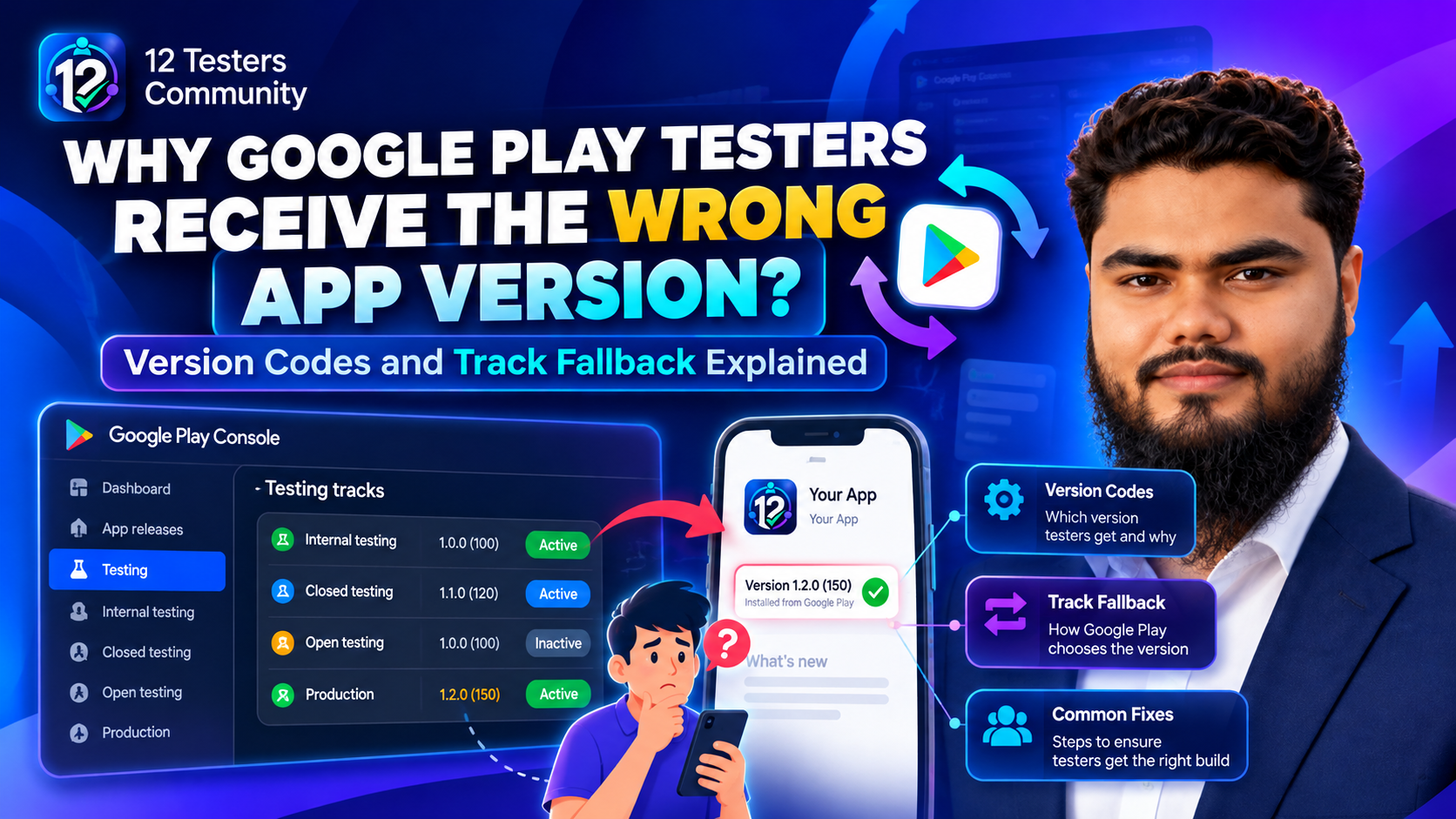
Before you suspect caching or a tester who did not really install anything, rule out a specific mechanism: track fallback. Play does not hand a tester "the build you put on their track". It hands them the highest version code that is both published to a track they are eligible for and compatible with their device — frequently a different build from the one you expect.
This guide explains that rule, the four fallback statuses Play Console reports, and how to diagnose a tester who receives a build you did not release. For authoring version codes see version code vs version name; for whether an update needs new testing see closed testing for app updates.
Quick answer
- Play chooses by version code, not by track. A device receives the build with the highest version code that it is compatible with and that is published to a track the user is eligible for.
- Eligibility is cumulative. Closed testers are eligible for both Production and Closed testing, so a higher-numbered production build can outrank your test build. Open testers are eligible for Production and Open testing.
- Internal testers are the exception. Google states that users who opt into internal testing are not eligible for open and closed testing, even if they are included as testers on those tracks — they receive only the internal build.
- Play Console names the situation. When another track serves users on your track, the console shows a fallback status: Shadowed, Promoted, Superseded or Partially shadowed.
- The usual fix is a higher version code uploaded to the track you want testers to run. The documented statuses exist to tell you when that is necessary.
How Play decides which version a tester receives
Google describes two criteria that a received version must satisfy: it contains the highest version code compatible with the device, and it is published to a track the user is eligible to receive. Neither criterion mentions the track you had in mind when you invited the tester.
Eligibility itself has two parts. To be eligible for a test track, a user must be included in the track's configuration and actively opt into that test program. Being added to a tester list is the first half only — which is why an un-opted-in tester sees nothing at all, a different symptom from the one this article covers.
Once several tracks are in play, eligibility stacks. Google's example set is precise:
| Where the user opted in | Tracks they are eligible for |
|---|---|
| Open testing | Production and Open testing |
| Closed testing | Production and Closed testing |
| Both open and closed testing | Production, Open testing and Closed testing |
| Internal testing | Internal testing only |
Read the first two rows again. Production is in the tester's eligible set even while they are testing. If the app is already live and you upload a build to production with a version code above your test build, testers legitimately receive the production build — the one you may have assumed they were not getting.
The other half of the rule explains a narrower case: "compatible with the device". Version selection is per device configuration, so one tester can receive a newer build than another from the same release. Device targeting, exclusion rules and the configurations a bundle serves all affect what a specific phone can receive. If only some testers report the wrong version, suspect device configuration before suspecting the tester.
The internal-testing exception
Internal testers behave differently, and the difference is documented in one sentence: users who opt into internal testing are not eligible for open and closed testing, even if they are listed as testers on those tracks. They receive only the version code published on the internal testing track.
That produces a specific, common confusion: a developer adds the same people to an internal test and a closed test, then wonders why the closed-testing build never appears on their devices. It is not a propagation delay or a caching problem. The tester is opted into the one track that excludes the other.
The documented resolution is to opt out of the internal test first. Google states that a user who opts into your app's internal test is no longer eligible to receive an open or closed test, and that to access an open or closed test they must opt out of the internal test and then opt in to the open or closed test.
For the wider differences between tracks, see Google Play testing tracks explained.
Shadowed, Promoted, Superseded, Partially shadowed
Google documents that while rolling out a release, Play Console displays validation messages when users on a given track receive app updates from another track. That is the track's fallback status. The four terms are worth learning, because each points at a different cause.
| Status | What Google says it means |
|---|---|
| Shadowed | One app bundle shadows another when it serves part or all of the same device configuration with a higher version code. |
| Promoted | All active app bundles are contained within active app bundles on the fallback track — for example, all active open testing bundles are also active in production. |
| Superseded | All active bundles on the track are completely shadowed by higher version codes on its fallback track. No bundle on the track serves users; everyone receives the fallback track's bundle. |
| Partially shadowed | At least one active bundle on the track is shadowed by a higher version code on the fallback track. Some users receive the track's bundle, others receive the fallback track's. |
Google's own note on the last one is the most useful line in the documentation: "This usually indicates an error in version code assignment." If you see Partially shadowed, some testers are running your test build and others are running production, which is exactly the "wrong version" report that is hardest to reproduce.
Superseded is the strongest signal. It means your test build is reaching nobody at all — a lower-numbered build on a track whose fallback is already ahead of it. Promoted is not a fault; it describes a state where the fallback track already contains everything your track contains.
Checking the track status in Play Console
- Confirm the release actually went out. Open the Publishing overview page. An approved release can still be waiting for you to publish it; managed publishing holds explain that trap.
- Read the item status. Play Console separates app status, update status and item status — an item can read Available while another track still serves users.
- Compare version codes across tracks. Note the highest version code on Production, Closed, Open and Internal testing. This comparison settles most cases on its own.
- Look for the fallback validation message shown while rolling out. If Play Console says users on this track receive updates from another track, believe it.
- Check device targeting when only some testers are affected.
Two statuses are easy to confuse with fallback and are not the same: a release still in review, and a release you have not published. Both produce "testers see nothing new", not "testers see a different version".
Verifying what the tester actually has
Do not diagnose from a description. Ask for three things:
- The version the device reports. The app's own settings or about screen is the most reliable place, because it usually shows the version name your build sets. Treat that name as a label, not proof: two builds can share a version name. For certainty you want the version code, which you can surface in an about screen during testing.
- The Play Store install source. Check that the install came from Google Play and not from a sideloaded APK, which bypasses track selection entirely.
- A screenshot of the failing screen plus the tester's Google account address, so you can match the report to the right tester entry.
One practical way to remove ambiguity for the whole campaign: display the version code inside a debug or about screen, and ask testers to include it in every report. It turns "wrong version" arguments into a single line of text.
Symptom, likely cause, verification and fix
| Symptom | Likely cause | Verify | Safe fix |
|---|---|---|---|
| All testers run an older build than you published | Superseded: a higher version code exists on the fallback track | Compare version codes on Closed testing vs Production | Upload a build to the test track with a higher version code than production |
| Some testers are current, some are not | Partially shadowed — device configurations served by different bundles | Check the fallback message and each affected device's configuration | Publish a version code above every other track's, covering the affected configurations |
| A specific phone always gets the production build | That device configuration is not served by your test bundle | Review device targeting and the bundle's supported configurations | Adjust targeting, or accept that this device receives production |
| Internal testers never see the closed build | Documented: internal opt-in excludes open and closed testing | Ask the tester which test they opted into | Opt out of the internal test, then opt in to the closed test |
| Nothing changed for anyone, and the release looks fine | Release approved but not published, or still in review | Publishing overview: changes ready to publish vs in review | Publish the release, or wait for review |
| A tester who was just added sees the old build | They are on an older opt-in, or a different track than you think | Confirm the track name they used and re-send the correct opt-in link | Send the link from the intended track; keep one link per track |
| App updated, but a tester still sees old content | Not fallback — server content, cache or a feature flag | Confirm version code matches the new release | Treat it as an app or backend bug, not a distribution problem |
When it is not track fallback
Fallback is a version-selection problem: the tester receives a real, working build that simply is not the one you meant. Other failures look similar, and mixing them up wastes days.
- Propagation delay. Google warns that after publishing a test for the first time, the test link can take several hours to become available, and that additional changes can also take several hours. Delay produces nothing new yet, not a coherent older build.
- Not opted in. Listing someone as a tester does not opt them in; a tester who has not completed opt-in receives no test build at all.
- Wrong link. A link copied from another track sends the tester to the wrong program. Closed testing not working covers access failures in order.
- Stale local state. If the version code is right but behaviour is old, it is a caching or backend issue inside the app.
Common mistakes
Numbering the test build below production. The most common cause of a test nobody is actually running. Start from the highest version code uploaded anywhere for that app, then go above it.
Reusing a tester list across tracks and forgetting which track they opted into. A person can be listed on three tracks and opted into one.
Treating the internal test as a safe staging copy. It is, for the people in it — and those people are then excluded from your closed test.
Reading version name as version code. Version name is what users see; version code is what Play compares.
Debugging with one tester. Fallback is per device configuration, so a single phone tells you about that phone.
Blaming the tester. When the documented statuses say the build is shadowed, no amount of reinstalling will help.
Frequently asked questions
Why does a closed tester receive the production build instead of the test build?
Because closed testers are eligible for both Production and Closed testing, and the device receives the highest version code across the tracks it is eligible for. If the production build has a higher version code than the test build, the production build wins.
What does "Superseded" mean in Play Console?
All active bundles on that track are shadowed by higher version codes on its fallback track, so no bundle on the track serves users. In practice your test build is reaching nobody. Upload a build with a version code above everything else published for the app.
Is "Promoted" a problem I need to fix?
Not necessarily. It describes a state where all the active bundles on your track are also contained within the fallback track's bundles. It tells you where those users are actually being served from, which is worth knowing before you announce a build as the thing to test.
Why do only some testers get the new build?
Version selection happens per device configuration, so different devices can be served by different bundles. Google describes this as partially shadowed and notes that it usually indicates an error in version code assignment.
Can I make the test build override production without changing the version code?
The documented rule is based on the highest version code among eligible tracks, so the version code is the reliable lever. There is no documented switch that makes a lower-numbered test build win.
Does a tester need to uninstall to receive the correct build?
Not for a fallback problem — the cause is which build the account is eligible to receive, not what is installed. Once a build with a higher version code is available to that account, the normal update path applies.
Should I check version codes before starting a test?
Yes, and it takes a minute. Compare the highest version code on every track you use, then upload a test build above them all. That single check prevents the entire class of problem described here.
Conclusion
A tester receiving the "wrong" version is rarely a broken device or a stuck store. Play picks the highest version code compatible with the device and available to the account — and a closed tester is also eligible for production, so an out-of-order version code quietly sends them elsewhere.
The diagnosis is short: compare version codes across your tracks, read the fallback status Play Console reports, and check which track the person actually opted into. The fix is usually one upload with a higher version code.
If you would rather the coordination were handled, our team runs real-device closed tests with progress you can watch, and the same documented rules apply. You can see how the 12 testers service works whenever it helps.
Official sources
- Google Play Console Help — Set up an open, closed, or internal test (testing track statuses, fallback terms, eligibility)
- Android Developers — Version your app (version code and version name)
- Google Play Console Help — Publishing status (app, update and item statuses)
- Google Play Console Help — Control when changes go live (managed publishing)
Version-selection rules and Play Console status vocabulary change over time. Verify current behaviour in the official Play Console Help pages linked above before relying on it for a live test.